
Add a small object to an existing C2Story illustration
Add one yellow butterfly with Describe → Edit, compare the actual before and after, and verify the saved result in the public reader. Includes the exact instruction, credit observation and phone-preview limitation.
This walkthrough adds one small yellow butterfly to an existing watercolor illustration using Edit image → Describe → Edit. The edit was performed in the live C2Story interface on October 13, 2026, then checked after a refresh and in the signed-out reader.
Before you start
Sign in to C2Story and open a book you own from My Books. You need an existing illustration and enough credits for the edit. In this run, the Generate area displayed 1 credit.
Our starting asset was the already saved, one-page Milo Waters His Sunflower, created in an earlier workflow. Its coral-pink fence was also a previous edit. We did not create a new character, book, page, or video for this tutorial. The only new result here is the butterfly edit to page 1.
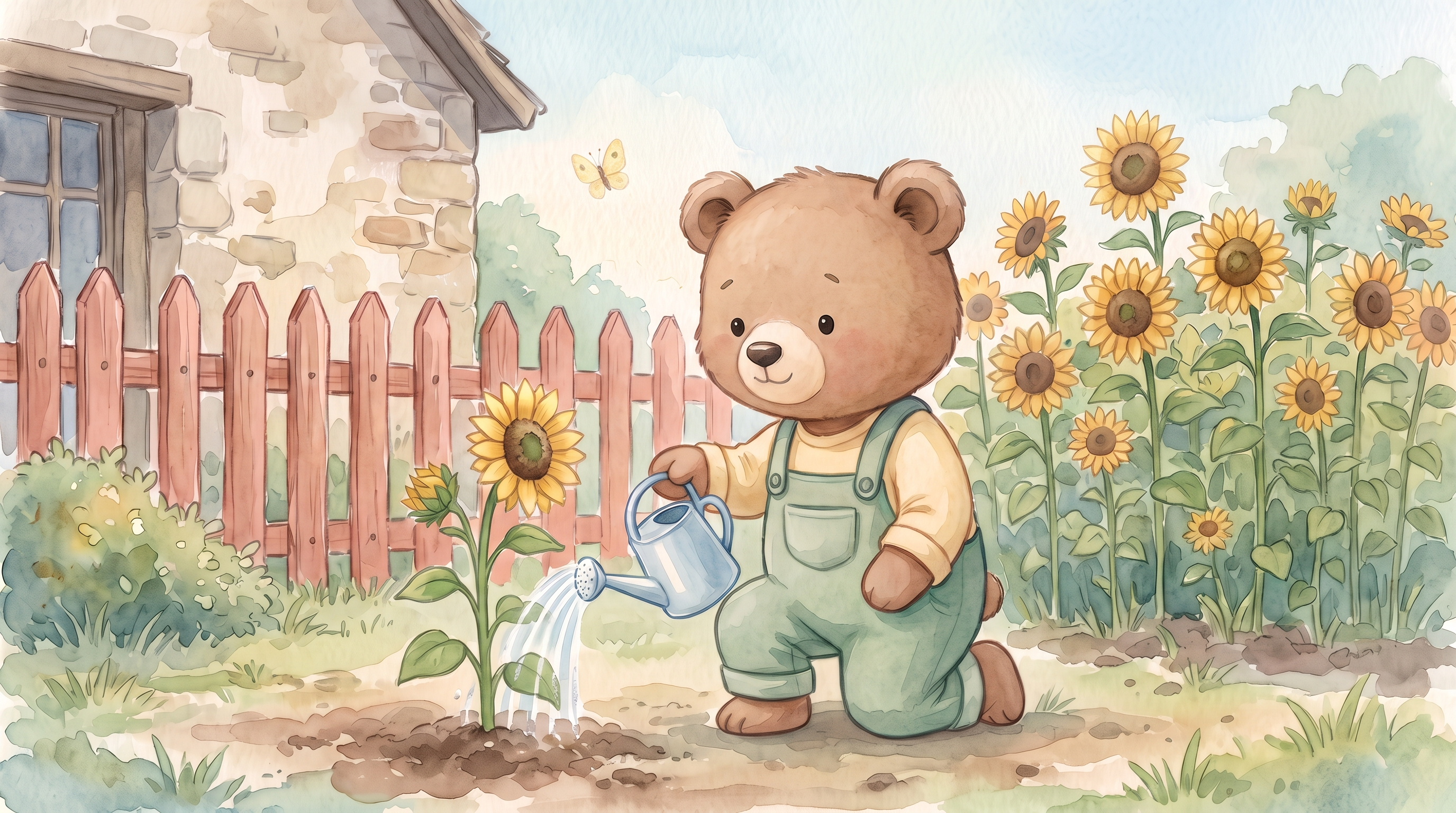
Success meant seeing exactly one yellow butterfly in the open sky to the left of Milo's head, keeping the recognizable character and watercolor garden composition, and finding the new image again after reopening the editor and public reader.
Step 1 — Open the existing page
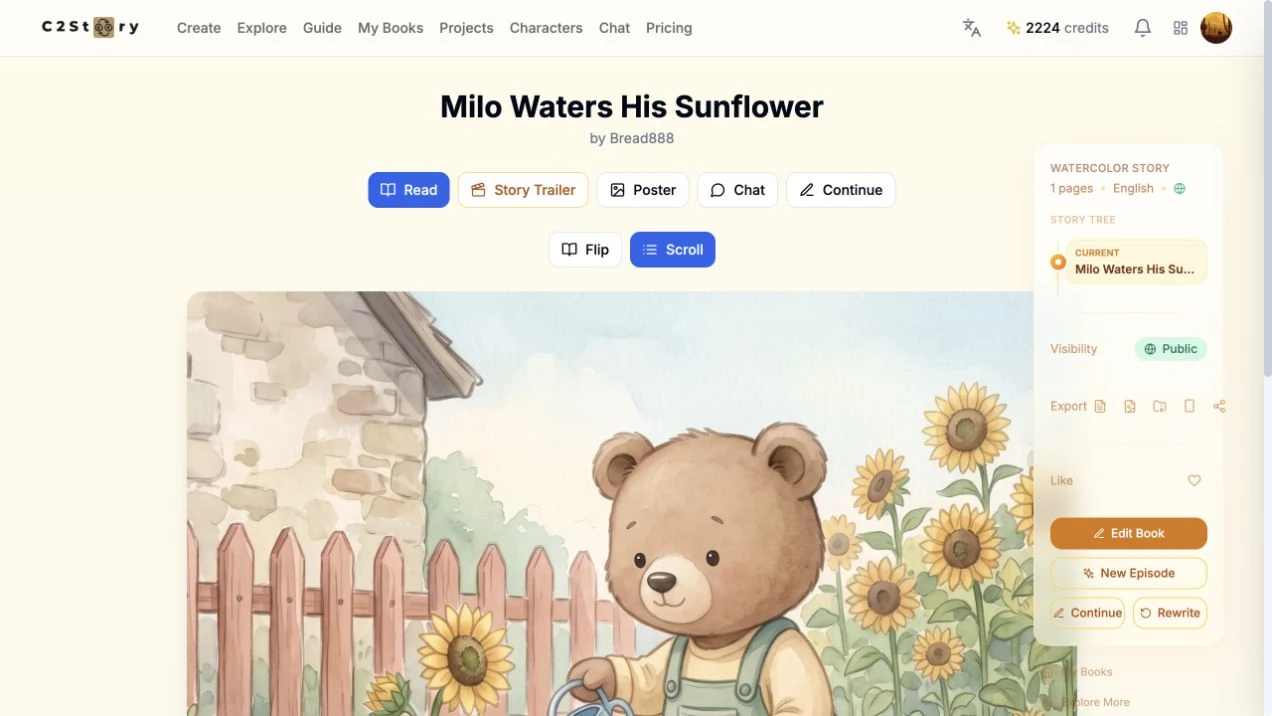
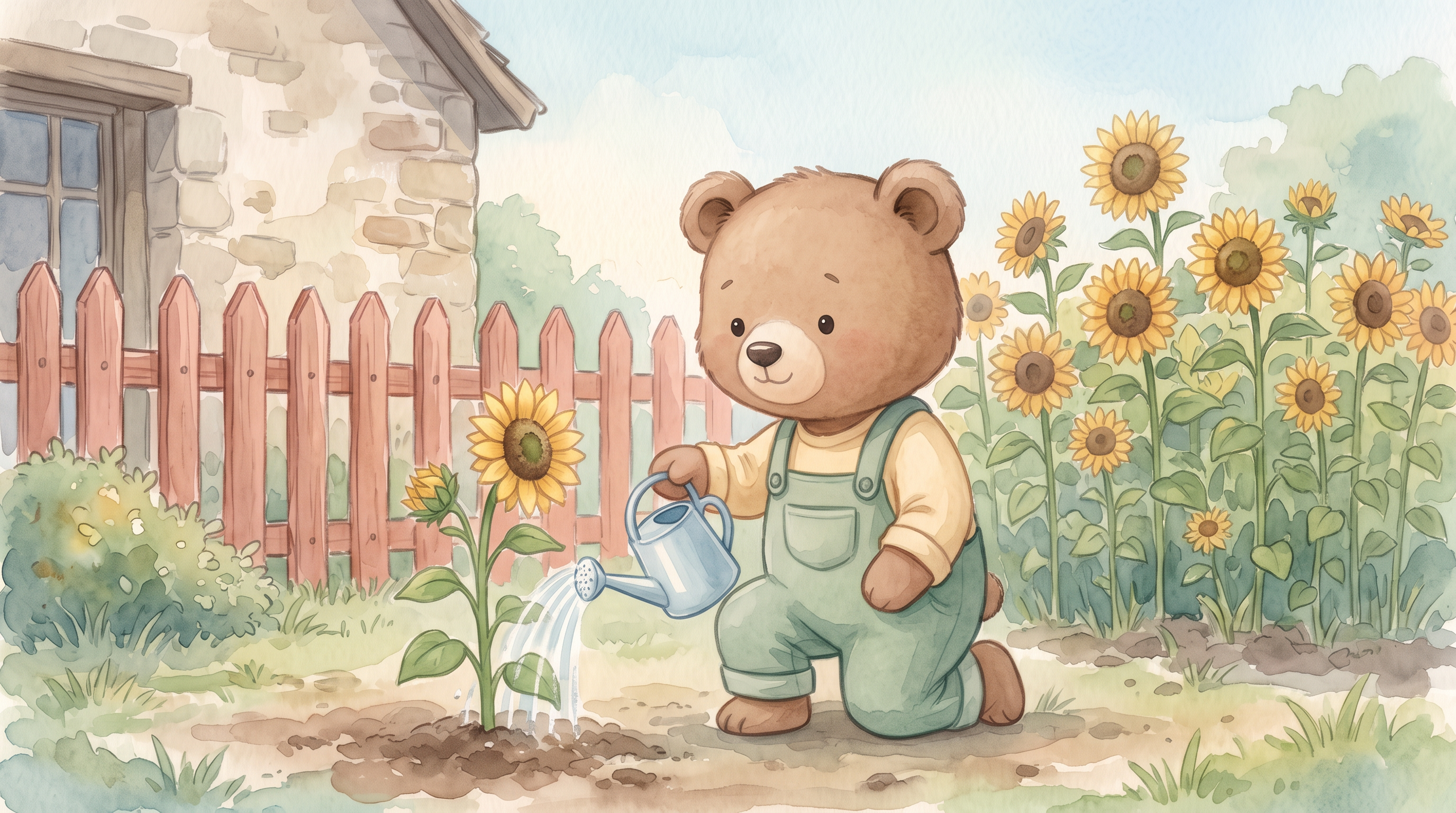
Open your book, click Edit Book, and then click Edit image on the page you want to change. For this run, that was page 1. The original illustration had Milo, his blue watering can, sunflowers, a cottage and a coral fence, with no butterfly in the target sky area.
Here is the actual starting image for a full before-and-after comparison:
Step 2 — Describe one addition
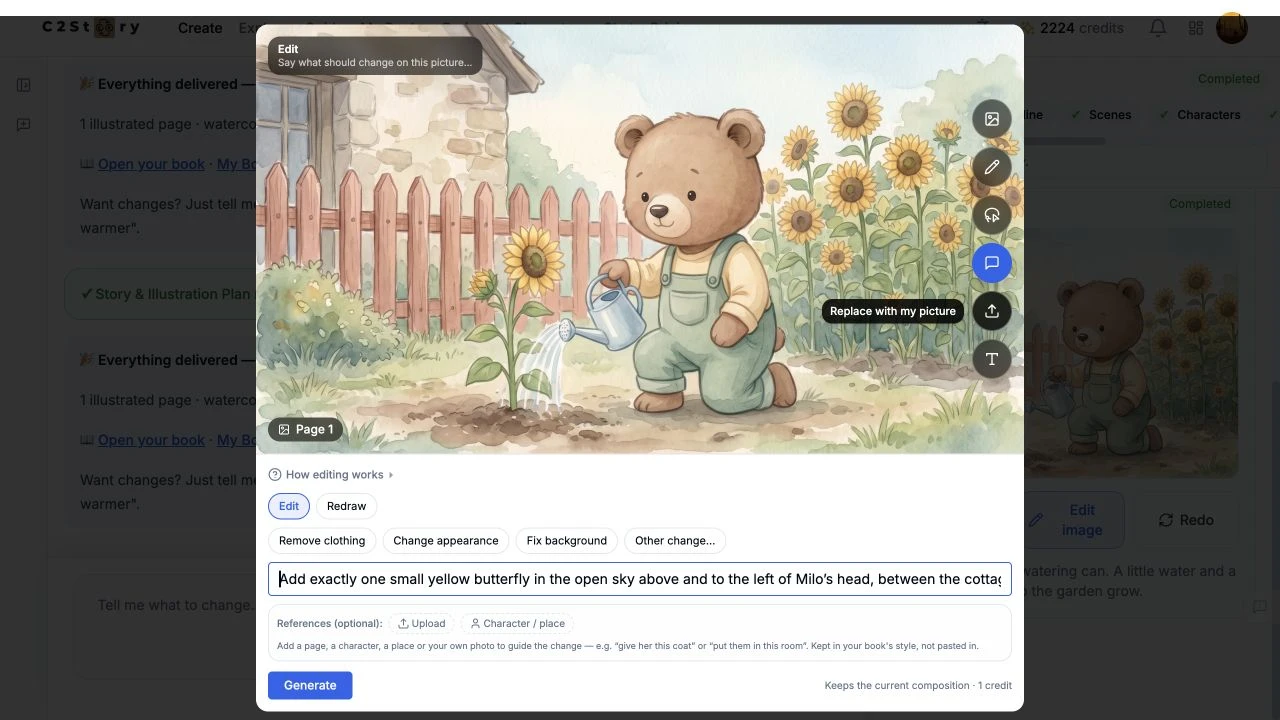
Click Describe and keep Edit selected. The UI describes this option as changing the current picture while keeping its composition. No optional reference was uploaded or selected.
We entered this exact instruction once:
Add exactly one small yellow butterfly in the open sky above and to the left of Milo’s head, between the cottage roof and his left ear. Keep Milo’s face, light-brown fur, cream shirt, sage-green overalls, pale blue watering can, the sunflowers, coral-pink fence, and the existing composition unchanged. Match the existing soft watercolor picture-book style. Do not add text or any other new objects.
The single-line field shows only part of the long instruction at once; the complete input is transcribed above. The existing book style was watercolor, and the instruction explicitly preserved it. We did not select an image model or an aspect ratio in this dialog: those controls were not visible, and the model used for the edit was not disclosed here.
Step 3 — Generate once and inspect the result
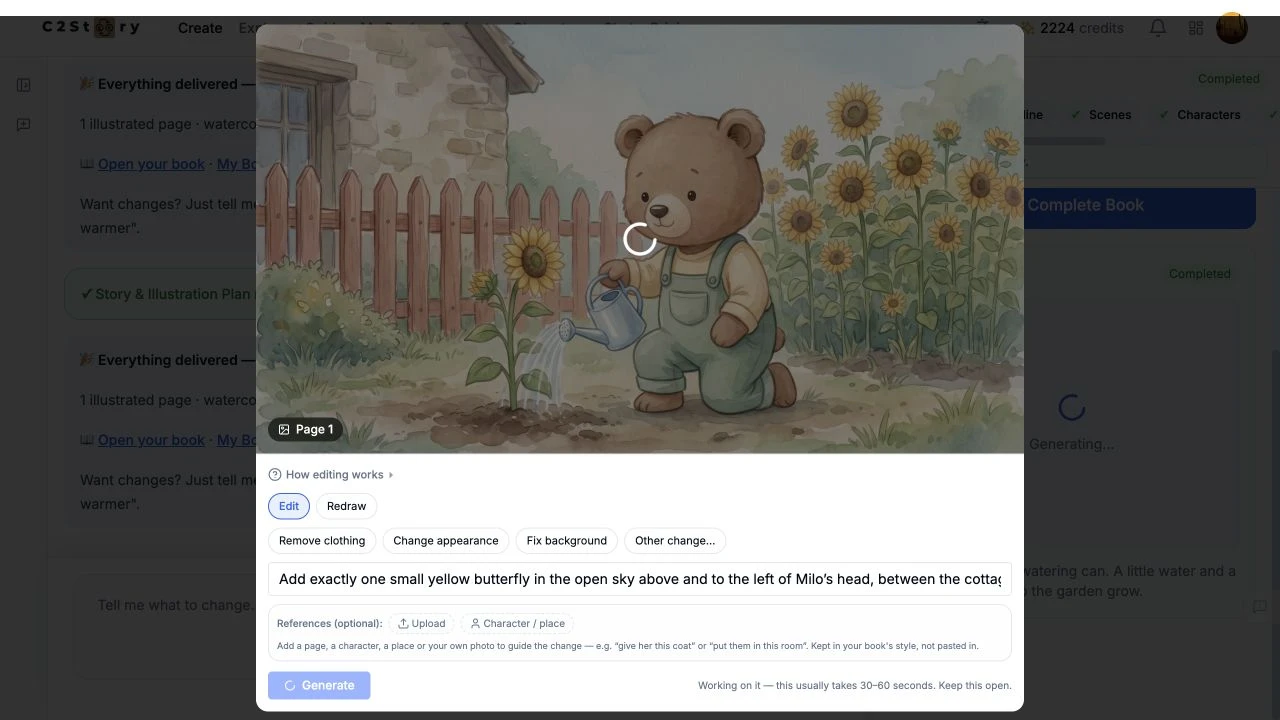
Click Generate once. The controls became disabled and the UI asked us to keep the dialog open while it worked. We waited without resubmitting.
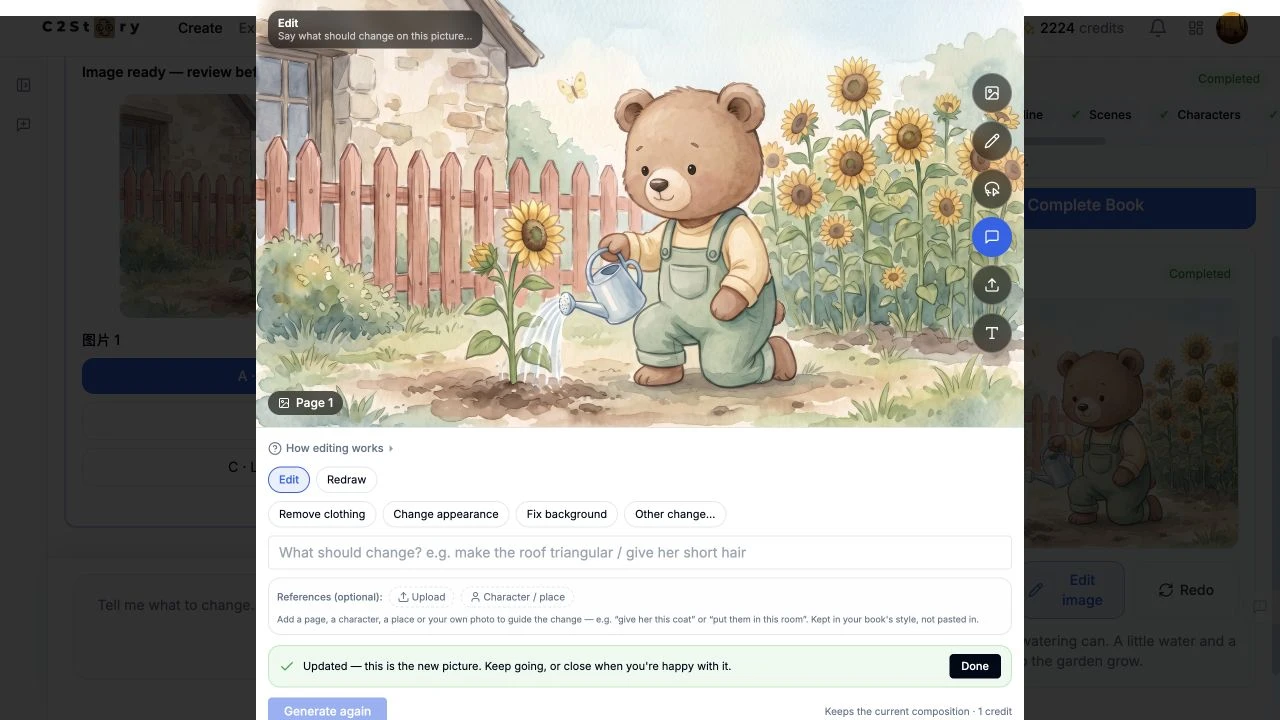
The dialog displayed Updated — this is the new picture. One small yellow butterfly appeared in the requested sky area. Milo's clothing, watering can, coral fence and overall garden arrangement remained recognizable, and the illustration retained its soft watercolor appearance. This is a visual comparison, not a claim that every other pixel stayed identical.
Click Done when satisfied. A separate image-review card appeared behind the dialog and continued automatically; we did not submit a second generation or a new correction.
Step 4 — Refresh and reopen to check saving
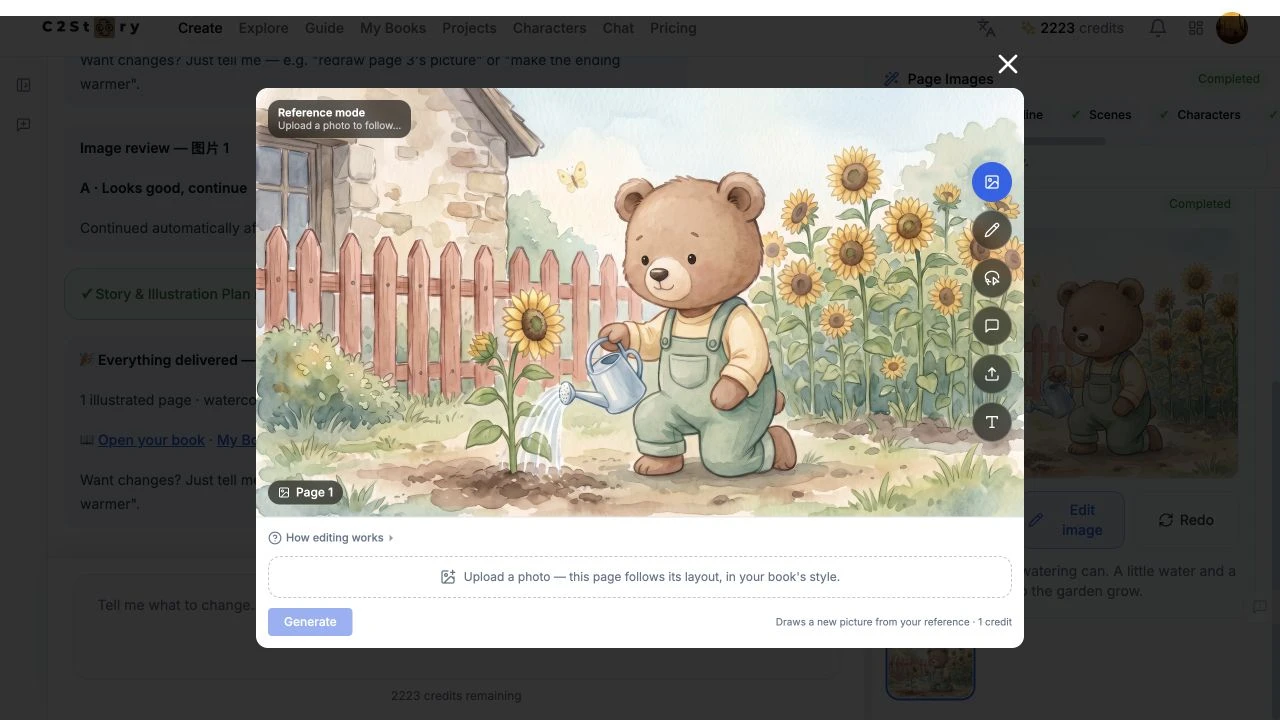
We refreshed the editor, waited for the saved session to load, then clicked Edit image again. The butterfly was still present. The page's existing story text also remained unchanged:
Milo tips his blue watering can. A little water and a little kindness help the garden grow.
The balance displayed 2,224 before generation and 2,223 after the refresh, an observed decrease of one credit, matching the edit price shown. The balance stayed stale in the editor until the refresh; we did not inspect an itemized bill.
Step 5 — Check the reader and compare the final image
Return to the book reader. This book was already Public. We clicked its normal Share control, although no copy confirmation was visible in this browser, so we retained the actual reader address and tested it after signing out.
Read Milo Waters His Sunflower
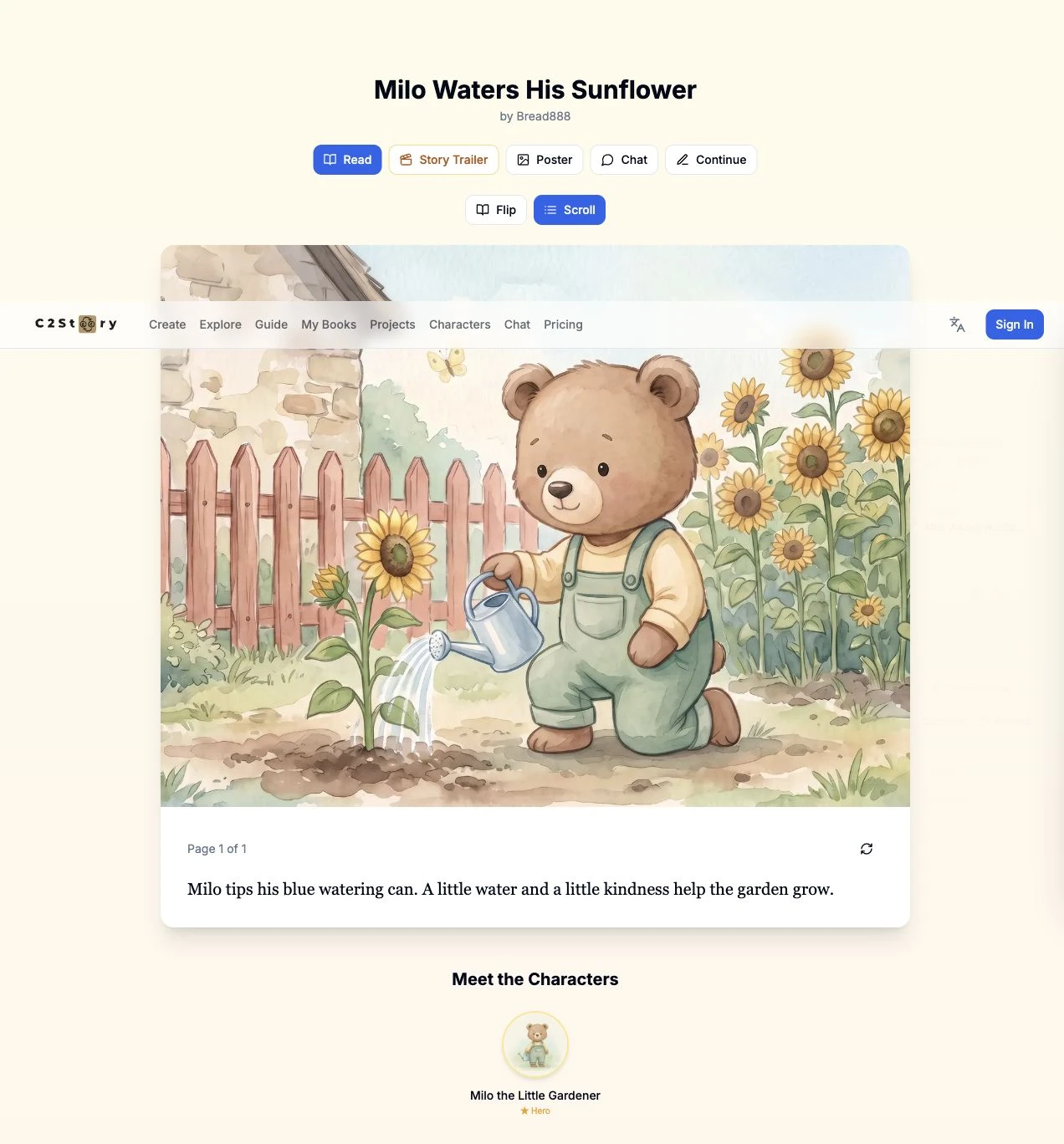
The public Scroll reader displayed the new butterfly and existing caption at a desktop viewport of 1280 × 720.

At 390 × 844, the public reader also displayed the butterfly and caption without horizontal page overflow. The book remains a one-page story; this workflow changed its illustration only.
Phone editing limitation observed in this run
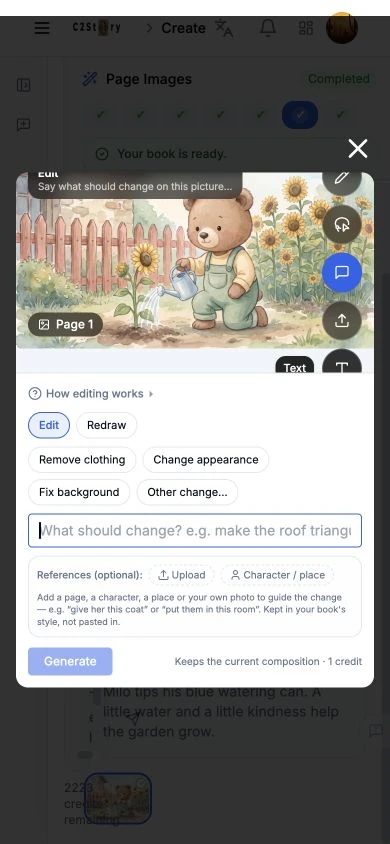
At 390 × 844, we reopened the saved editing dialog, selected Describe, and focused its input. The image preview and tool strip were clipped near the top, making the butterfly area unsuitable for a complete in-dialog visual check. Use the desktop editor for this workflow and check the full result in the reader.
Desktop editing, refresh persistence, and signed-out desktop and phone-size reading were tested. Submitting an edit from a phone, a physical phone, Flip mode, image/PDF exports and video were not tested. No extra generation was needed for this walkthrough.
A first like from an active subscriber gives a community author 1 credit. Likes are permanent; self-likes and repeat rewards are excluded.