Save the Wardrobe lock setting in C2Story Video Storyboard
Choose Lock to reference for wardrobe, then refresh and reopen an existing project to verify the choice. A settings-only walkthrough with real screenshots and phone-layout limits.
This walkthrough changes one setting: Wardrobe → Lock to reference in Video Storyboard. The verified result is a saved dropdown choice. No video was generated for this tutorial, so outfit consistency in a rendered clip has not been tested.
Before you start
Sign in and open Projects. You need an existing project with a video storyboard and character references. Our example is the already-owned Chapter 1 — Meet Cee, using chapter 1 and the existing Cee and Wise cast. Its six chapters, reference assets and eight scene cards were pre-existing; they were not created in this walkthrough. The editor showed the project style as cartoon. We did not choose a new style or generation model.
This is a private editor workflow. Find your own project in Projects after signing in; there is no new public film or book link for this settings change.
Step 1 — Find Wardrobe in Video Storyboard
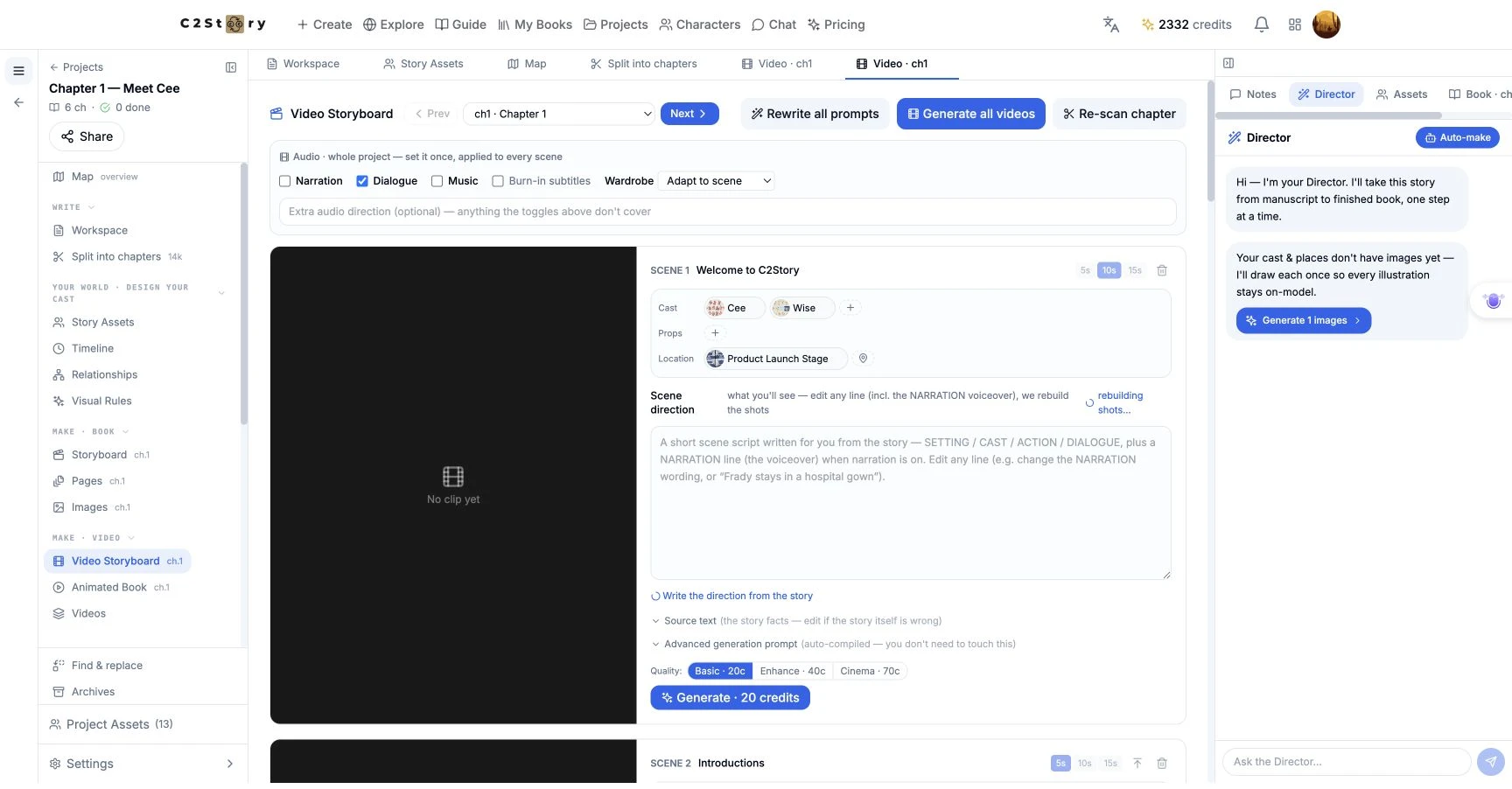
Open the project, then choose Video Storyboard ch.1 under Make · Video. Near the top is the panel labelled Audio · whole project — set it once, applied to every scene. Wardrobe sits alongside the audio toggles, even though it controls clothing.
The actual starting value was Adapt to scene. The UI help describes Adapt as dressing characters for the scene and Lock as keeping the reference outfit. It also says the choice concerns clothing, while face identity stays tied to the reference in either mode. These are the product's descriptions, not a result demonstrated by a new video here.
Step 2 — Select Lock to reference
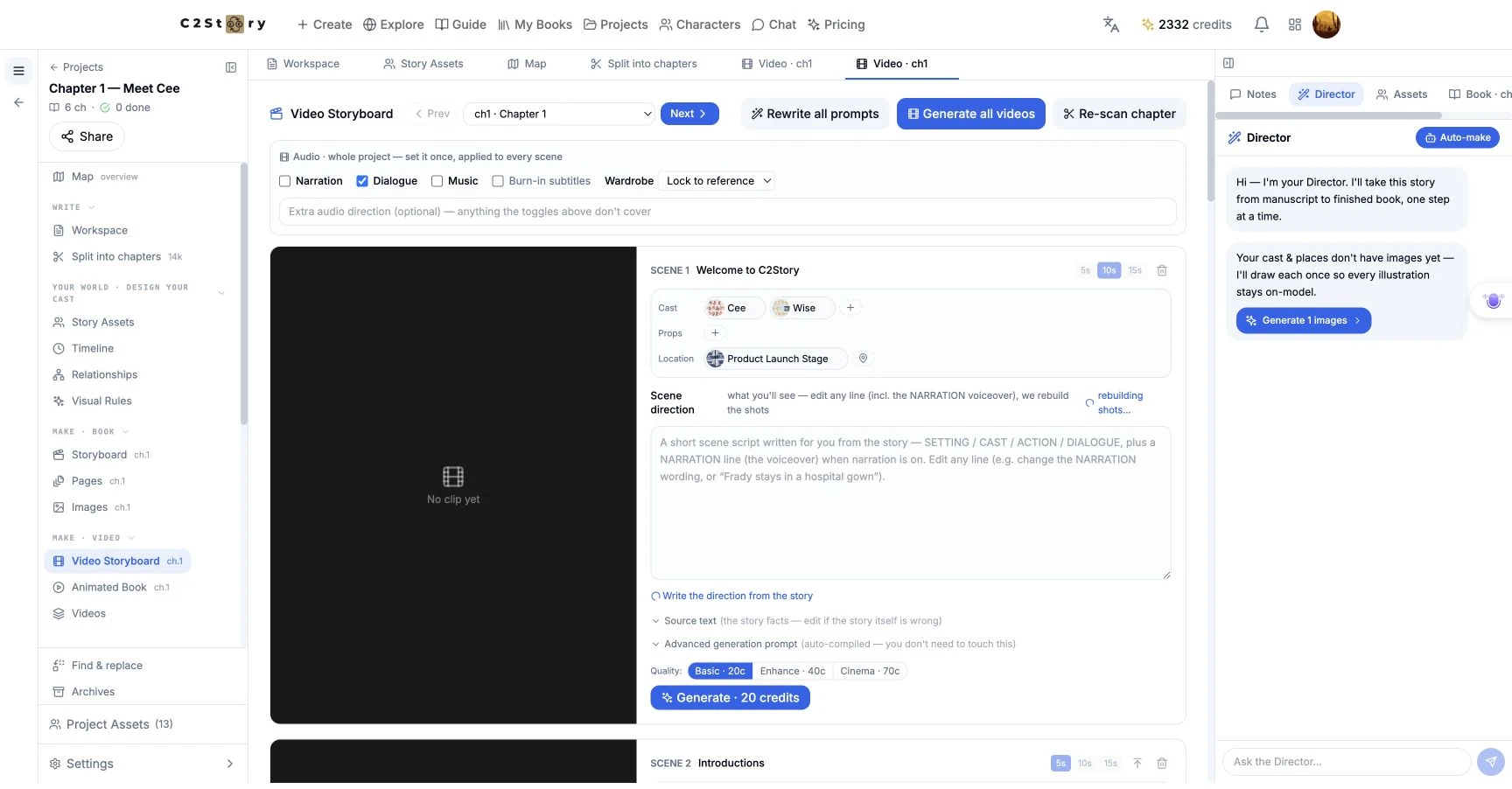
Open Wardrobe and choose Lock to reference. That was the entire input in this run:
- Before: Adapt to scene.
- Selected: Lock to reference.
- Typed prompt: none.
We left the visible audio controls as they were: Narration off, Dialogue on, Music off and Burn-in subtitles off. The extra audio direction field was empty. We did not press Generate, Generate all videos, Rewrite all prompts or Re-scan chapter.
There was no separate Save button beside Wardrobe and no save-success toast captured. Seeing the new value immediately is only the first check; reopen it to verify persistence.
Step 3 — Refresh, leave and reopen
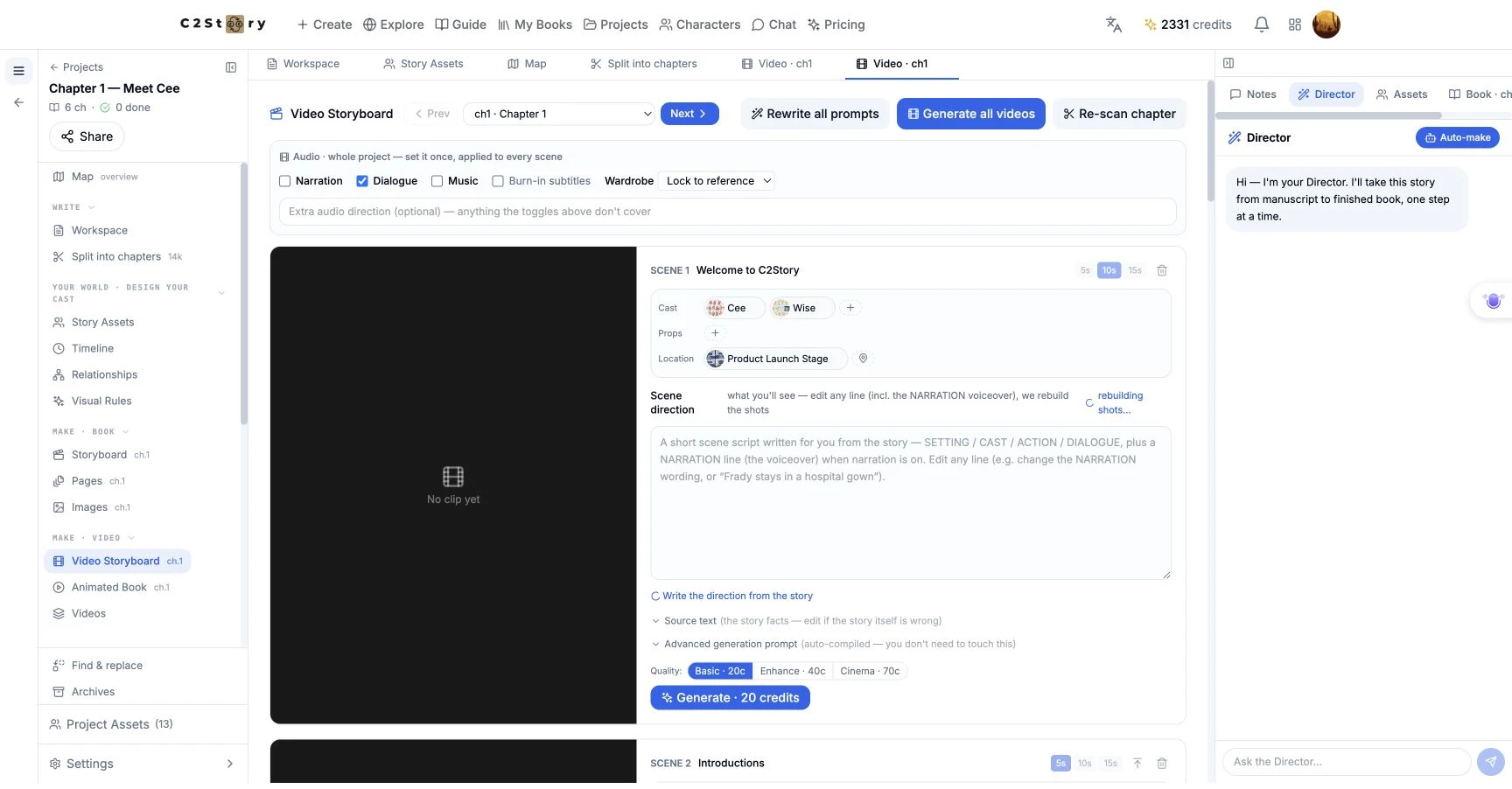
Refresh the full browser page. Once Video Storyboard loads, check that Wardrobe still reads Lock to reference. Then return to Projects, open the same project again, and inspect the same setting. In this run it remained selected after both checks.
That is the completed result: the saved wardrobe preference can be found again in the editor. The scene previews still said No clip yet. Their 5s, 10s and 15s controls are planning options, not measured playback durations.
Step 4 — Check the setting at phone width
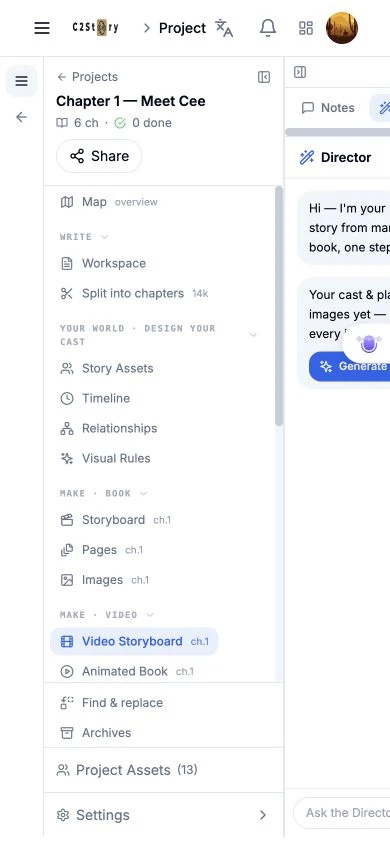
At a 390 × 844 browser viewport, the initial project sidebar and right context panel obstructed the center workspace. We used Collapse sidebar and Collapse panel to reach the setting.
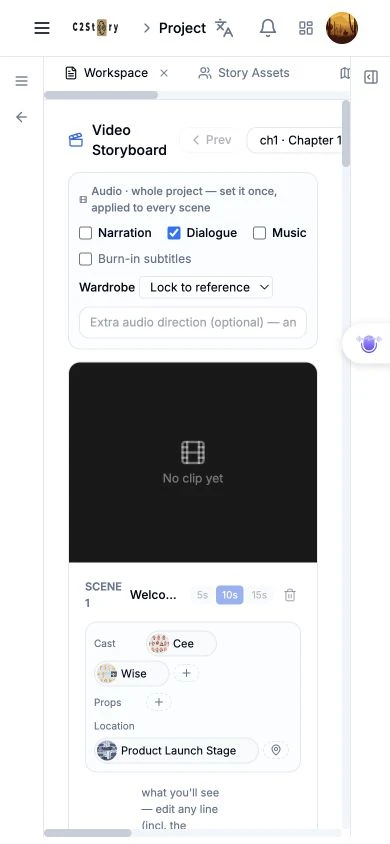
After collapsing both panels, the saved Lock to reference field was visible and could receive focus. The storyboard header remained wider than the available center column, and some neighboring controls were clipped. Desktop is the clearer route for making the change. This phone-size check covered finding and focusing the saved field; it did not test a new mobile save, video generation or a physical phone.
Result and limits
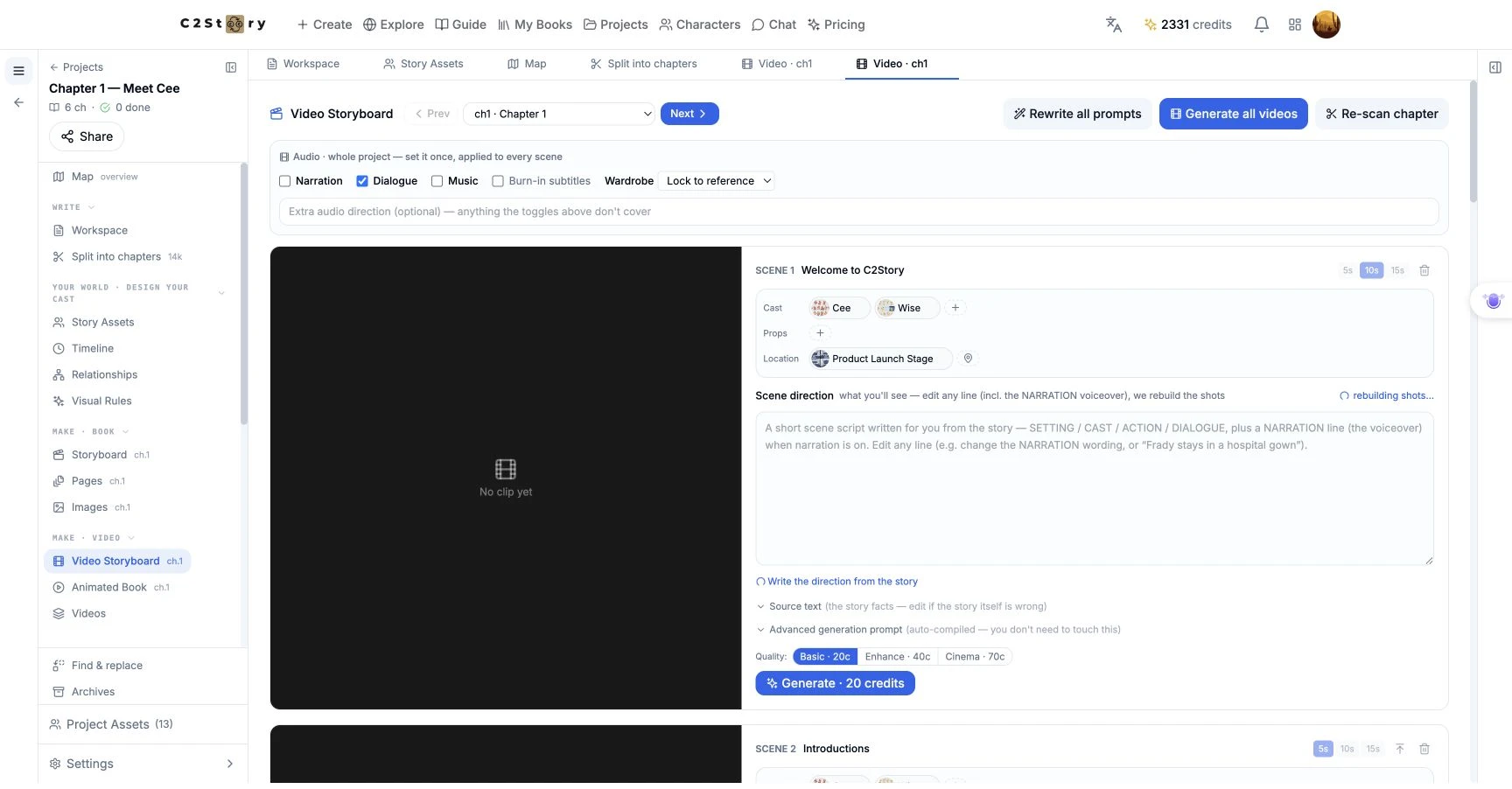
Passed: selecting the value on desktop, retaining it after a full refresh, and reopening the project to find it again. Passed with a layout workaround: viewing the saved field at phone width. Not verified: clothing consistency in generated video, video playback or audio, and mobile saving.
The existing storyboard displayed rebuilding shots… on arrival, before the wardrobe change. That background activity is not evidence of a new video. The account balance displayed 2,332 credits before the change and 2,331 after refresh. We did not submit a generation and could not attribute the one-credit difference from an itemized bill, so this walkthrough does not claim that the setting costs one credit or that the session was free.
To repeat the saved-setting check, use Projects — sign-in required, open your project and return to Video Storyboard. Match the visible dropdown value before moving on to a separate video-generation task.
A first like from an active subscriber gives a community author 1 credit. Likes are permanent; self-likes and repeat rewards are excluded.