Choose and save an image model for a C2Story project
Set an existing project to GPT Image 2, reopen it to verify the saved choice, and inspect the settings at phone size. A real settings-only walkthrough.
Choose and save an image model for an existing C2Story project, then reopen the project to check that your selection stayed saved. This walkthrough records a real settings change made on September 20, 2026.
Before you start
Sign in and open Projects. Use a project you own. Our prerequisite was an existing project named The Weight of an Egg; it was already in the account before this walkthrough. We did not create or import a new story.
The goal is specific: change Image model from Nano Banana to GPT Image 2, then confirm the saved selection after reopening and refreshing the project. This guide covers the preference itself. It does not compare generated images or demonstrate a new book or video.
Step 1 — Open Project settings
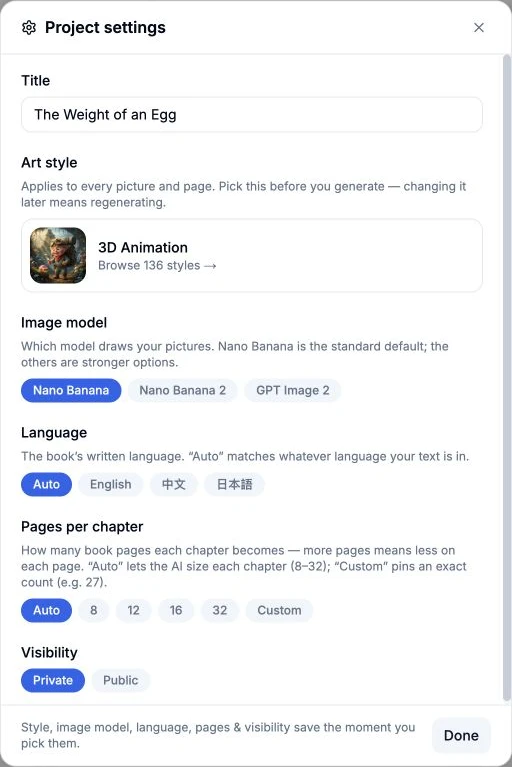
From Projects, open your project and click Settings at the bottom of its sidebar. In the Project settings dialog, find Image model below Art style.
The three visible options in this run were Nano Banana, Nano Banana 2, and GPT Image 2. Nano Banana was initially highlighted. The other visible settings were 3D Animation for Art style, Auto for Language, Auto for Pages per chapter, and Private for Visibility.
Result: the starting selection and available model choices are visible before any change.
Step 2 — Select GPT Image 2
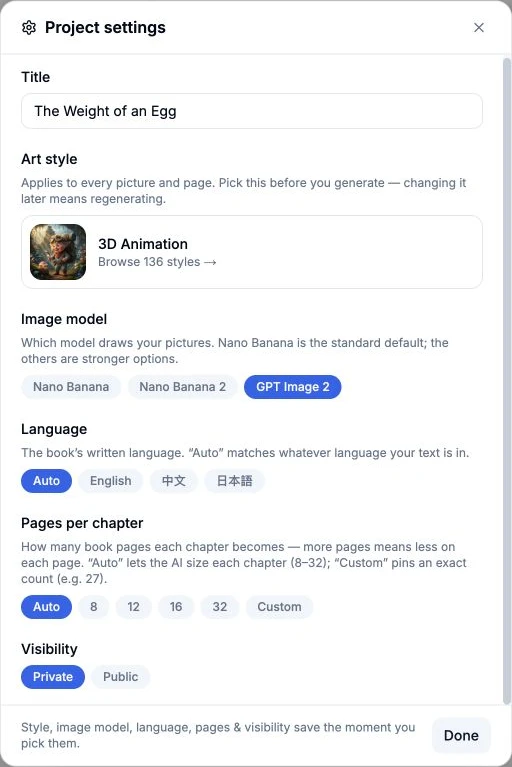
Click GPT Image 2 once. Its button becomes highlighted. The dialog says that style, image model, language, pages and visibility save when selected. There is no separate Save button for the model; Done closes the dialog.
Our exact input was this button selection: Image model → GPT Image 2. No prompt, feedback text, page-count request, aspect ratio, or generation duration was entered. We left the other settings unchanged.
Result: GPT Image 2 is selected. A highlighted button is the immediate UI response; the next step checks that the choice persisted.
Step 3 — Leave and reopen the project
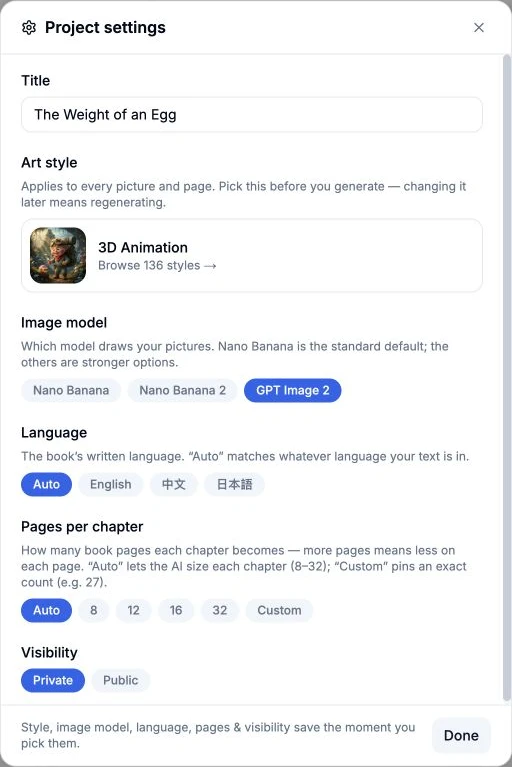
Click Done, return to Projects, reopen the same project, and click Settings again.
In this run, GPT Image 2 remained highlighted after that round trip. The project title and the other visible settings still matched the starting state. This is the saved result of the walkthrough.
To find your own result later, sign in, go to Projects, choose the project by name, and open Settings. The example remains private. There is no public book or video link associated with this settings change; the screenshots show the result without granting access to the project.
Step 4 — Check the saved setting at phone size
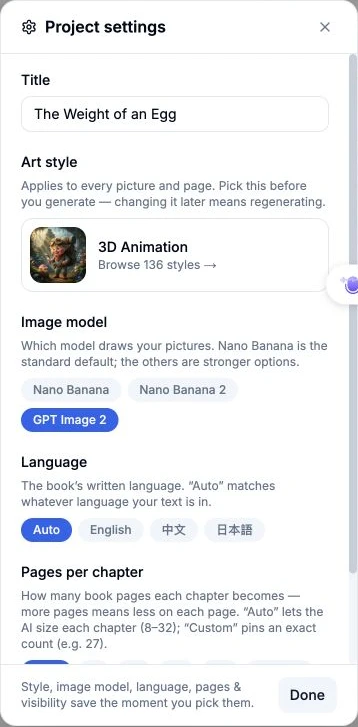
We changed the browser viewport to 390 × 844, refreshed the project page, and opened Settings from the bottom of the project sidebar. GPT Image 2 was still selected. The model buttons wrapped onto two rows and remained readable. Done was visible and successfully closed the dialog.
This verifies opening, viewing and closing these settings at a phone-sized viewport. The model change itself was submitted on desktop. A physical phone and other parts of the project editor were not tested as part of this guide.
What this run verified
The project preference changed from Nano Banana to GPT Image 2 and survived both reopening the project and a full refresh. Desktop screenshots were captured at 1728 × 891; the published images crop to the actual settings dialog to keep unrelated project content out of the tutorial.
No image, page or video was generated. No claim is made here about output quality or whether an individual generation path uses the selected model. The visible balance was 2340 credits before and after, an observed net change of zero; itemized billing was not inspected.
You can now return to your Projects and check the saved preference in your own project. That entrance requires sign-in. The screenshot links in this guide are public evidence of the settings workflow.
A first like from an active subscriber gives a community author 1 credit. Likes are permanent; self-likes and repeat rewards are excluded.