Remove an extra flower from a story illustration in C2Story
Follow a real Describe → Edit correction: remove an unwanted flower, preserve the three you want, reopen the saved page, and check the result on a phone.
What this walkthrough completes
Remove one unwanted flower from an existing story illustration, keep the three flowers you want, and confirm the edited page is saved. This is a real C2Story UI workflow performed on September 15, 2026.
The prerequisite is an existing, account-owned four-page English Watercolor book, The Little Fox and the Night. The book was already complete before this walkthrough. We edited only page 1; no new book or video was generated for this tutorial.
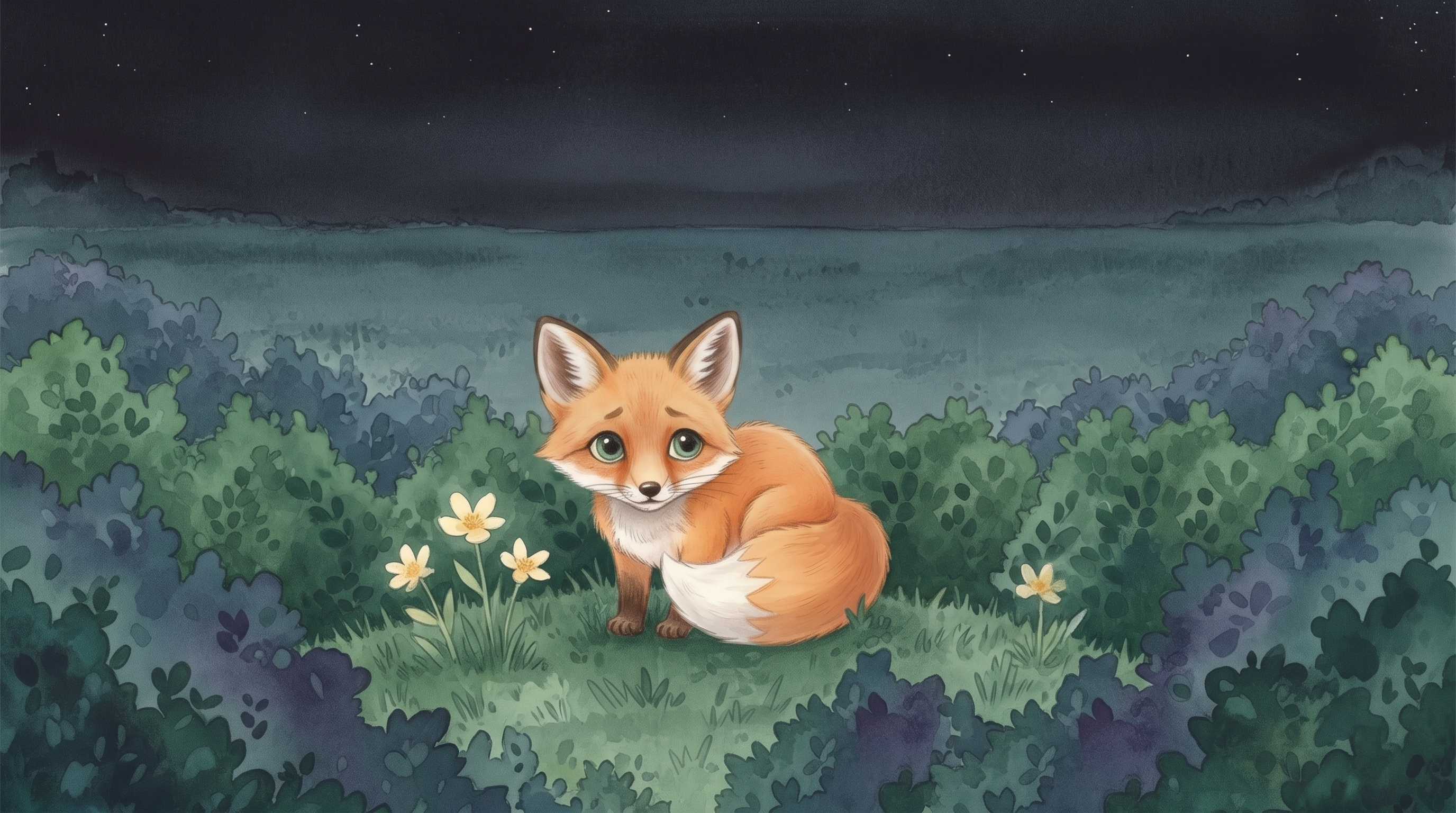
Our starting image below has three pale-yellow flowers to the viewer's left of Fia and one unwanted flower to her right. The goal of the correction is three flowers on the left, none on the right, with the fox and current landscape scene preserved.
Step 1 — Reopen the saved page
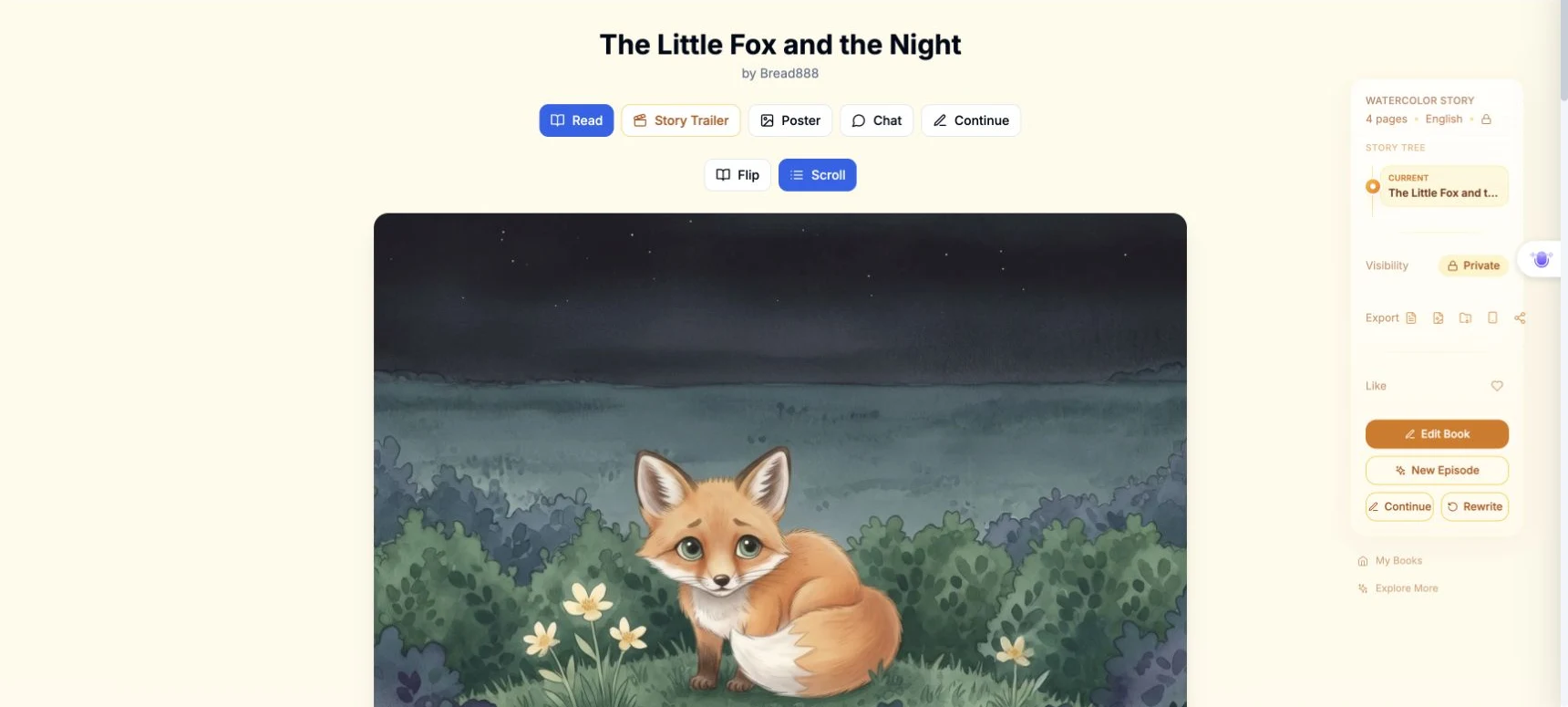
Sign in and open My Books. Open your own book and choose Edit Book. Our book reopened at Page Images, with page 1 selected. If you are returning to an older editing tab, reload it first and check that the image matches the currently saved page.
This matters because our earlier open modal had retained an old preview. Reloading and reopening Edit image brought the saved four-flower image into the dialog. Do not submit another request while the previous one is still running.
Step 2 — Describe the specific correction
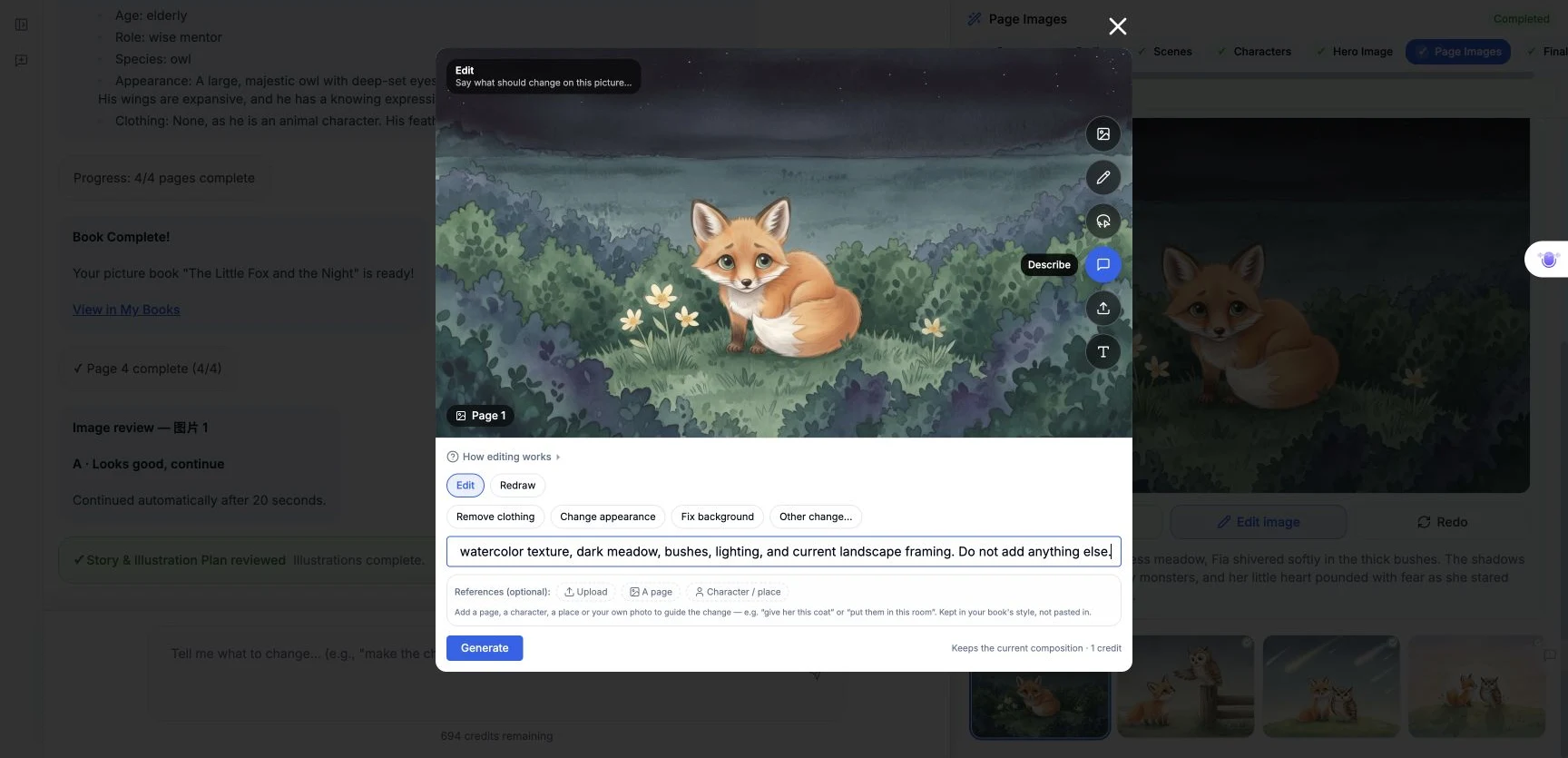
Click Edit image, choose Describe, and keep Edit selected. The dialog initially opened in Photo to follow mode, so we explicitly switched to Describe. We added no optional references and did not use Redraw.
This is the exact text entered for the successful correction:
Remove the single pale-yellow flower on the far right side of the picture (the viewer’s right of Fia). Replace only that flower and its stem with the surrounding grass. Keep the three pale-yellow flowers on the viewer’s left exactly as they are. The final picture must contain exactly three flowers, all on the left, and no flowers on the right. Keep the same fox, pose, expression, watercolor texture, dark meadow, bushes, lighting, and current landscape framing. Do not add anything else.
The form displayed Keeps the current composition · 1 credit. It did not expose a model, aspect-ratio, resolution or seed selector for this operation. Watercolor was the existing book style; we selected no new style. Any additional internal generation prompt was not visible in the UI.
The input is a single-line field, so the screenshot shows only the visible portion. The paragraph above preserves the full submitted text.
Step 3 — Generate once and inspect the new picture
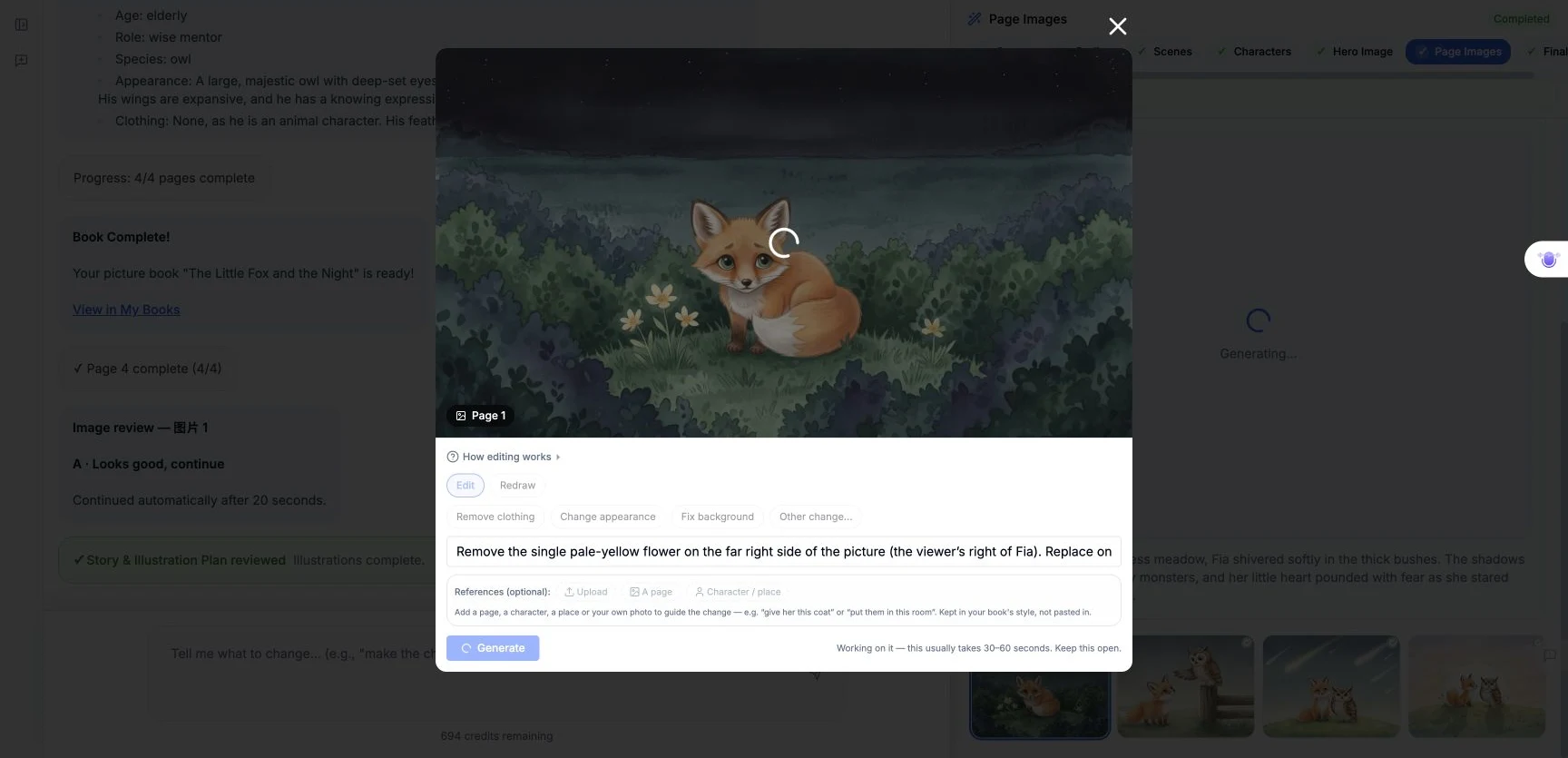
Click Generate once. The UI disabled its controls and displayed Working on it — this usually takes 30–60 seconds. Keep this open. We waited for this request rather than submitting another copy.
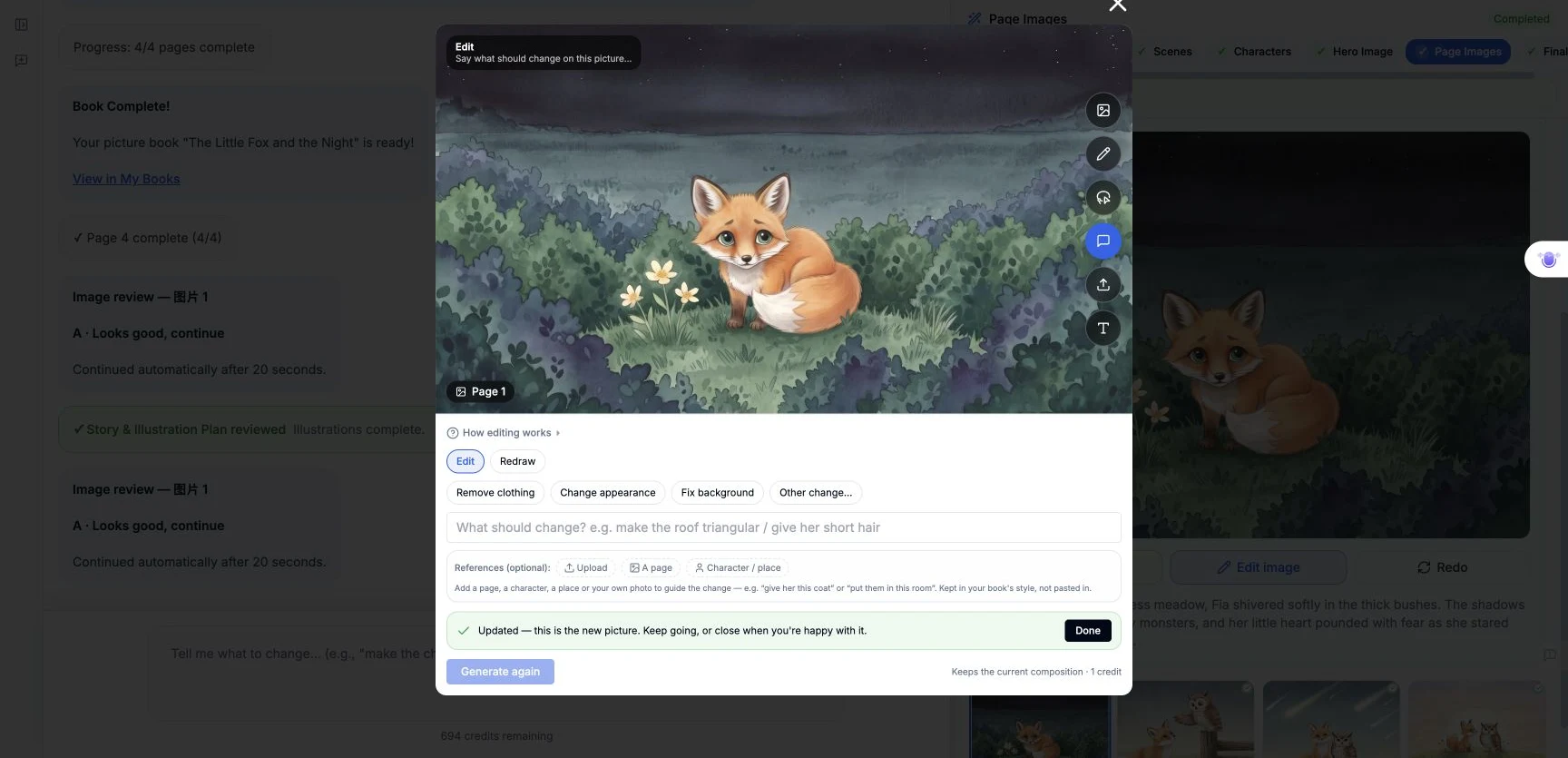
When the request completed, the modal displayed Updated — this is the new picture. Keep going, or close when you're happy with it. The input cleared and Done appeared.
We inspected the image: the right-side flower was gone, the three left-side flowers remained, and Fia, the bushes, the night setting and watercolor appearance were recognizable in the same landscape arrangement. The before and after correction images are both 2752 × 1536. This was a visual composition check, not a claim that every unedited pixel is identical.
Step 4 — Close and confirm the save
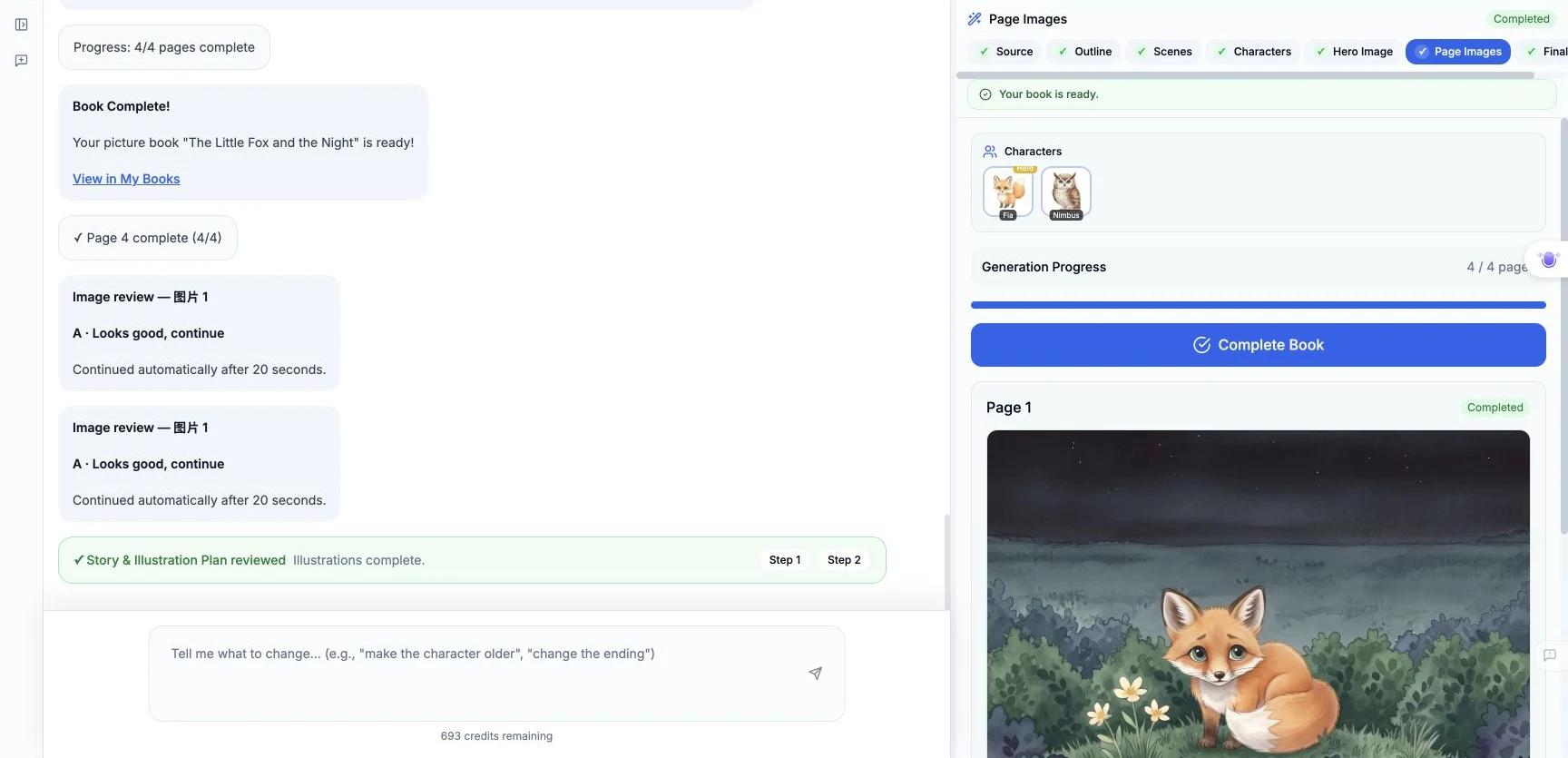
Click Done, reload the editor, and inspect page 1 again. We also opened the book in a separate tab. Both views showed the corrected image. Done closed the result dialog; the edit had already been saved to the page.
The successful correction cost 1 credit, with the visible balance changing from 694 to 693. An earlier attempt in this same task cost another credit, so the two UI edits together cost 2 credits. The account was used between attempts; the gap between their balance readings is not attributed to this tutorial.
Here is the actual saved result:
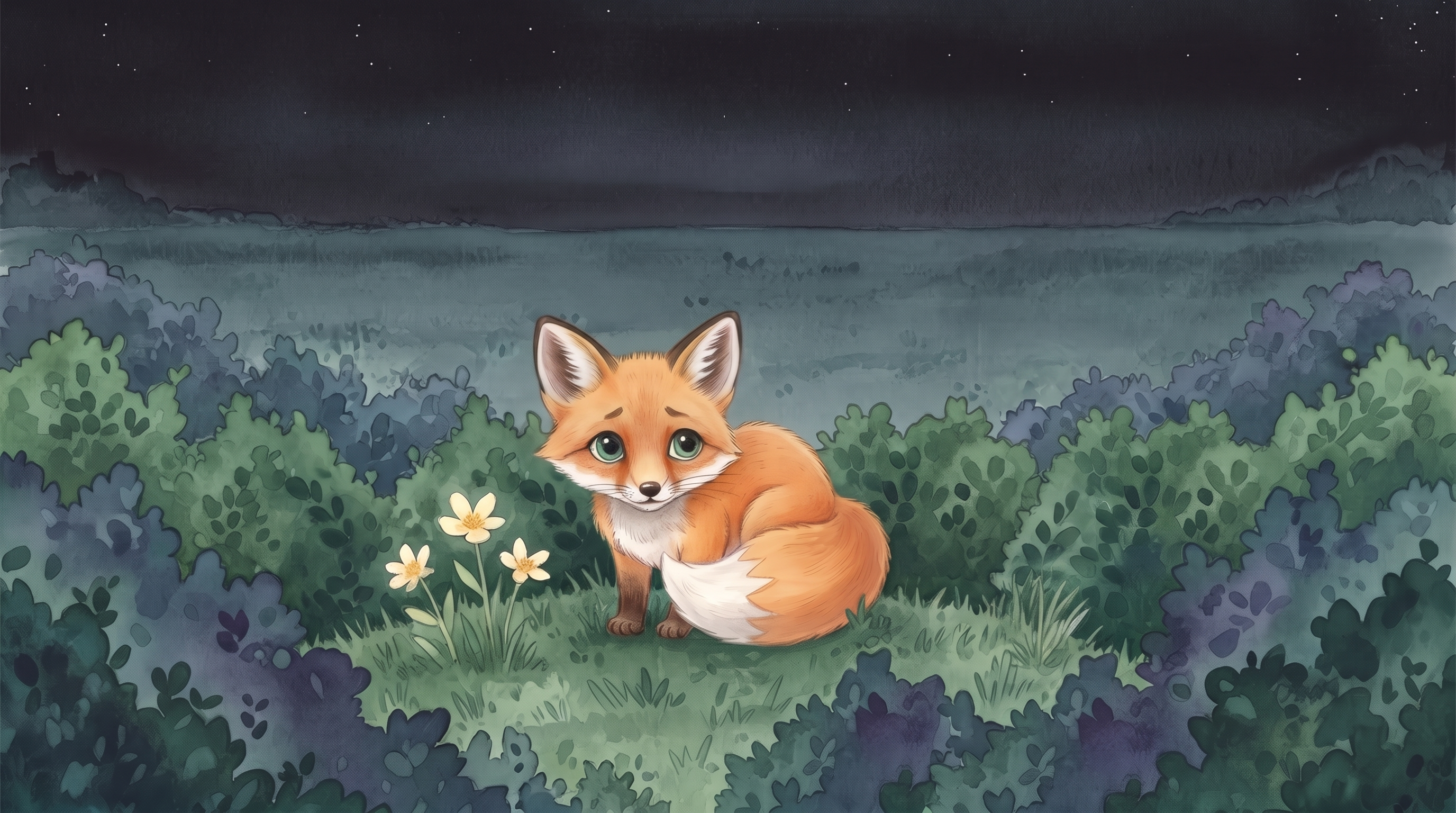
Open the full before image · Open the full corrected image
Step 5 — Open the result on a phone or share it
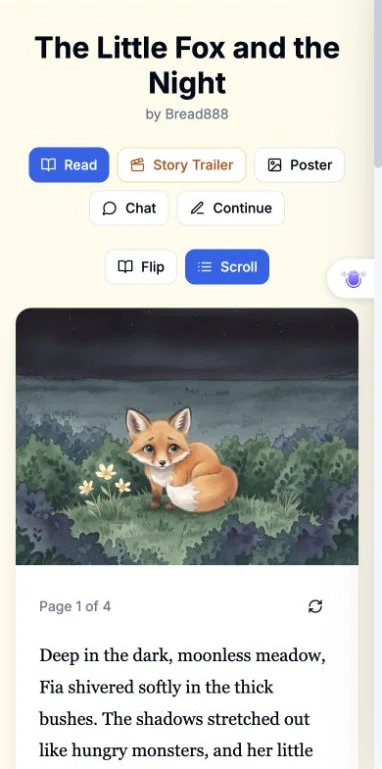
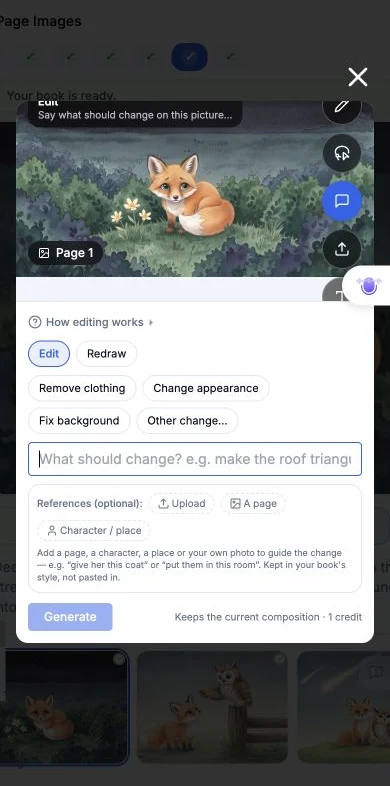
At a measured 390 × 844 browser viewport, we reopened the book, used Edit, opened Edit image → Describe, entered the same correction text to check that Generate became enabled, then cleared it and closed the dialog. We did not submit another generation on mobile.
For sharing, we changed the book's Visibility from Private to Public. The UI confirmed Book is now public! We then opened the reading link in a separate, signed-out browser and verified that page 1 was accessible.
Read The Little Fox and the Night. Look at page 1 for this tutorial's result. Pages 2–4 are existing material and were not regenerated in this run. Editing your own copy requires signing in to the account that owns it.
What the earlier attempt did not achieve
The starting four-flower image came from an earlier real UI edit of this same page. That initial instruction was:
Add exactly three small pale-yellow wildflowers in the grass immediately to the left of Fia (the viewer’s left), beside her front paws. Keep the same fox, pose, expression, bushes, dark moonless meadow, composition, and watercolor-on-paper style. Do not add other characters or any text.
That attempt produced an extra flower and changed the original 1024 × 1024 square image into a landscape image. We rejected it against its brief. The correction above starts from that saved landscape result and removes the extra flower. It does not restore the original square framing. The original aspect-ratio issue remains a limitation, and the earlier stale-preview behavior is retained in our run notes even though the correction modal updated correctly.
The general lesson is to name the unwanted detail, say which nearby details must stay, inspect the actual result, and reopen the saved page before calling the edit complete. The automatic review timer is not a substitute for that inspection.
Screenshots are authentic captures from these UI sessions, cropped only to omit the account header. This article documents one page correction; it does not claim that a complete new book or video was made.
A first like from an active subscriber gives a community author 1 credit. Likes are permanent; self-likes and repeat rewards are excluded.