Create and save a cartoon robot character in C2Story
Generate one robot reference from a description and profile fields, then refresh and reopen its saved Library entry. Includes exact inputs, real visual deviations, one-credit observation and phone-size limits.
Create and save a cartoon robot character in C2Story
This walkthrough creates one character, Pip the Pocket Robot, from a description and profile fields. It covers generation, saving, refreshing the Library, and finding the entry point for a new story. The character was created through the live C2Story UI on October 19, 2026. No pre-existing image or character was reused, and no book or video was generated.
The saved character is usable as a reference, but this example also shows a limitation: the image adds gardening tools and scenery despite an instruction for no tools and a plain background. Creation and persistence passed; exact visual instruction following did not fully pass.
Before you start
Sign in to your existing C2Story account. This run started with 2,213 credits; the form displayed a cost of 1 credit. Open Characters / Library, then choose Create Character. Library entries belong to your account; this tutorial does not provide a public character-detail page.
Step 1 — Open the character form
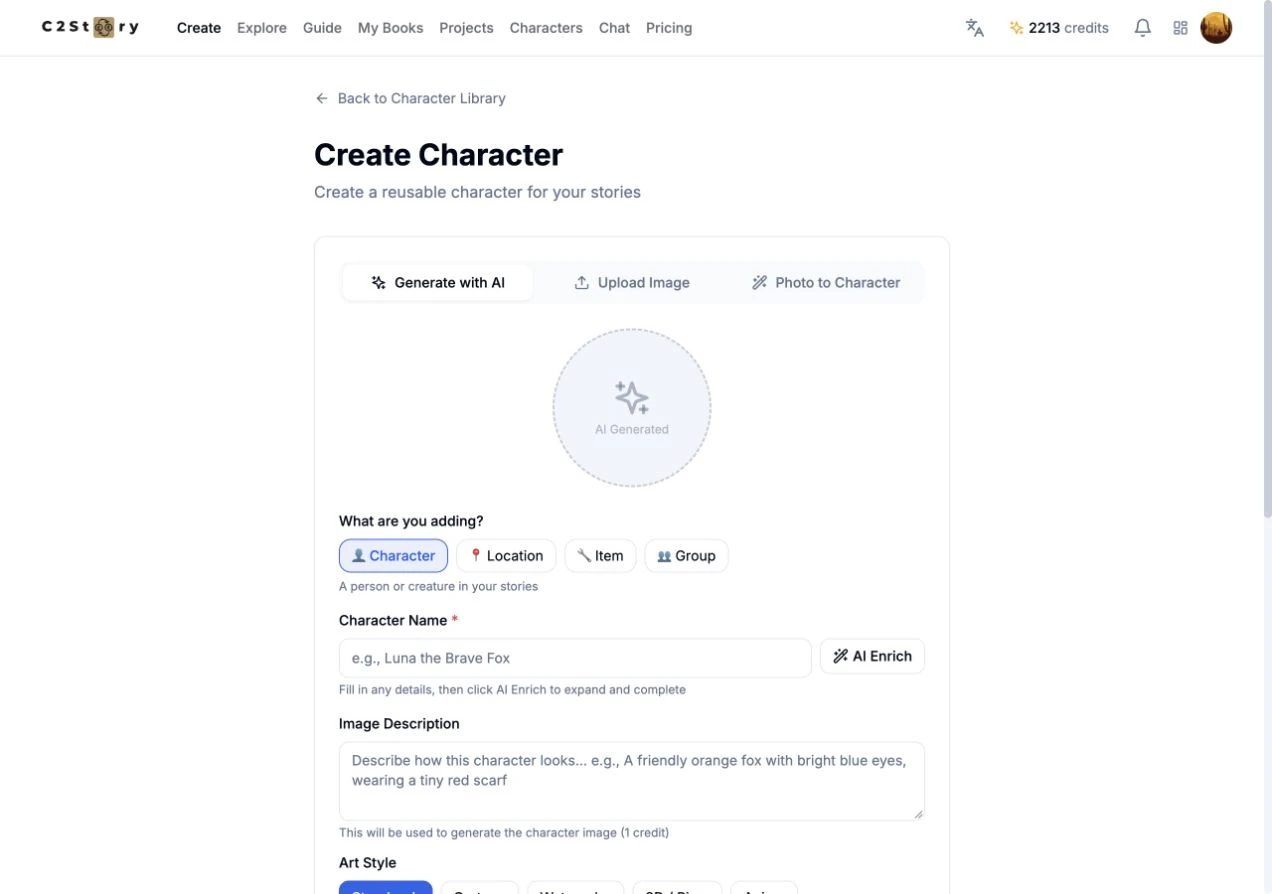
Choose Generate with AI and keep Character selected. We used a new description rather than an uploaded image. The form also offers Location, Item, and Group, which were not used here.
Step 2 — Enter the description and profile
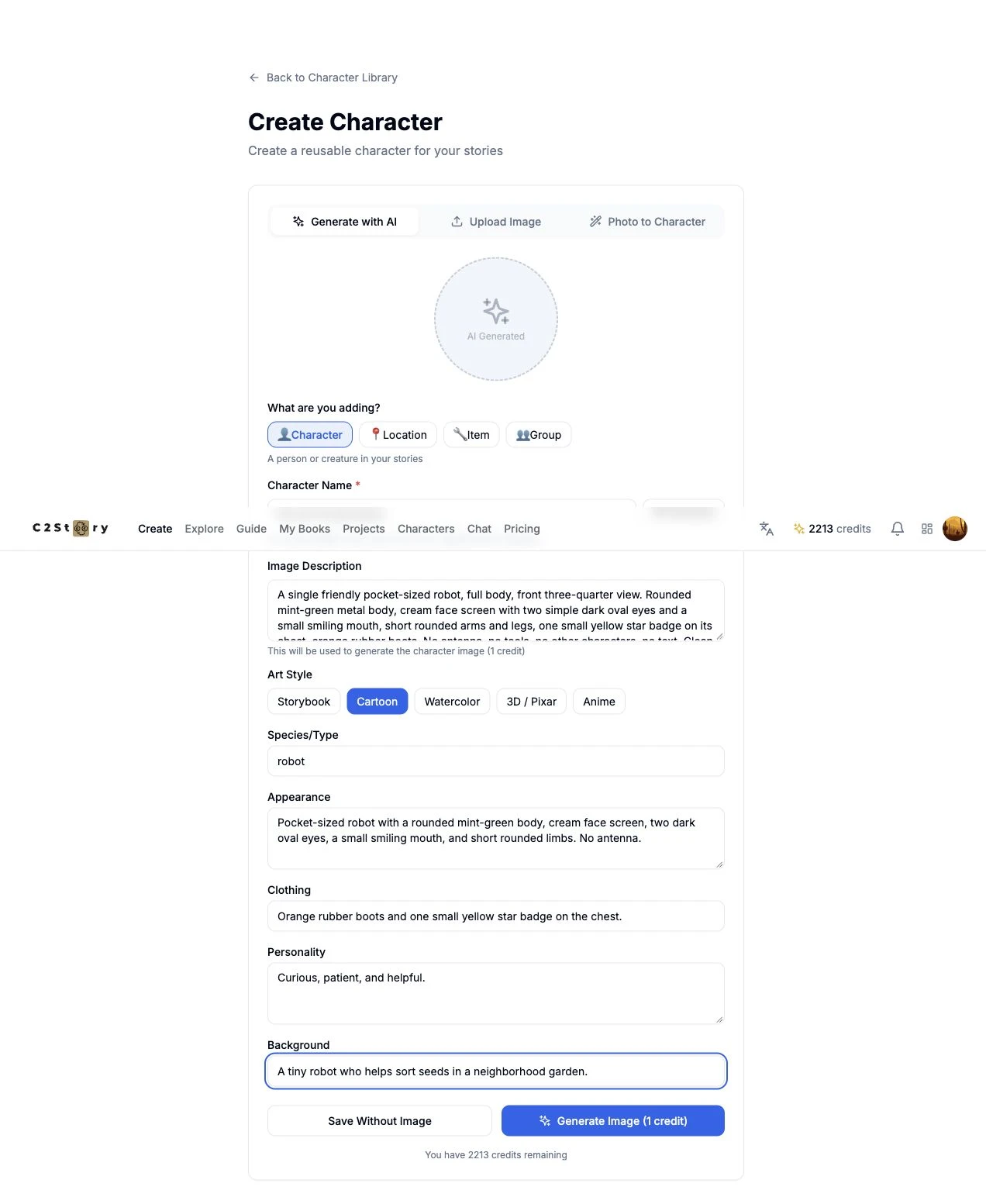
Enter Pip the Pocket Robot as the name and choose Cartoon under Art Style. The screenshot is a contemporaneous full-page capture; the sticky navigation overlaps the name row and the textarea shows only part of the description. The complete text actually entered is reproduced below.
Image Description:
A single friendly pocket-sized robot, full body, front three-quarter view. Rounded mint-green metal body, cream face screen with two simple dark oval eyes and a small smiling mouth, short rounded arms and legs, one small yellow star badge on its chest, orange rubber boots. No antenna, no tools, no other characters, no text. Clean cartoon illustration with soft shading on a plain warm ivory background.
Species/Type: robot
Appearance:
Pocket-sized robot with a rounded mint-green body, cream face screen, two dark oval eyes, a small smiling mouth, and short rounded limbs. No antenna.
Clothing:
Orange rubber boots and one small yellow star badge on the chest.
Personality:
Curious, patient, and helpful.
Background:
A tiny robot who helps sort seeds in a neighborhood garden.
We did not click AI Enrich. No model, resolution, aspect-ratio or seed control was visible on this character form. The internal generation prompt was not exposed. The Background field describes the character's fictional history; our Image Description separately requested an ivory backdrop. The result below shows why those two intentions should be checked independently.
Step 3 — Generate once and inspect the real result
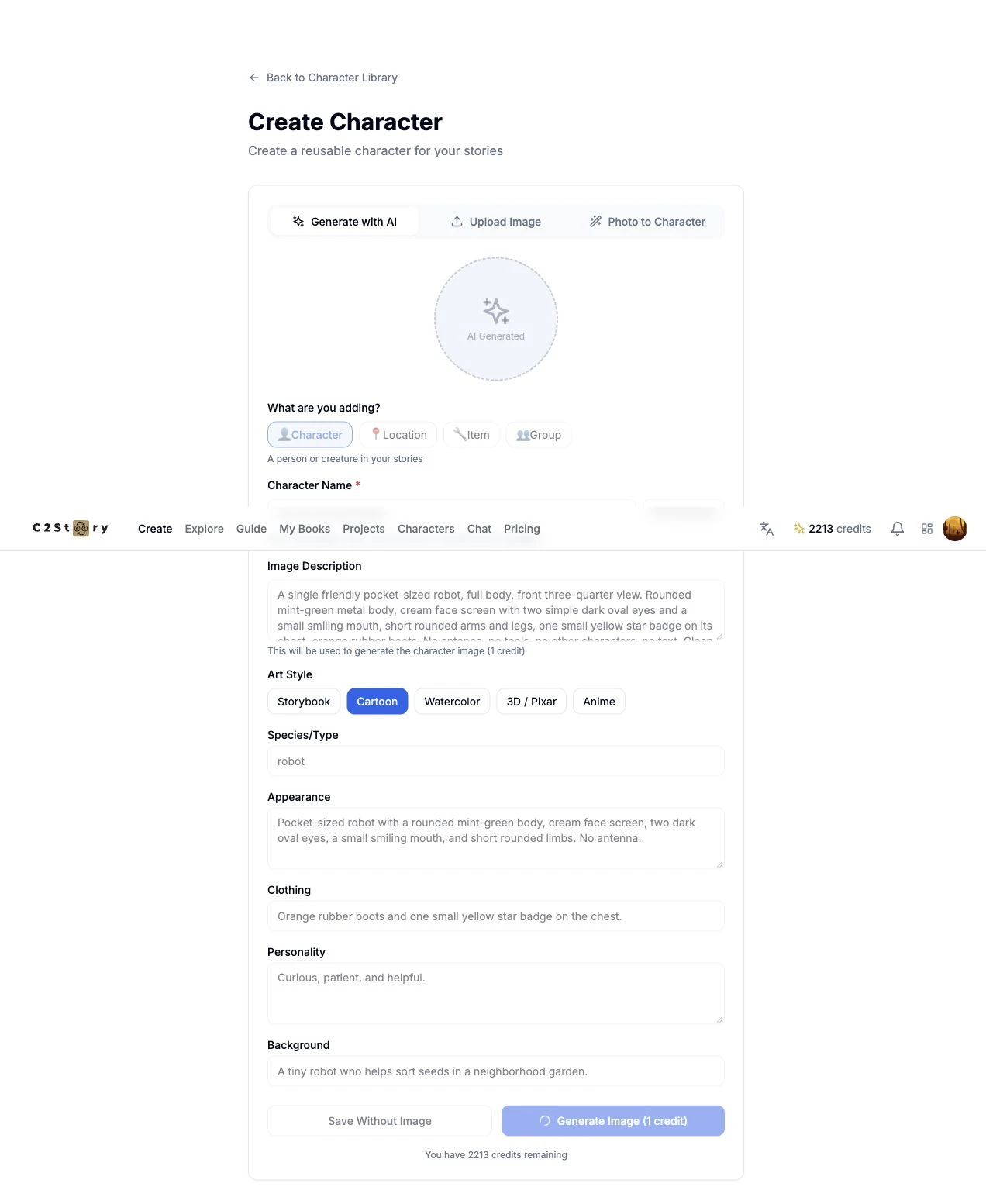
Click Generate Image (1 credit) once. The controls became disabled during the request. We waited for the original task and did not retry.
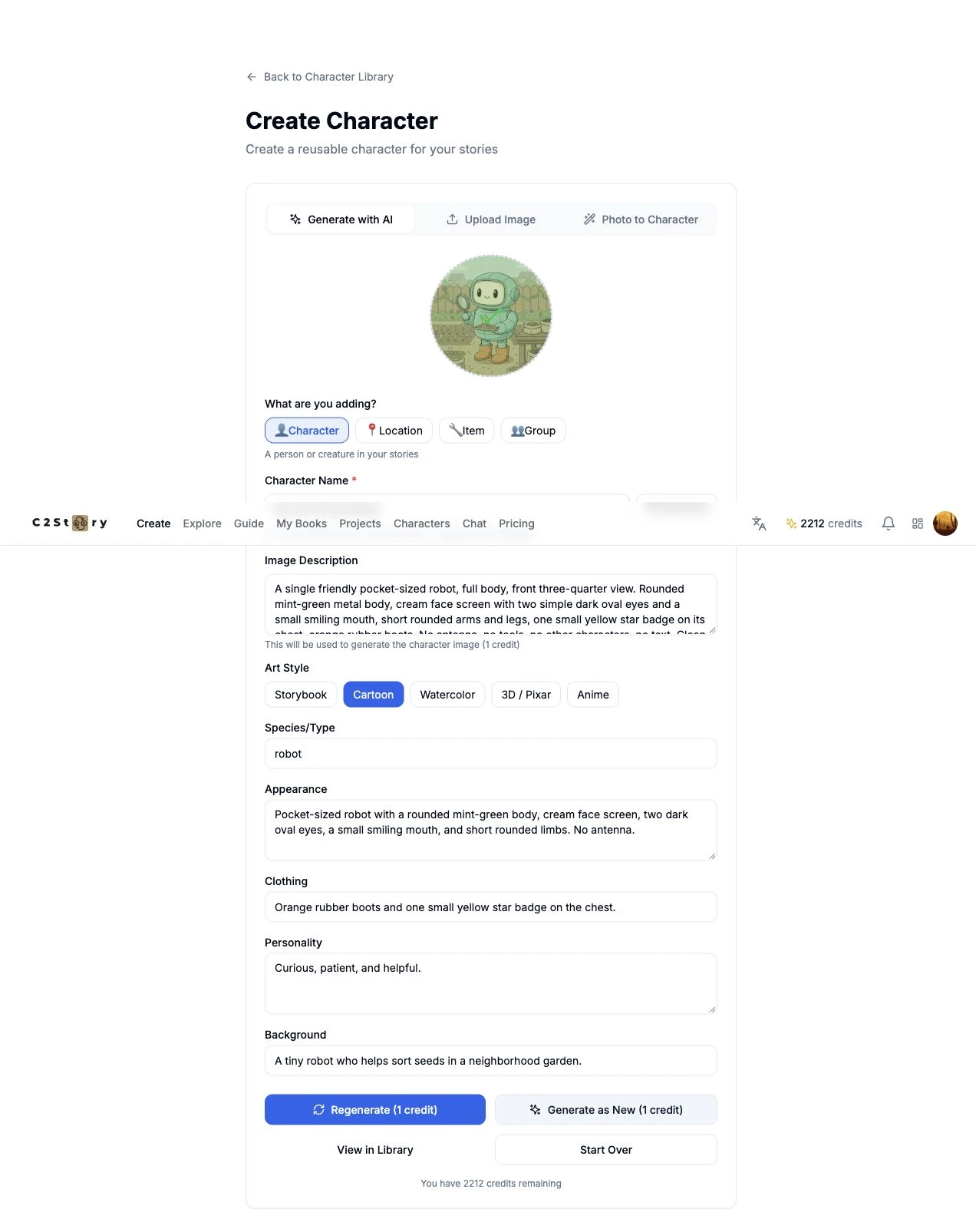
The form then showed the picture, View in Library, Regenerate, and Generate as New. We used View in Library; neither regeneration button was clicked.
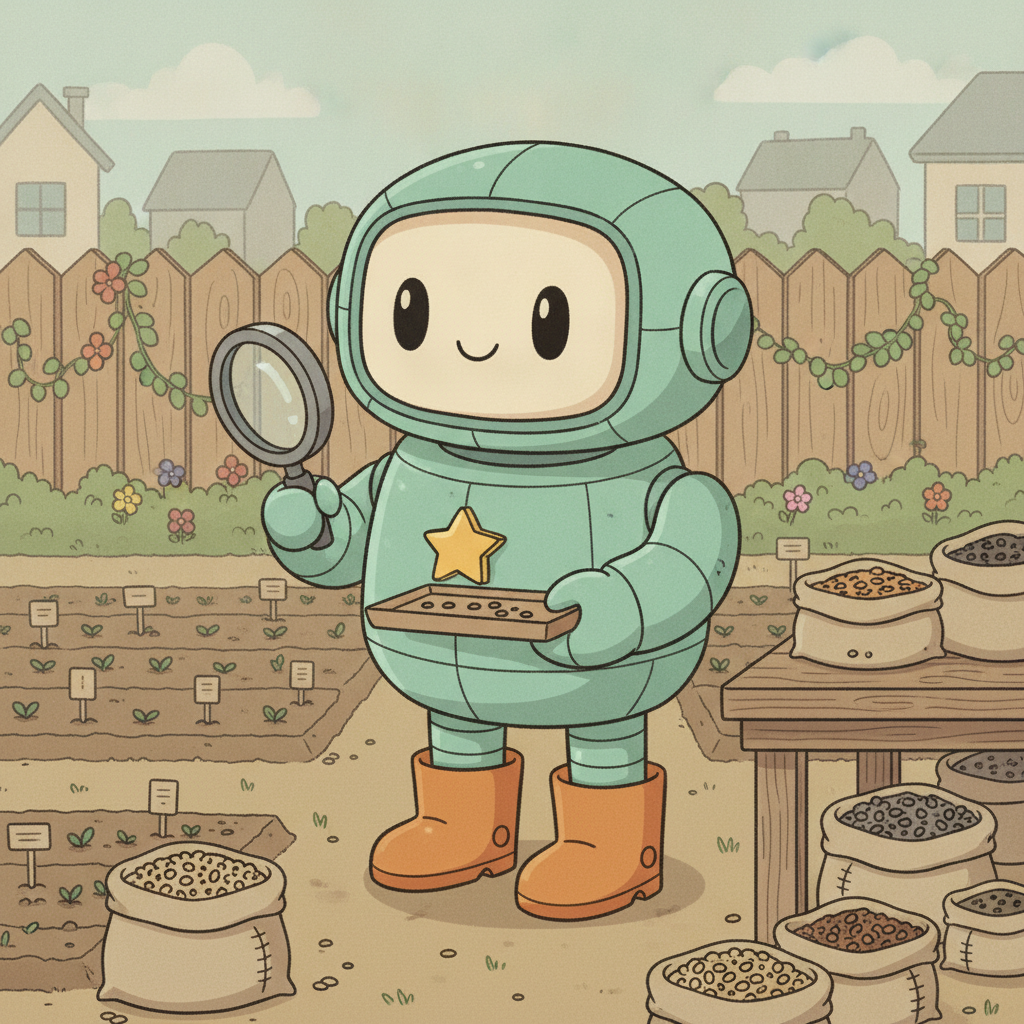
The result has the mint-green body, cream face, dark eyes, small smile, yellow star badge, orange boots and no antenna. It also has a magnifying glass, a seed tray and a garden scene. Those additions conflict with “no tools” and “plain warm ivory background.” The gardening Background field may have influenced the composition, but that cause was not verified. A single isolated image cannot prove a physical pocket-sized scale. This is a saved cartoon robot reference, not proof of exact composition control.
Step 4 — Refresh the Library and reopen the character
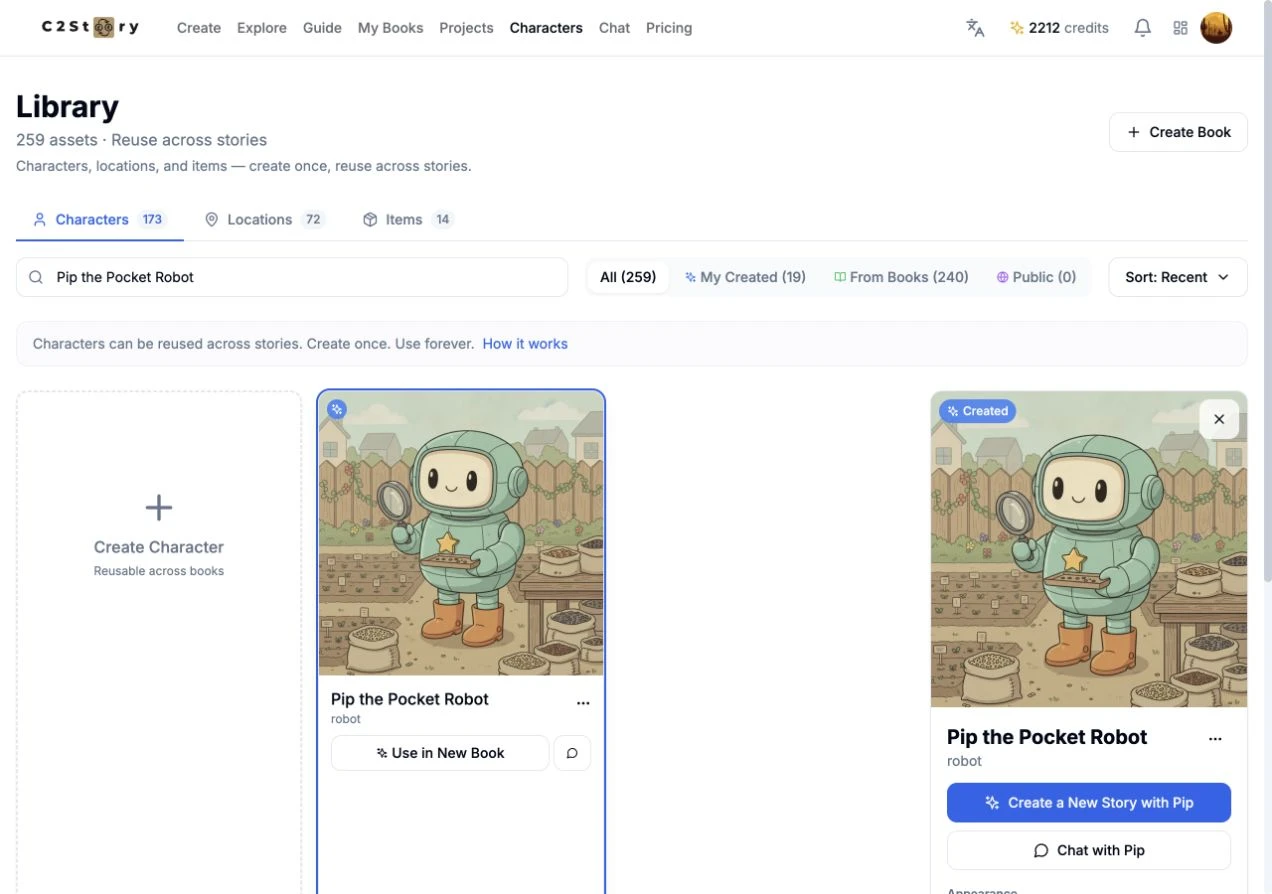
Click View in Library, search for Pip the Pocket Robot, and open the image. For the persistence check, we refreshed the whole Library, searched again, and reopened the same card. Its picture, name and robot type remained available. The card carried the Created label.
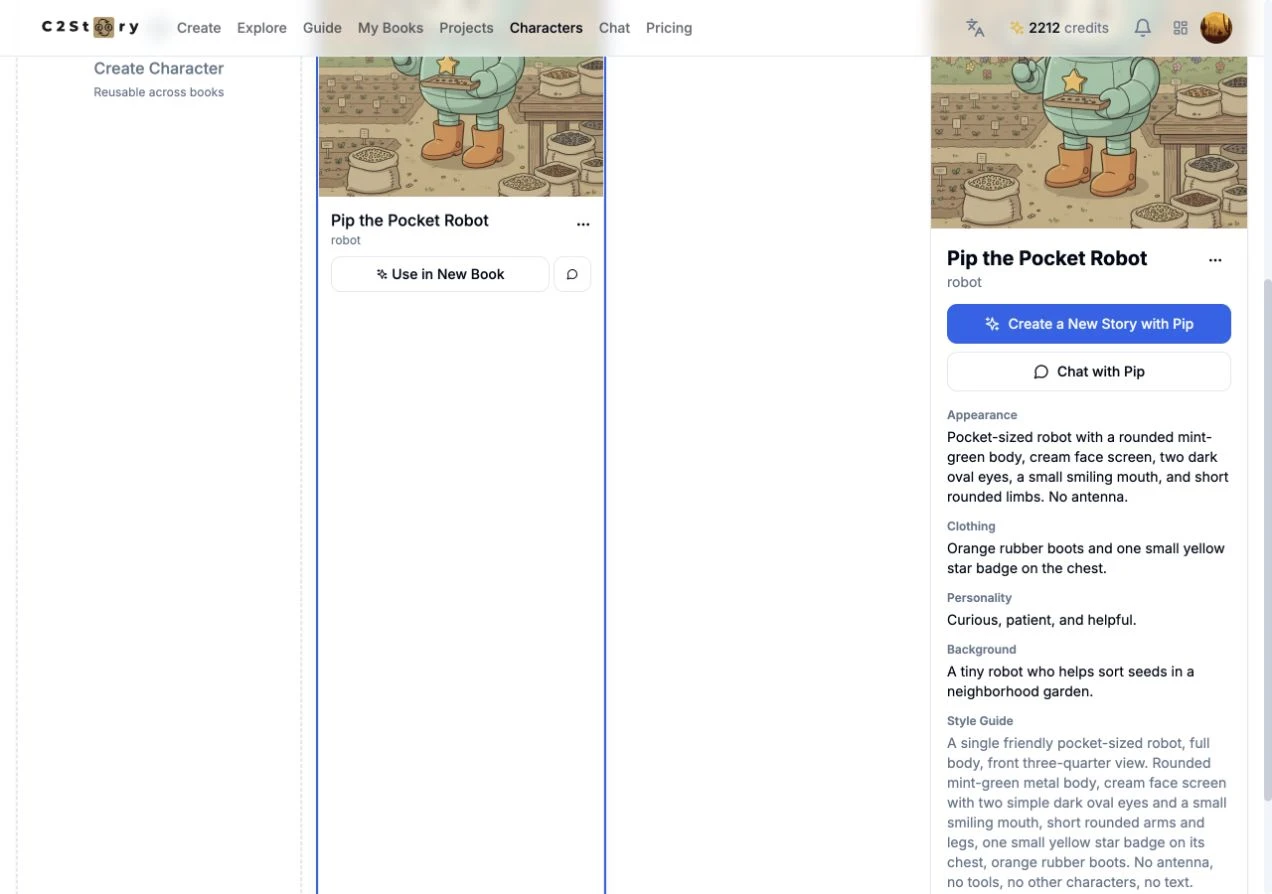
The detail panel retained Appearance, Clothing, Personality and Background. Show more expanded Style Guide, which retained the entered Image Description. The saved entry was dated October 19, 2026. There was no separate Save button after successful generation in this flow; Library reload and reopening supplied the saving evidence.
Step 5 — Find the next-story entry point
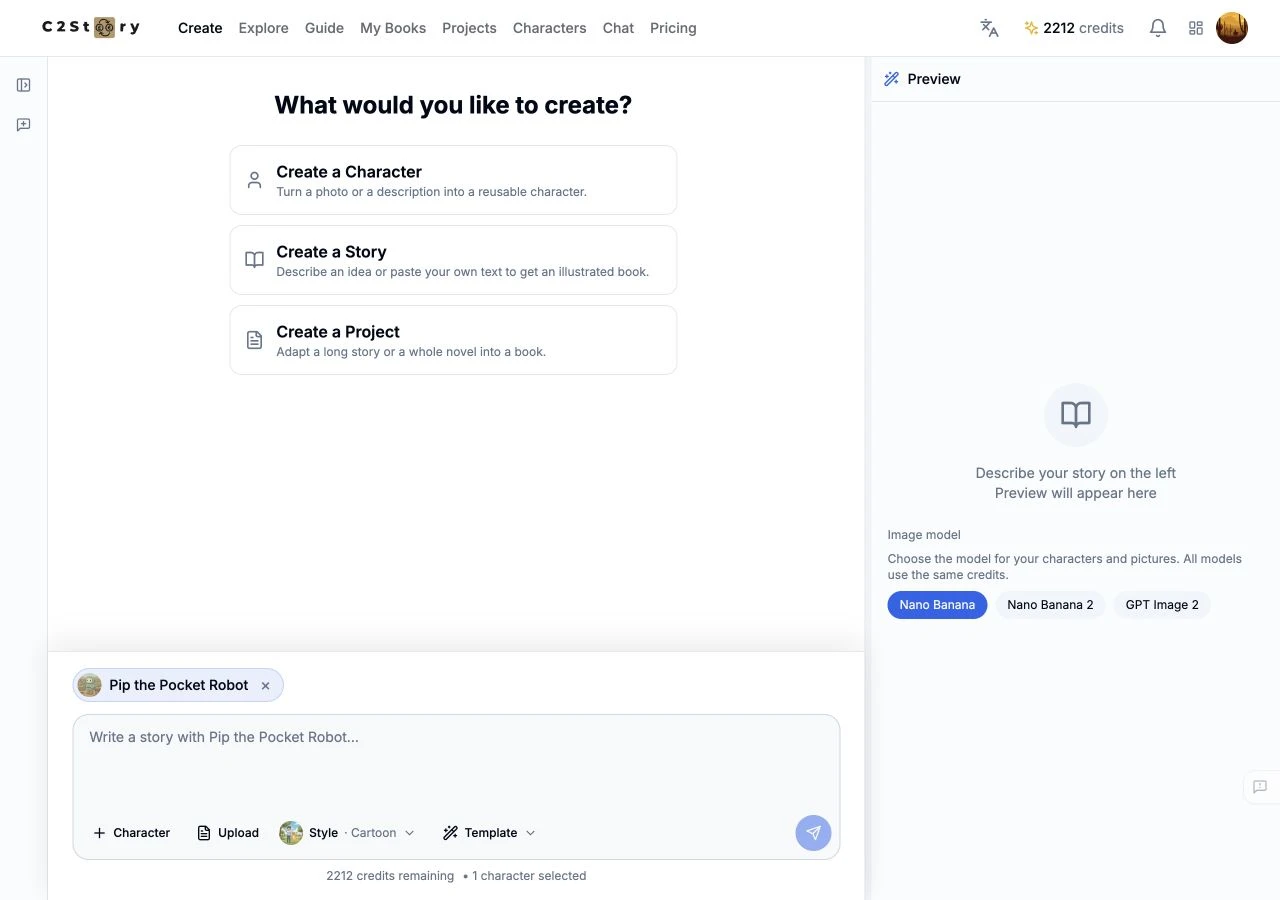
In the detail panel, click Create a New Story with Pip. The Create page displayed the Pip chip and 1 character selected. This verifies the entry point only. We entered no story prompt and generated no page, so downstream character consistency is not tested here.
To find your own result later, sign in at Characters / Library, search its saved name, and use Use in New Book or the detail-panel story button. The example's private asset identifier is retained in the run record; the Library link is the real product entrance, not a public share page for Pip.
Phone-size check and current limits
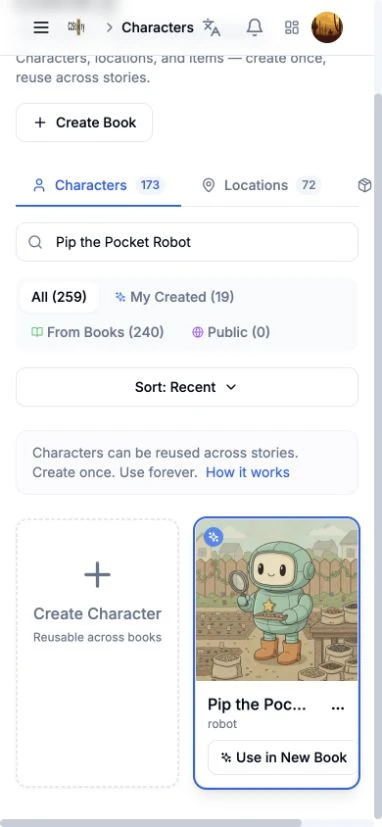
At a 390 × 844 browser viewport, searching and viewing the saved card worked. Clicking its image did not reveal the desktop detail panel. The Library also overflowed horizontally: content width was 474 pixels. Use the desktop view for the detailed profile. The mobile creation form was inspected without submitting a generation; mobile creation, mobile saving and a physical phone were not tested.
What this run verified
Desktop creation, one image generation, Library saving, full refresh and detail reopening passed at a 1280 × 900 browser viewport. The next-story reference selection was visible, but no story was generated. Exact no-tools/plain-background rendering failed. Phone-size card search passed; detail access and horizontal layout failed.
The visible balance changed from 2,213 to 2,212 credits, matching the displayed 1-credit generation price. An itemized billing statement was not checked. No purchase, extra generation, submission reward or like reward was used.
A first like from an active subscriber gives a community author 1 credit. Likes are permanent; self-likes and repeat rewards are excluded.