Save and reopen Art Direction in C2Story Story Assets
Save a visual instruction in Story Assets, refresh and reopen the project to verify it persists. A settings-only walkthrough with the actual input and a phone-layout workaround.
What this walkthrough completes
On September 24, 2026, I saved one Art direction instruction in an existing C2Story project's Story Assets workspace. I refreshed the page, returned to Projects and reopened the same project to confirm that the exact text persisted.
This is a settings-only walkthrough. The illustrations visible in the screenshots are pre-existing references, not images generated using today's instruction. No new image, page, book or video was generated, and the effect of this instruction on future output remains unverified.
Before you begin
Sign in at Projects and open a project you own. I reused The Weight of an Egg, including its existing chapters and Story Assets. Its base art style was 3D Animation in Project settings, displayed as pixar in Story Assets. I kept that style unchanged. No model, page-count, aspect-ratio or duration selection was made for this settings-only task.
The field used here is Art direction inside Story Assets. It is separate from choosing the base Art style in Project settings. The UI describes it as extra style layered on the project style and applied to every asset; this run verifies saving that field, not that generation behavior.
Step 1 — Open Story Assets and inspect the starting value
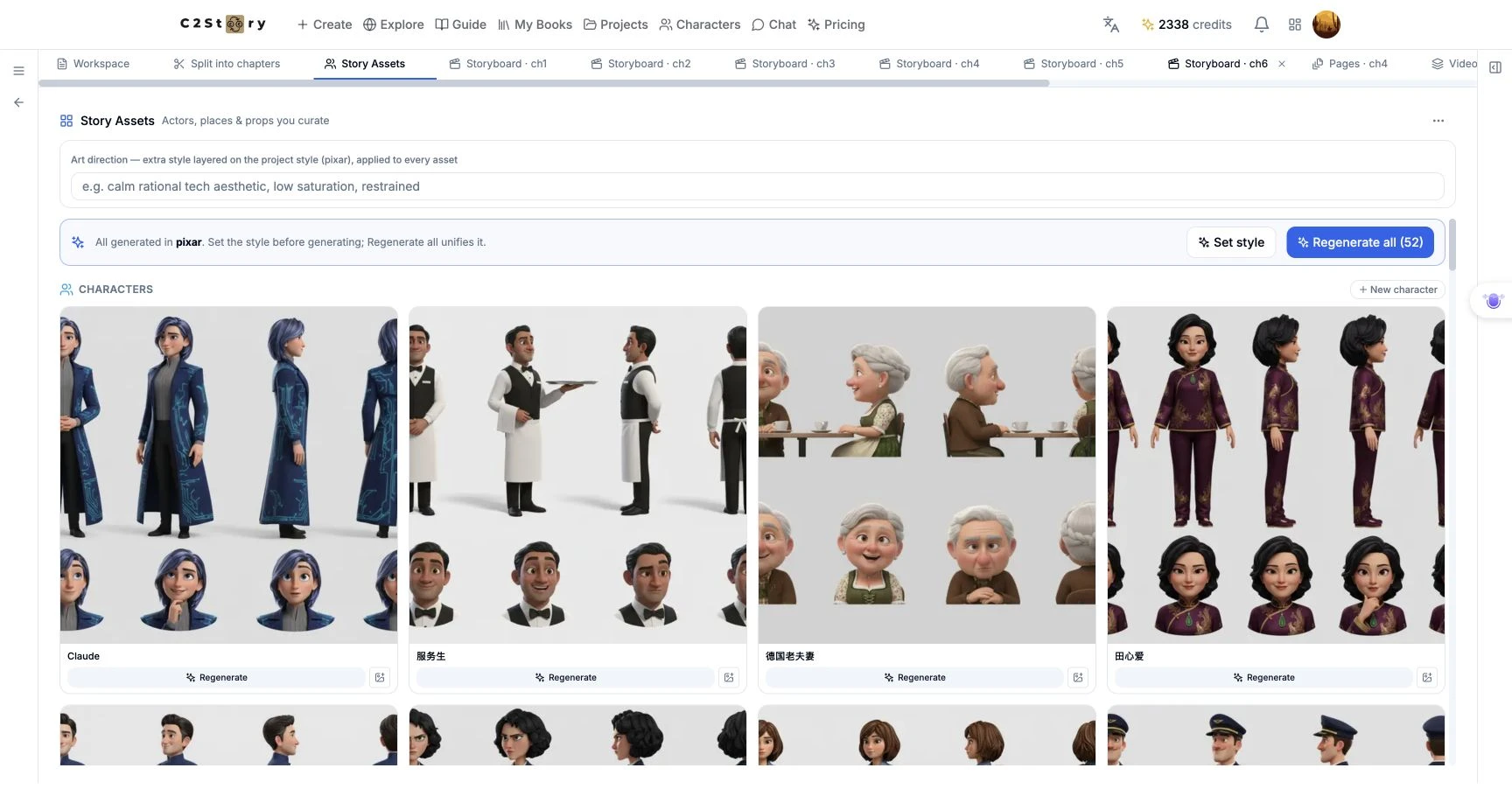
From the project sidebar, click Story Assets. Find Art direction above the asset cards. The starting value in this project was empty. I collapsed the left sidebar and right context panel to give the workspace more room.
The character references below the field were already present before this walkthrough. They provide context only; they are not before-and-after evidence of today's setting.
Step 2 — Enter the exact instruction
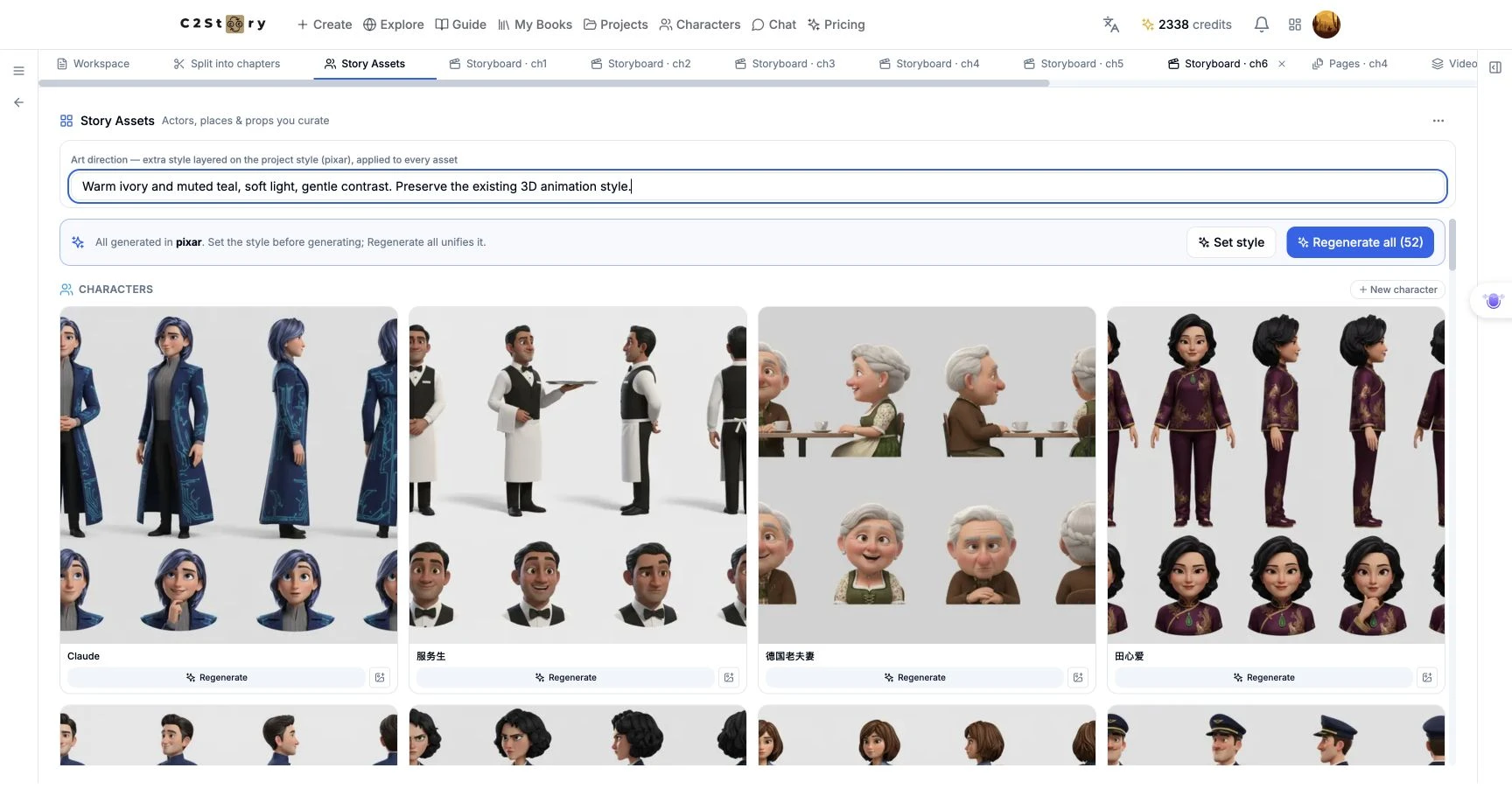
I clicked the Art direction field and entered this exact text:
Warm ivory and muted teal, soft light, gentle contrast. Preserve the existing 3D animation style.
The instruction names a palette, lighting and contrast preference, and explicitly keeps the existing rendering style. This is the actual input used in this run, not a prompt suggested after seeing a generated result. No internal generation prompt was exposed or inspected because no generation was submitted.
Step 3 — Leave the field, then verify persistence
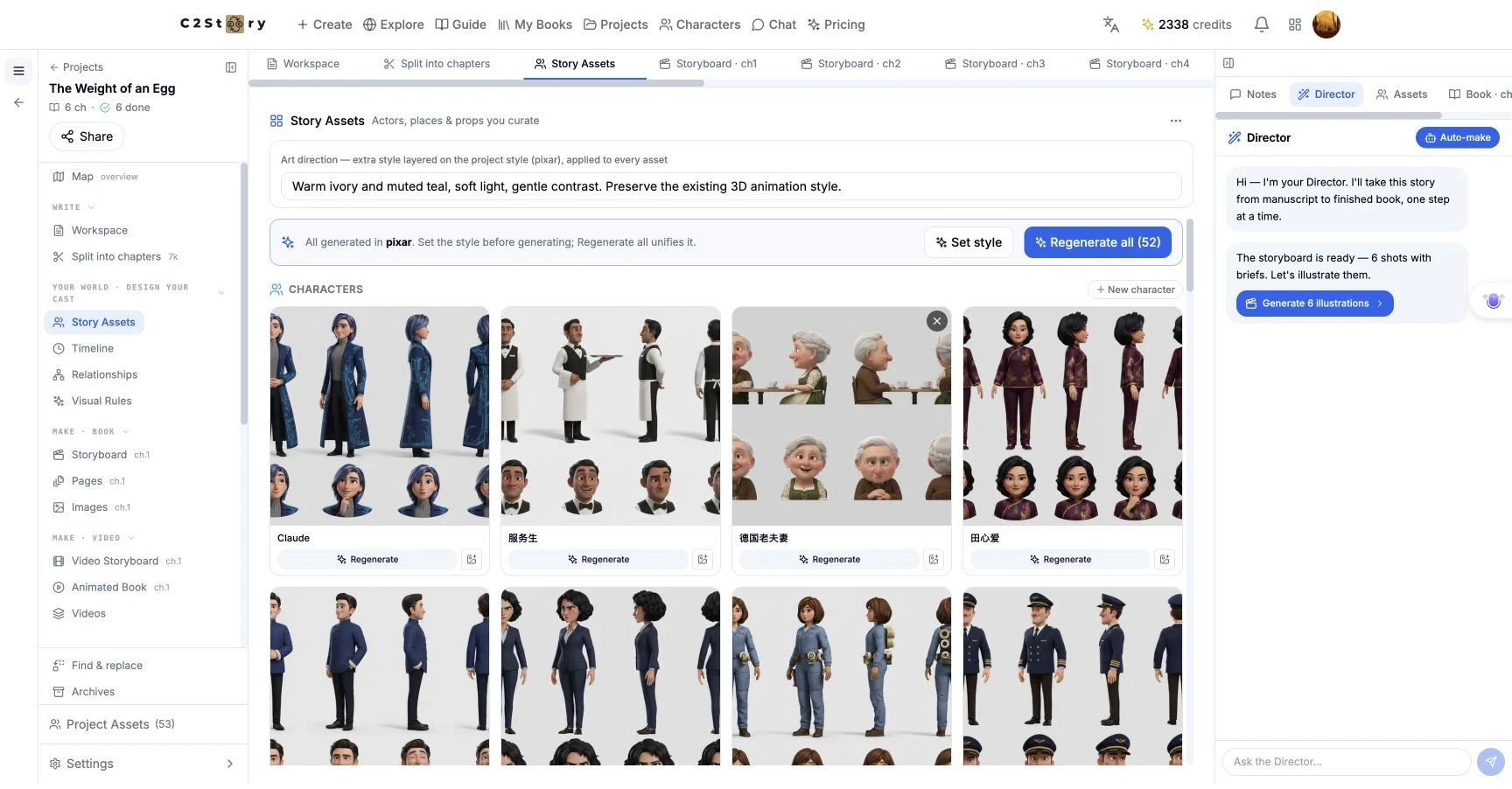
After entering the instruction, I pressed Tab to move focus out of the field. There was no separate Save button next to this field. I did not rely on an unobserved success toast: I refreshed the page and read the field again, then clicked Projects, reopened The Weight of an Egg, and checked it a second time.
Both checks returned the exact full instruction above. This is the evidence that the setting was saved. I did not press Regenerate all, regenerate an individual card, or generate chapter illustrations.
To find your own saved instruction later, return to Projects, choose the same project and open Story Assets. The project editor requires login; this workflow does not provide a separate public page for the saved text setting. The screenshots in this article are public evidence of the result.
Step 4 — Find the saved field at phone size
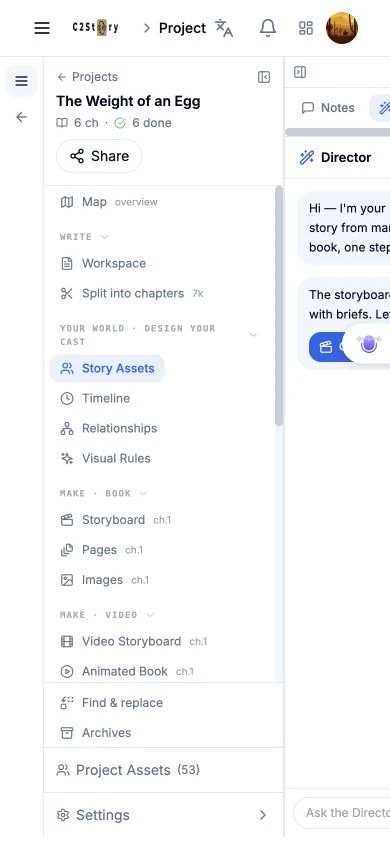
At a 390 × 844 browser viewport, the initial layout left no usable central workspace while both side panels were open. The expected behavior is an accessible setting; the observed behavior required a workaround.
I clicked the controls labelled Collapse sidebar and Collapse panel. Their compact icons sit at the top of their respective panels.
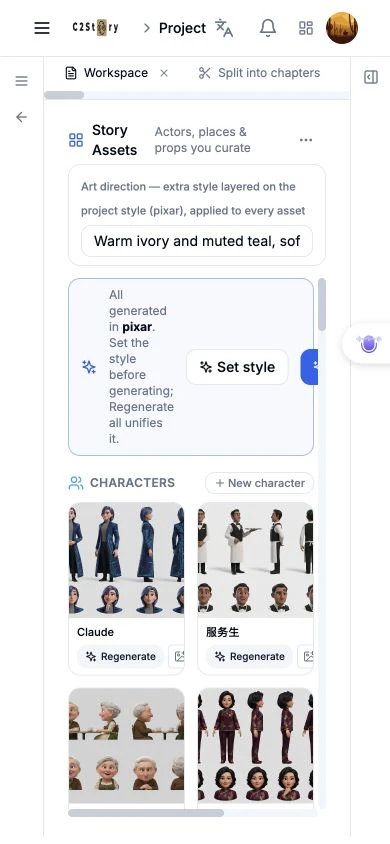
The saved field then became visible and could receive focus. Its full stored value still matched the desktop input, although this single-line field displays only part of the sentence at once. The nearby style/action row remained cramped, with the regeneration control partly clipped. I did not use that control.
This phone-size check covers locating and focusing the already-saved field. I did not change or resubmit its value on mobile, test an on-screen keyboard, or use a physical phone. Mobile save submission remains unverified. For this walkthrough, desktop is the verified editing path.
Result and limits
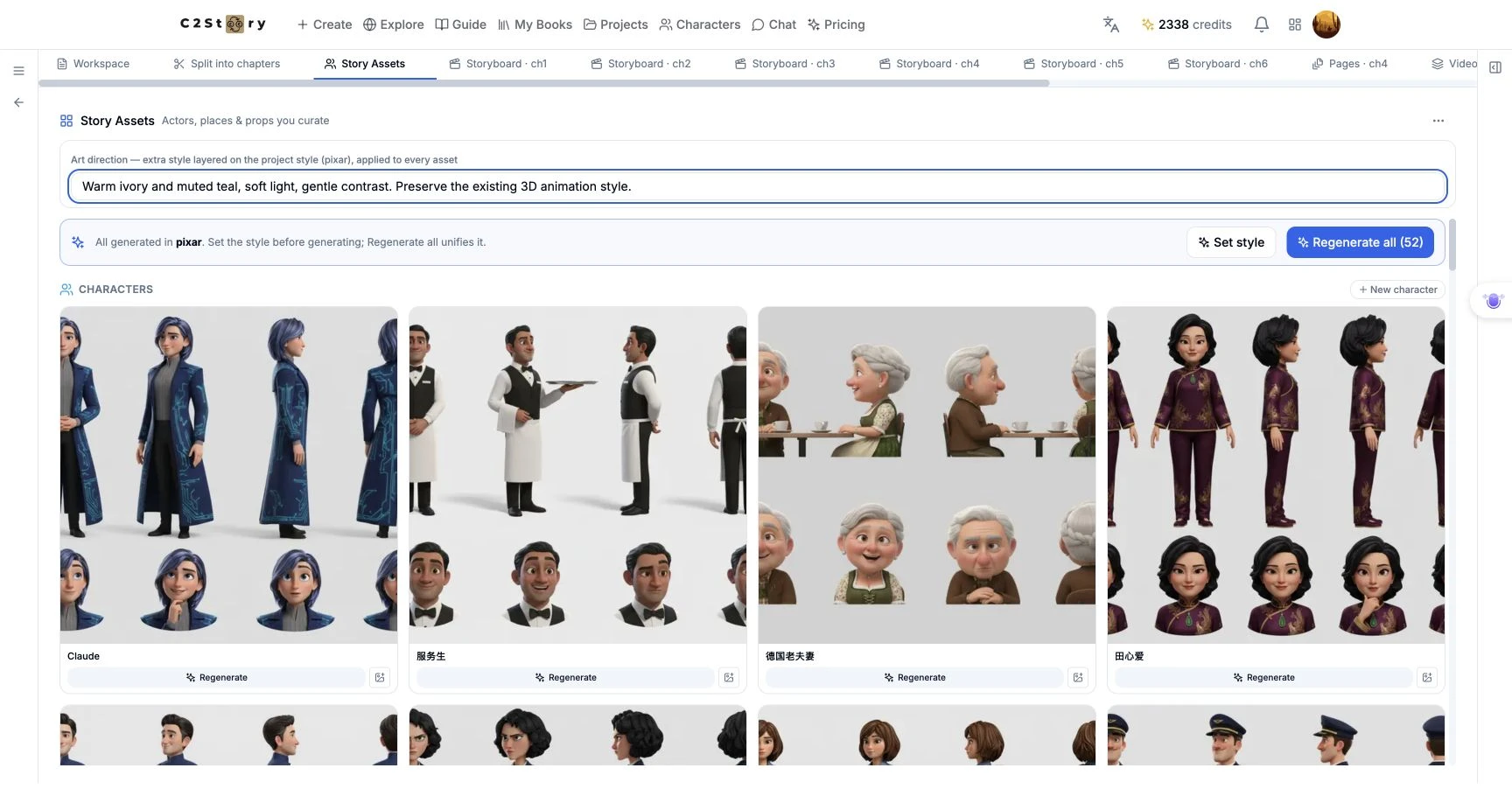
The result is one saved and reopenable Art direction instruction. Desktop entry, leaving the field, full refresh and reopening from Projects all passed. Mobile field access passed after collapsing both side panels; the initial mobile layout failed the accessibility-of-workspace check described above.
The visible balance was 2338 credits before and after this settings-only workflow, an observed change of 0 credits. I did not inspect an itemized bill, so this is a balance observation rather than a general pricing claim.
Use this workflow when you want to save a concise visual note in Story Assets. To claim that it changes generated images, a separate generation and visual comparison would be needed; that was outside this walkthrough.
A first like from an active subscriber gives a community author 1 credit. Likes are permanent; self-likes and repeat rewards are excluded.