Create and save a prop reference in C2Story
Create a named paper-star bookmark in Story Assets, generate its reference image, and reopen it after a refresh. Includes the actual inputs, saved result, and phone-layout limitations.

What this walkthrough completes
On September 22, 2026, I created one new Paper Star Bookmark prop through C2Story's live project interface. I generated its reference image once and verified that the name, image and visible automatic prompt remained after refreshing and reopening the project.
This is a prop-creation tutorial. The result is one 1024 × 1024 reference image, not a story page or a video. I did not test inserting it into a chapter or maintaining its appearance across multiple scenes.
Before you begin
Sign in and open Projects, then choose a project you own. I used the existing project The Weight of an Egg. Its chapters, characters, other props and location references were pre-existing assets; only the bookmark was created in this walkthrough.
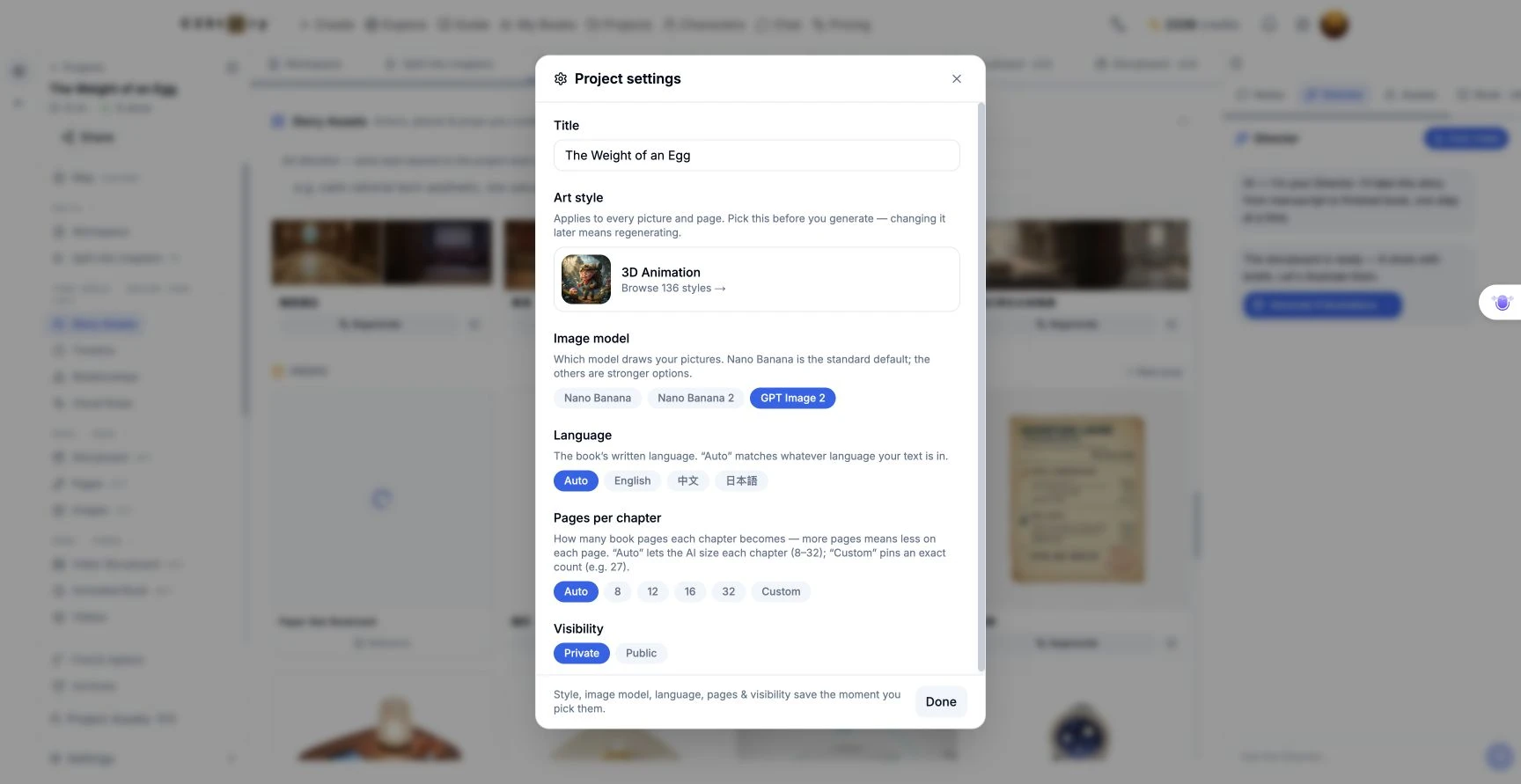
The project already had GPT Image 2 selected and 3D Animation as its art style. Story Assets displayed the style label pixar. I inspected these settings without changing them. Extra art direction was empty, and I attached no reference images. The New prop form did not expose an aspect-ratio or output-count control.
Step 1 — Open Story Assets and add a prop
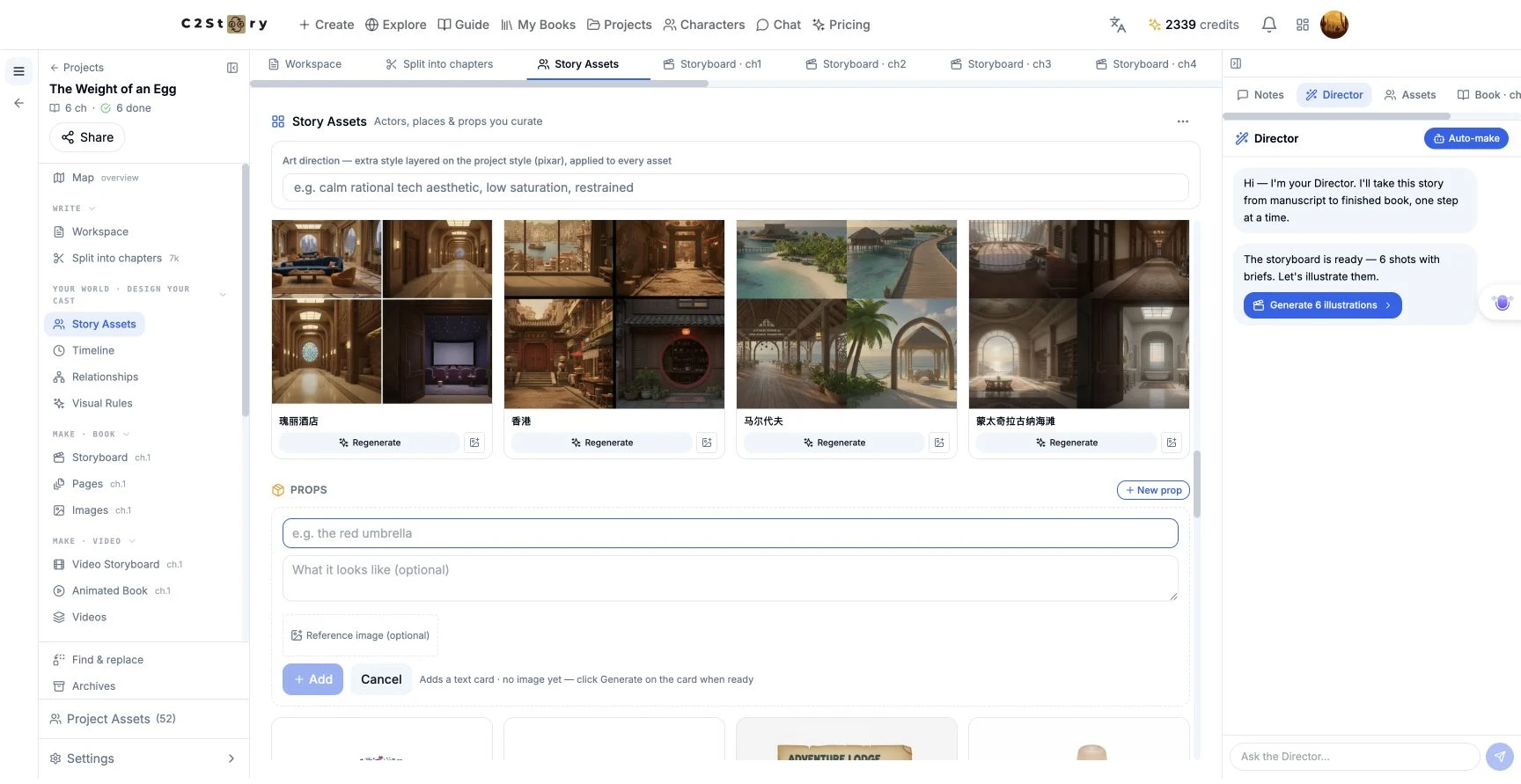
In the project's sidebar, click Story Assets, scroll to Props, and click New prop. The form has a name, an optional appearance description, and an optional reference-image attachment.
The form explains that Add creates a text card first. It does not generate the picture yet.
Step 2 — Enter a name and a concrete description
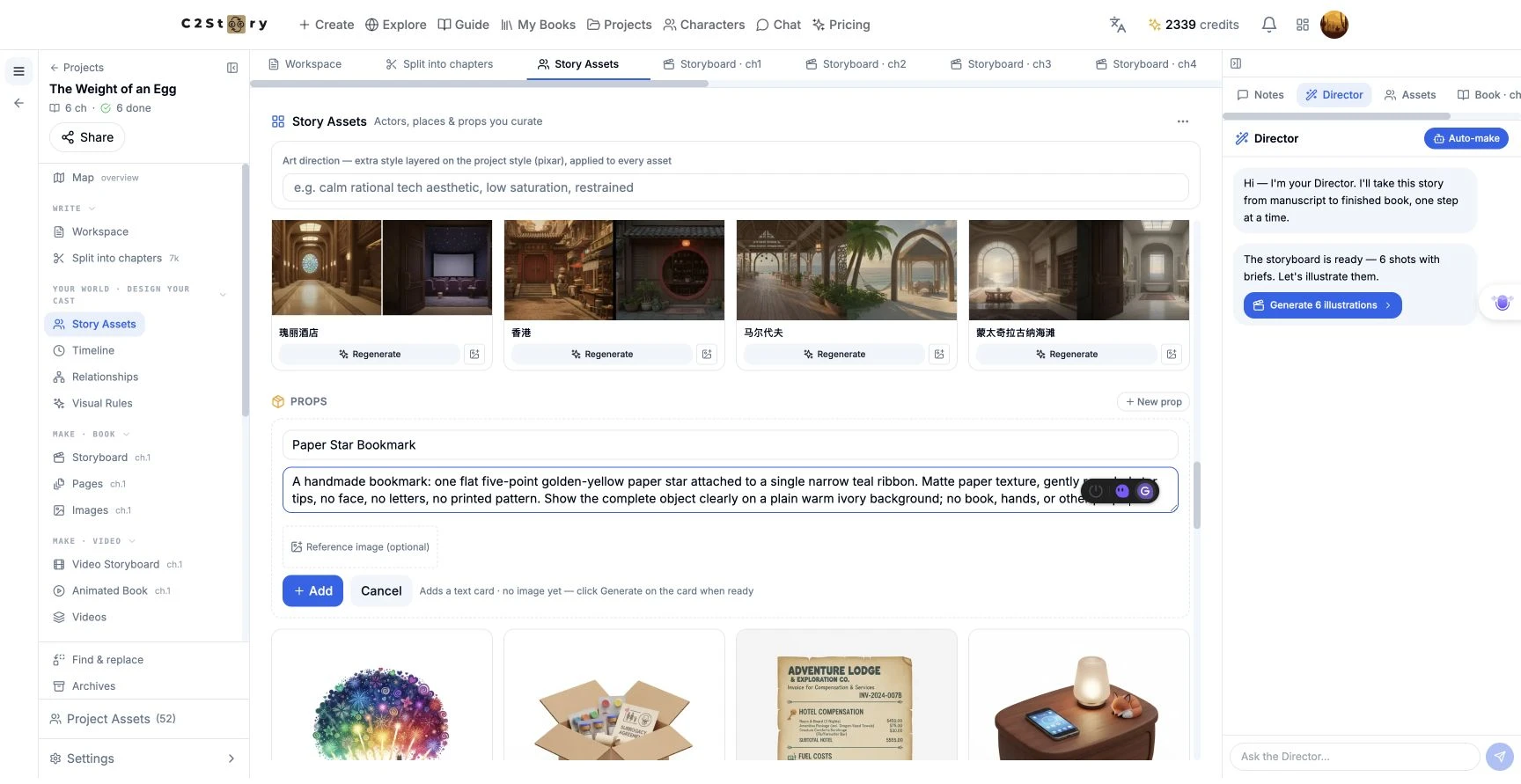
I entered this exact name:
Paper Star Bookmark
And this exact description:
A handmade bookmark: one flat five-point golden-yellow paper star attached to a single narrow teal ribbon. Matte paper texture, gently rounded star tips, no face, no letters, no printed pattern. Show the complete object clearly on a plain warm ivory background; no book, hands, or other props.
I left Reference image empty and clicked Add. The new named card appeared in Props. Giving the object a distinctive name makes it easier to find again in a busy project.
Step 3 — Generate the new card once
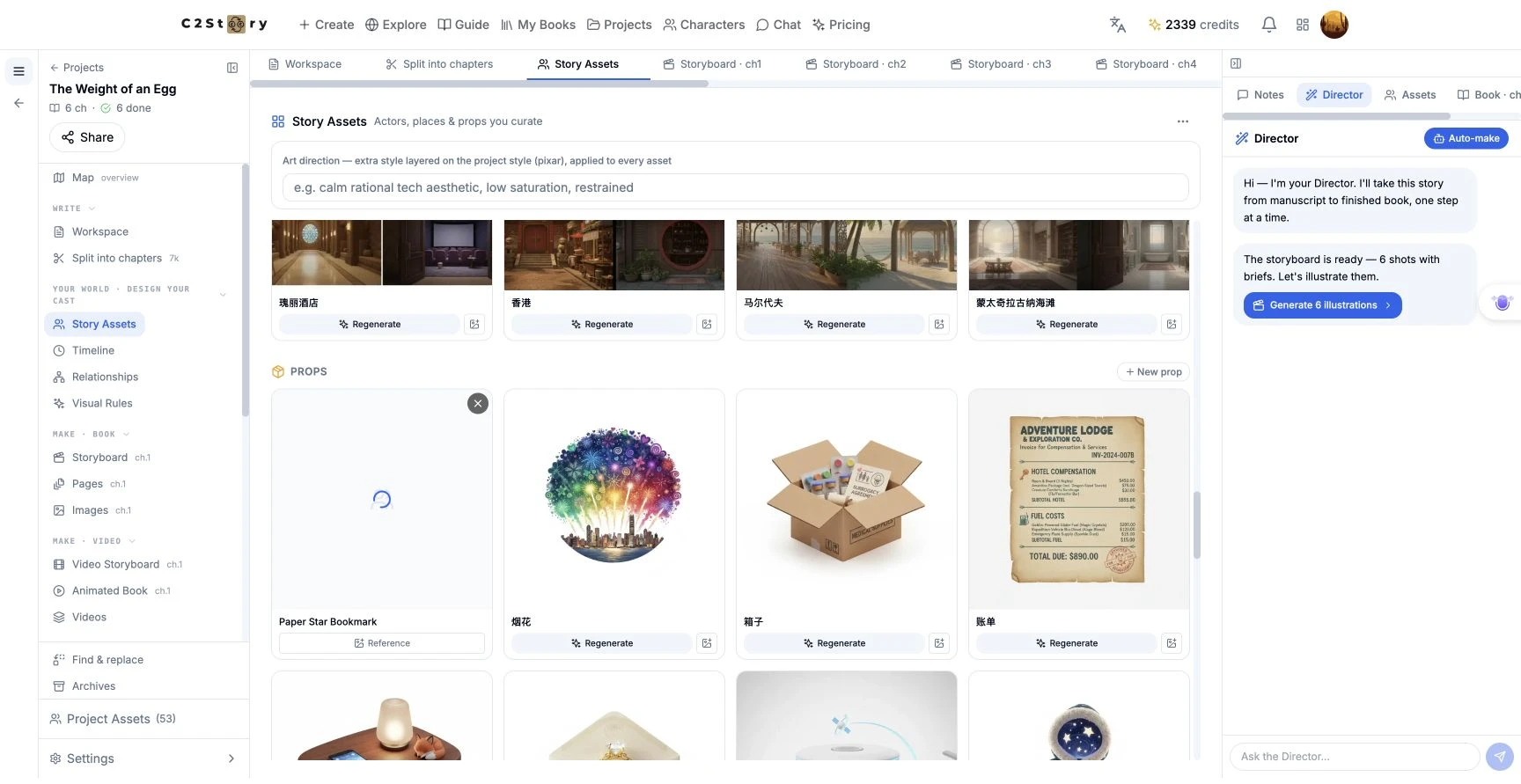
I clicked Generate on the new bookmark card. The card showed a spinner while processing. I waited for that submission to finish; I did not click Generate images for the project or Regenerate all.
When the picture appeared, I clicked it to open Studio.
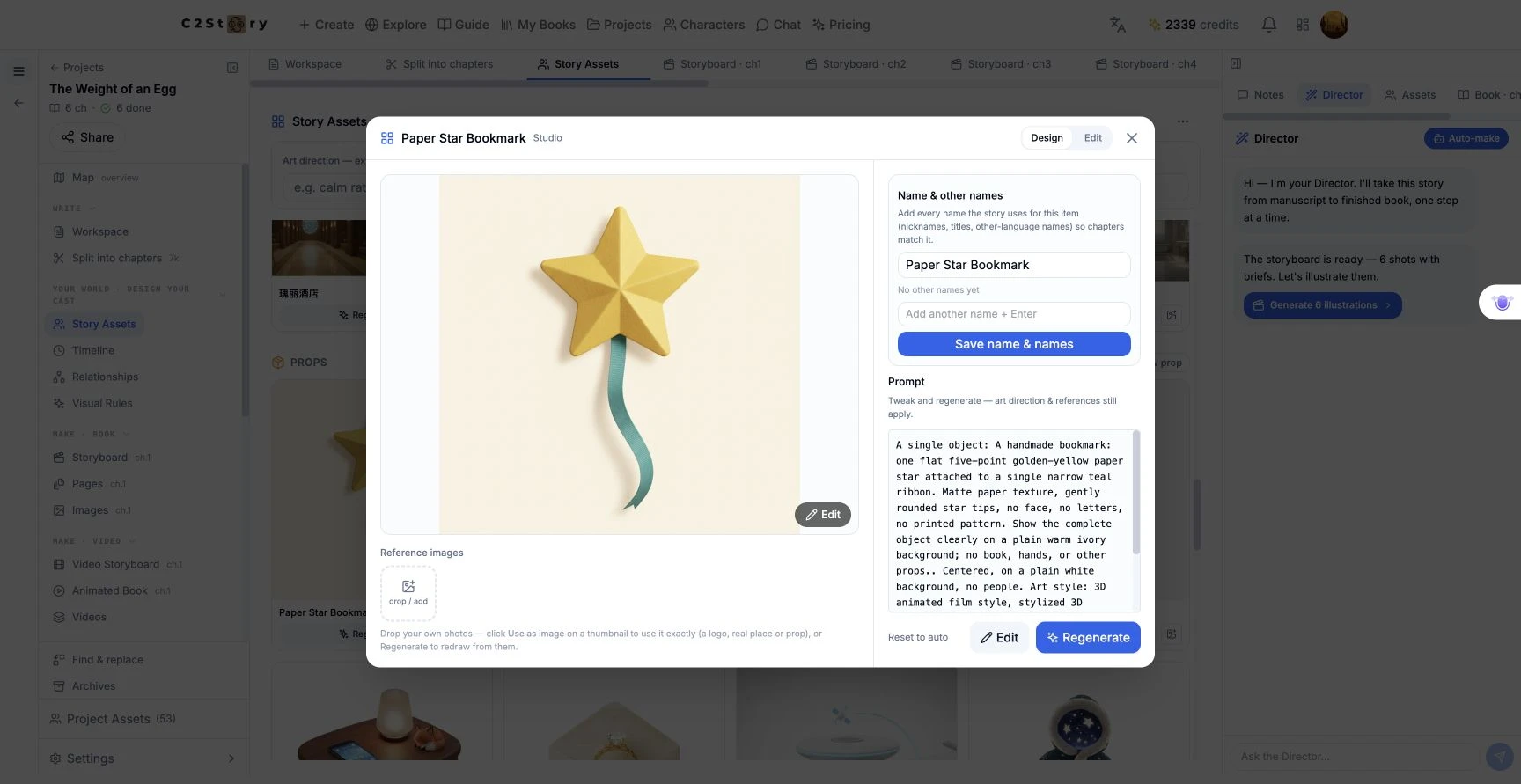
The result shows one golden-yellow five-point star, one teal ribbon, an ivory-toned background, and the complete object. There is no face, lettering, book, hand or extra prop. The star is visibly faceted and raised, however: the request for flat paper was not fully met. I kept this result and did not submit a correction, so it should not be described as an exact match to every word of the description.
What the product added to the prompt
Studio exposed the following automatic prompt. This is text read from the UI after generation, separate from the description I typed above:
A single object: A handmade bookmark: one flat five-point golden-yellow paper star attached to a single narrow teal ribbon. Matte paper texture, gently rounded star tips, no face, no letters, no printed pattern. Show the complete object clearly on a plain warm ivory background; no book, hands, or other props.. Centered, on a plain white background, no people. Art style: 3D animated film style, stylized 3D characters, detailed textures, cinematic lighting, family animation style, high quality render — an illustration, not a photograph, not a real person
Notice that the automatic text adds a plain white background instruction even though my description requested warm ivory. The observed image looks ivory-toned. This walkthrough does not claim control over hidden model settings or that every prompt instruction was followed.
Step 4 — Refresh and reopen to verify saving
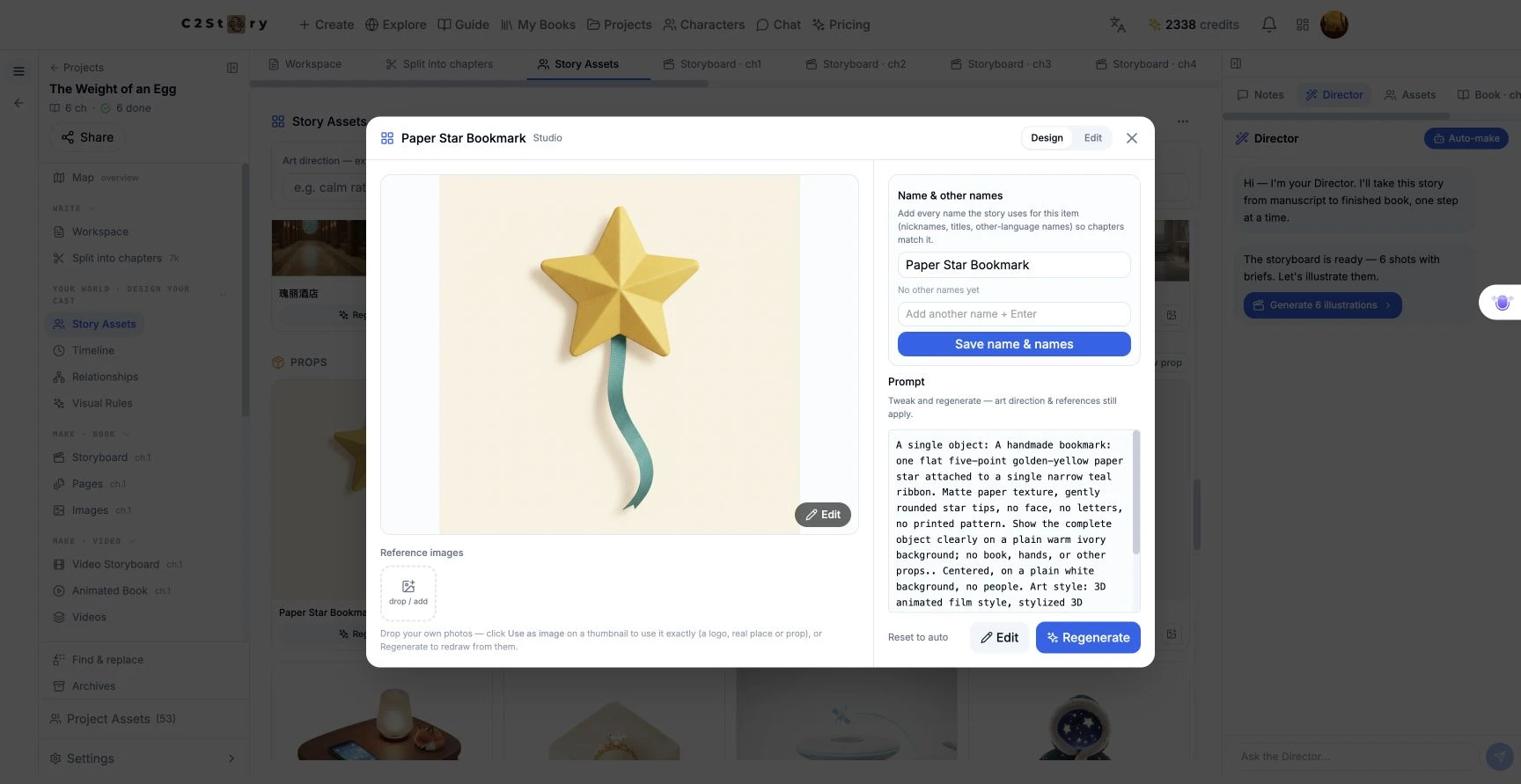
I refreshed the project, located Paper Star Bookmark under Story Assets → Props, and clicked the image again. The same image, saved name and automatic prompt were still present. I did not need a separate image-save action after generation.
Studio also displayed Name & other names, Save name & names, Edit, and Regenerate. I did not use those controls in this run; their presence is not evidence that renaming, editing or downstream reuse was tested.
To find your own saved result later, return to Projects, open the same project, and go to Story Assets → Props. This requires login. This workflow did not expose a public prop-share page, and I did not publish the private project just to create a link. You can open this walkthrough's actual result image without signing in.
Phone-size check and current limitations
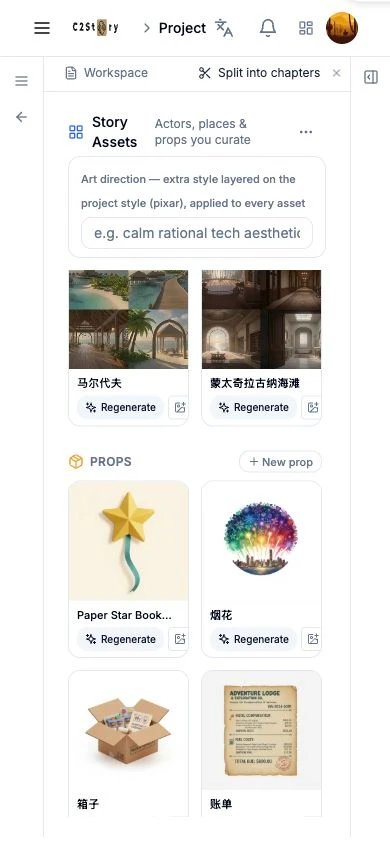
At a 390 × 844 browser viewport, the initial project layout left the central asset workspace inaccessible while both side panels were open. Clicking Collapse sidebar and Collapse panel made the bookmark card accessible. I could then reopen its saved name and prompt. The thumbnail displayed the complete bookmark.
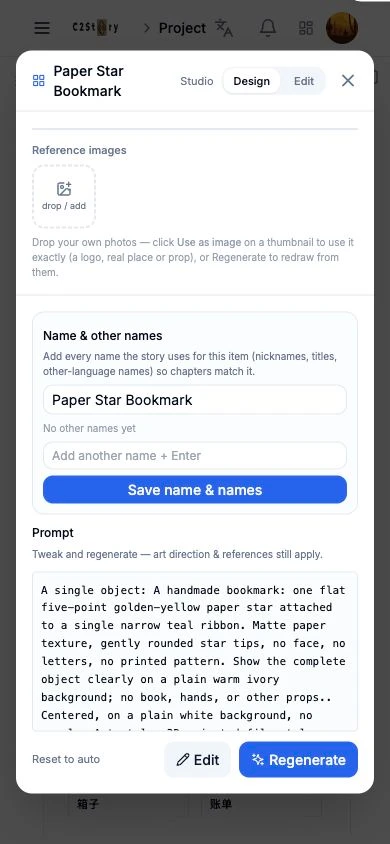
The larger Studio image preview was clipped above Reference images, even though the image had loaded. This part of phone preview verification failed. Use the card thumbnail or the public result-image link for inspection; the desktop Studio displayed the full image. I did not generate on a phone or test a physical handset.
Result and cost
The completed scope is one generated, saved and reopenable prop reference. Desktop creation and persistence passed. Phone card access passed with the panel-collapse workaround; phone Studio image preview failed. No story pages or video clips were generated, and use of this prop inside a story remains unverified.
The visible balance was 2339 credits before and 2338 after refreshing, an observed decrease of 1 credit during this run. I did not inspect an itemized bill, so this is a balance observation rather than a universal price claim.
A first like from an active subscriber gives a community author 1 credit. Likes are permanent; self-likes and repeat rewards are excluded.