Save and reopen a manuscript archive in C2Story
Keep a named copy of an existing manuscript before editing. Follow a real six-chapter archive save, refresh and reopen check, with desktop evidence and the current phone-reading limitation.
Before changing dialogue or reorganizing chapters, save a named copy of your manuscript in Archives. This walkthrough records a real desktop save and reopen on September 29, 2026, including the current phone-layout limitation.
What this walkthrough uses
The starting material is our existing Chapter 1 — Meet Cee project: six chapters featuring the C2Story hosts Cee and Wise, with 13.8k chars displayed in the interface. The manuscript and characters were already present. This run creates one manuscript archive; it does not create a new book, illustration, character, or video.
You need a signed-in account and an existing project containing text. Open Projects, select your project, and use its Archives section. The archive belongs inside your project; this walkthrough provides public screenshots, not a public link to the private archive.
Step 1 — Open Archives and check the starting manuscript
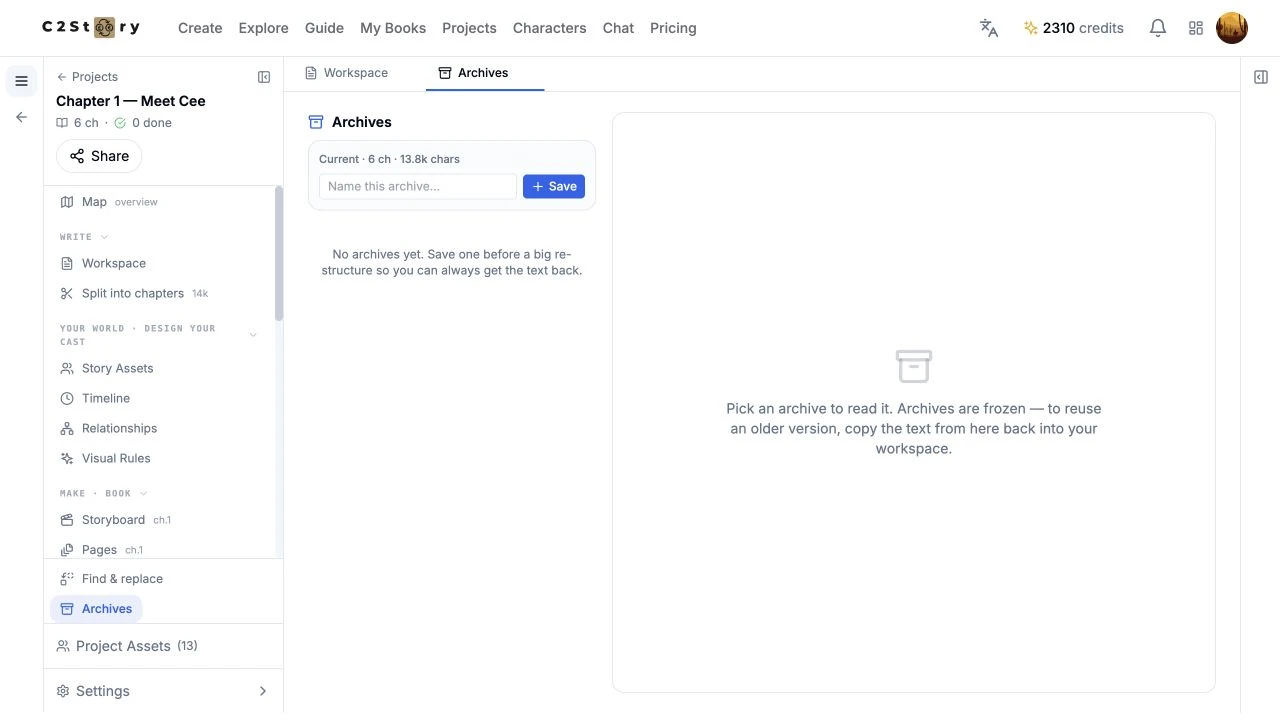
We opened Chapter 1 — Meet Cee, then clicked Archives near the bottom of the project sidebar. The page showed Current · 6 ch · 13.8k chars and No archives yet. We collapsed the right context panel to give the archive workspace more room.
This check matters: the archive should capture the manuscript you intend to keep. We used the dedicated Archives form for the successful save. An earlier click on the Workspace Save archive shortcut did not produce a saved entry during this session; we did not count that click as a successful save.
Step 2 — Give the archive a recognizable name
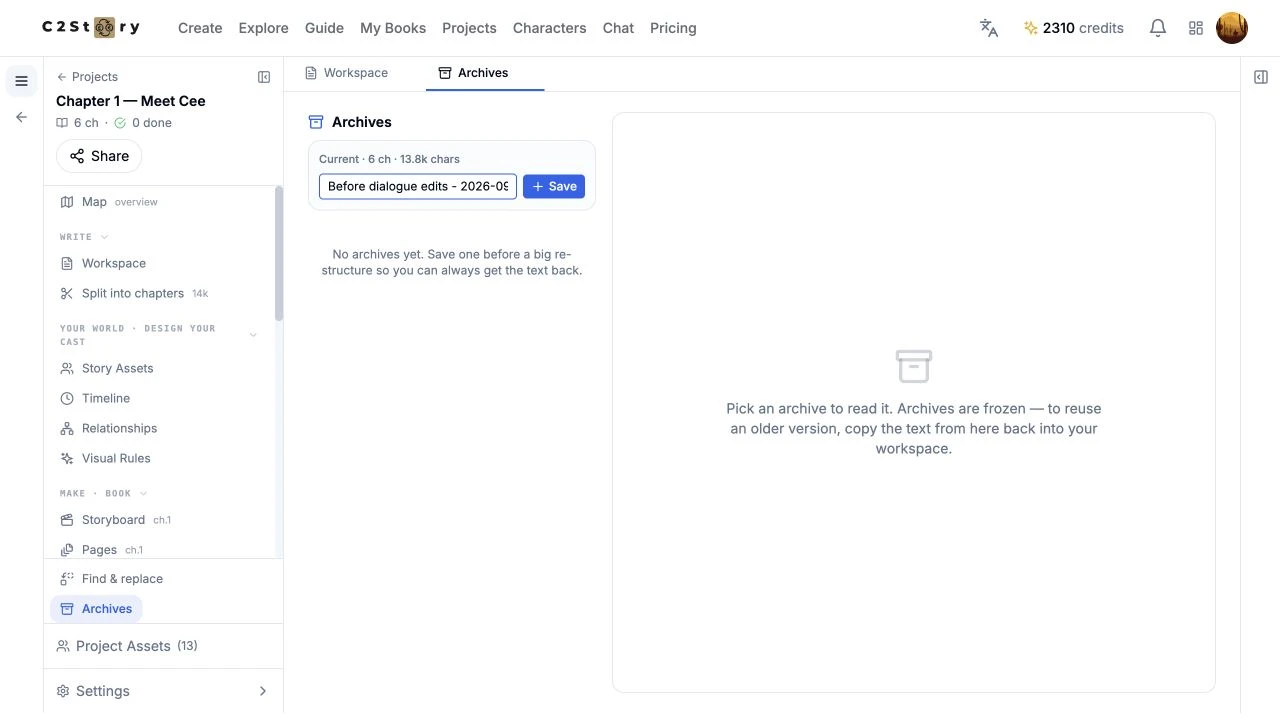
In Name this archive…, we entered exactly:
Before dialogue edits - 2026-09-29
Then we clicked Save once. This was a label for the snapshot, not a generation prompt. No model, art style, aspect ratio, or video duration was selected for this operation. The existing manuscript was left unchanged.
Step 3 — Confirm the saved entry
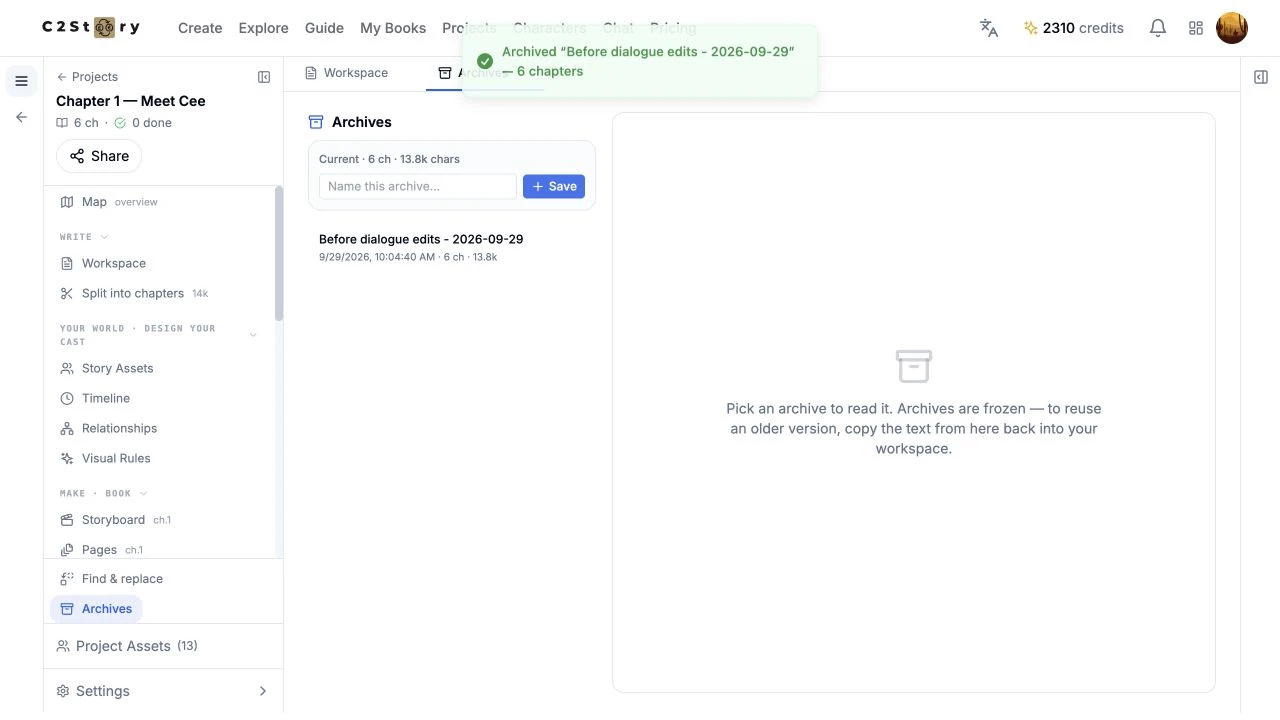
The new entry appeared with our exact name, 9/29/2026, 10:04:40 AM, 6 ch, and 13.8k. A confirmation stated that the named archive contained six chapters. The time is the value displayed in this test browser.
We clicked the named entry. The reader showed read-only · 6 ch · 13.8k chars, along with the manuscript. A label alone would not prove that the content was saved; opening the entry is part of the check.
Step 4 — Refresh, reopen, and read the saved copy
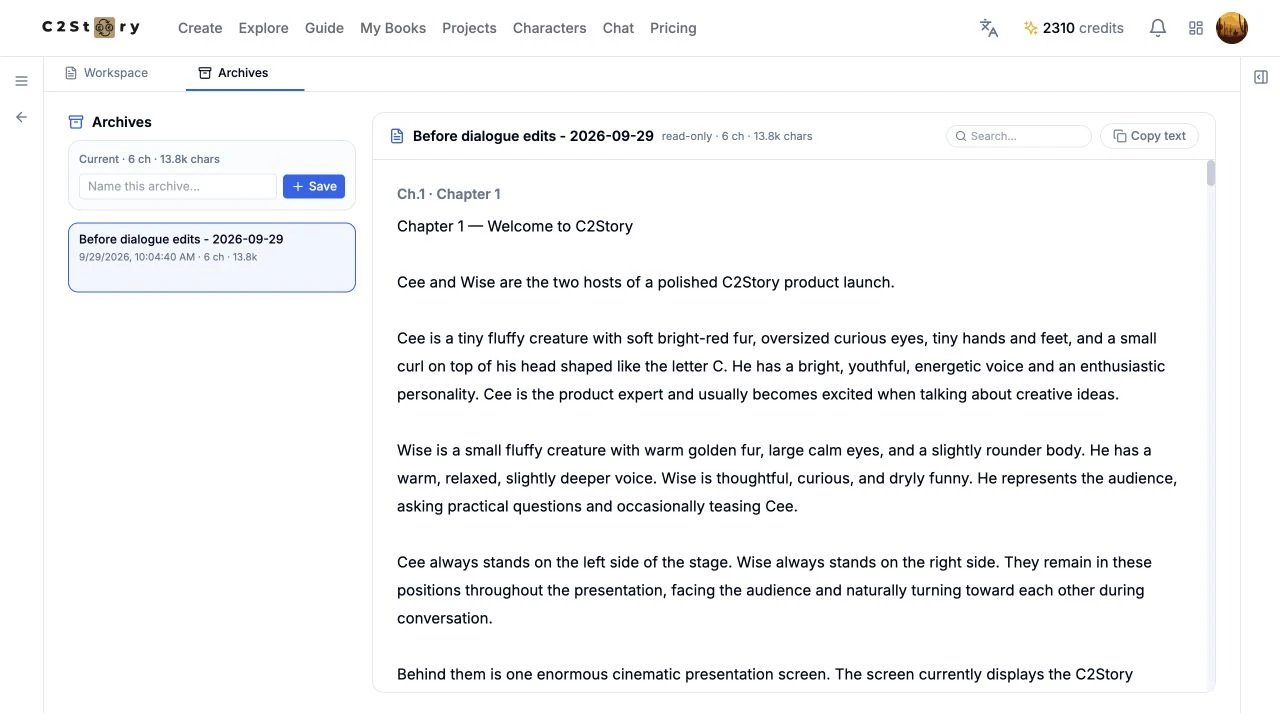
We refreshed the page and opened the same entry again. We also returned to the project list, reopened Chapter 1 — Meet Cee, selected Archives, and opened the saved name. The archive remained available with all six chapter headings and the manuscript text.
The screenshot shows the final desktop view with both side panels collapsed. We also clicked Copy text and verified that the clipboard contained the archived manuscript. We did not paste it over the working manuscript or test a restoration. The interface describes archives as frozen copies and explains that older text can be copied back into the workspace.
To find your own saved result later: Projects → your project → Archives → your archive name. Sign-in is required. No separate public archive-share URL was exposed in the tested view.
Phone check — use desktop for reading this archive
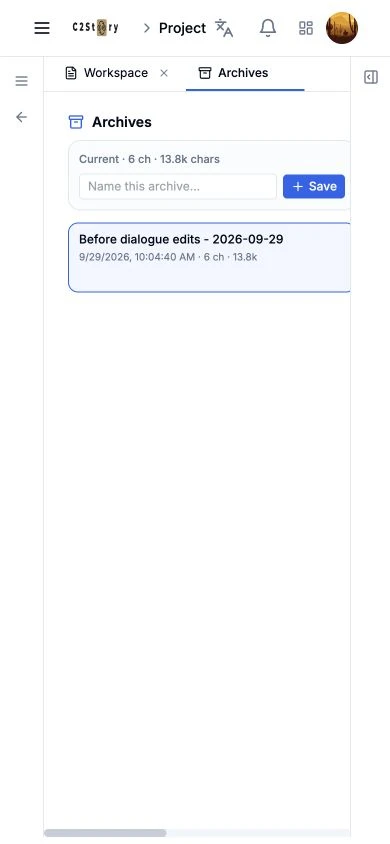
At 390 × 844, the open project and context sidebars initially obscured the archive workspace. Collapsing both made the saved archive name and date visible.
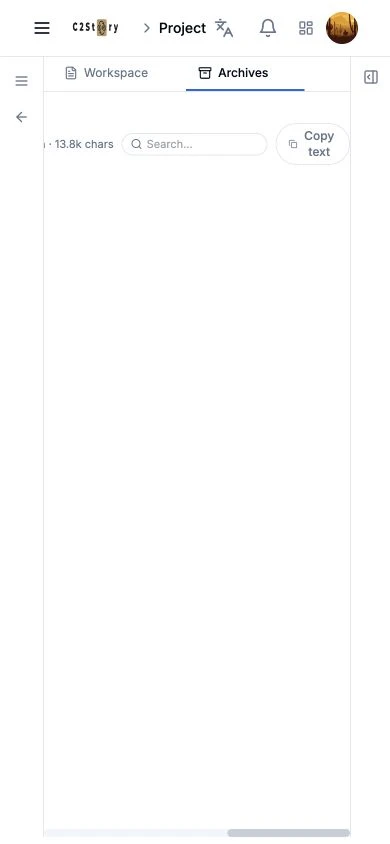
The inner layout still required horizontal scrolling. After scrolling right, the reader toolbar appeared, but the chapter text did not occupy a readable column. We therefore verified that the saved entry could be found at phone size, but phone archive reading failed this layout check. Use desktop for the workflow shown here. Mobile saving and a physical phone were not tested.
Verified result and scope
One named archive was saved through the live product UI and reopened after both a refresh and a return through Projects. Desktop saving and reading passed at 1280 × 720. This check covers the manuscript archive only; it does not establish backup or restoration of project images, videos, settings, or other assets.
The visible balance was 2,310 credits before and after, an observed change of zero. No generation was submitted and no itemized bill was checked. This is an official tutorial; no community submission reward was requested.
A first like from an active subscriber gives a community author 1 credit. Likes are permanent; self-likes and repeat rewards are excluded.