Leave room for text in a watercolor story page
Compose a rabbit-and-sunflower illustration with a quiet area for a short paragraph. See a full-frame version, a deliberate text-space version and the exact prompts.
The small brief
A rabbit waters a sunflower. We need a landscape illustration with the action on the right and a quiet area on the left for a short paragraph added during page layout. The deliverable is a finished illustration with intentional negative space.
Finished illustration
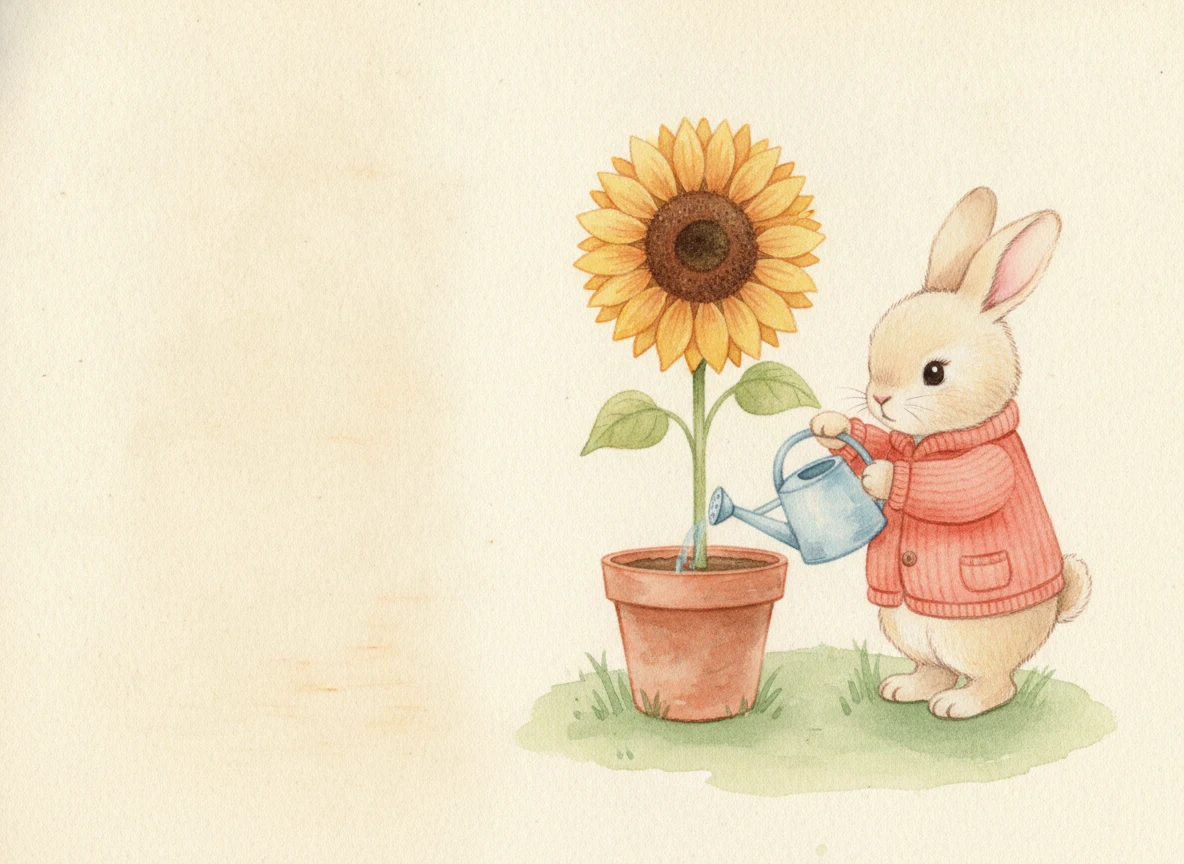
Finished illustration: the rabbit and sunflower sit to the right of an open ivory text area.
Suggested story sentence: “Every morning, Pip gave the sunflower a little drink.” Keep this as real text in your story or layout rather than asking the image model to draw the letters.
1. Separate the story from the picture instructions
Open Create and choose Create a Story. Describe a short story about caring for a sunflower, then choose Watercolor as the style. We used Nano Banana, with 4:3 landscape framing, for both examples in this guide.
For the watering page, keep the sentence and illustration brief separate. The sentence says what happens. The visual direction says where the rabbit, flower and open space belong. A useful character description is “small cream rabbit wearing a coral cardigan.” Keep it unchanged across your pages.
2. See how a full-frame prompt uses the space
This first prompt asks for a cheerful garden that fills the image. It is a reasonable standalone illustration brief, but it does not reserve a text area.
Watercolor picture-book illustration of a small cream rabbit in a coral cardigan watering one sunflower in a terracotta pot with a pale blue watering can. Cheerful garden scene with leaves and flowers filling the frame, rabbit near the center. Soft textured paper, no words, no watermark.
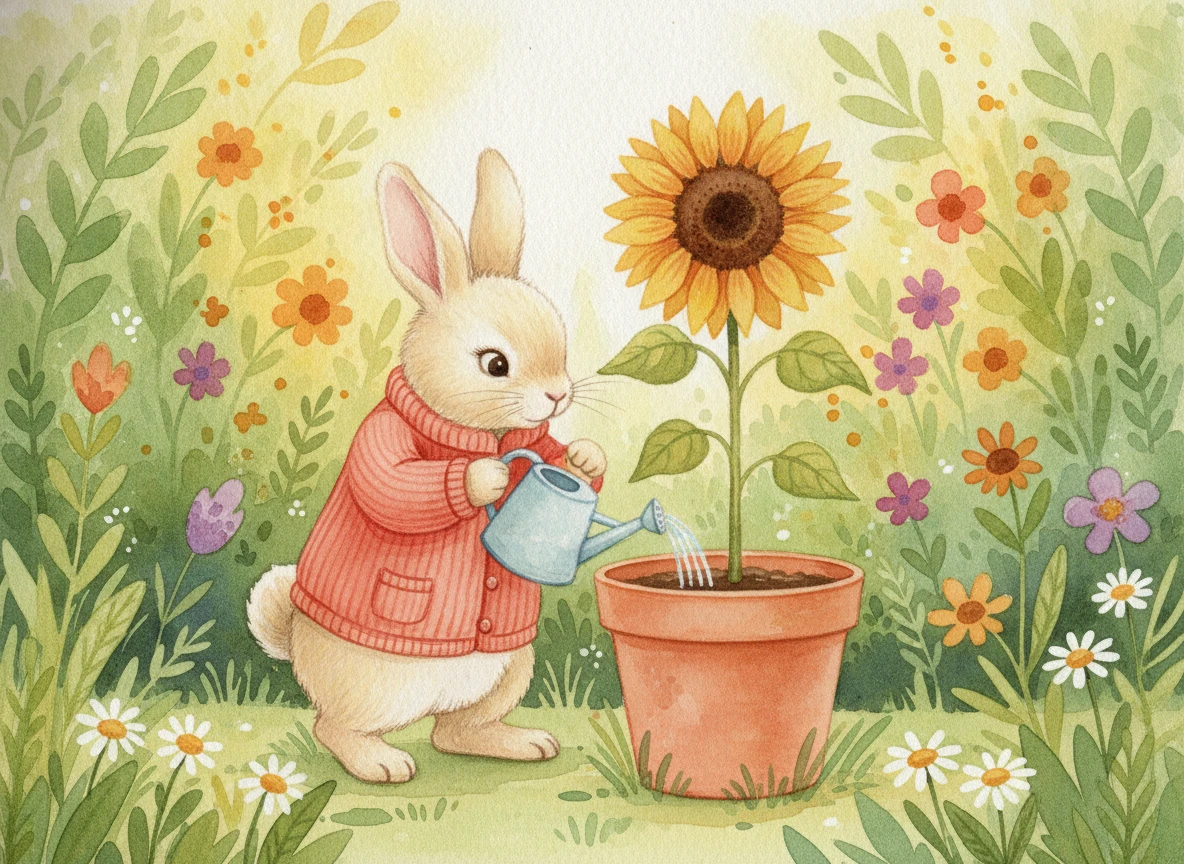
First independent example: the garden is allowed to fill the illustration.
Imagine placing a short paragraph on the left. Would letters cross petals, leaves or the character? Would the background compete with the text? If so, revise the composition before adding typography.
3. Specify a quiet text zone
The final prompt names the subject zone and the empty zone separately. It also says what must stay out of that space. “Leave room for text” alone can still produce decorative foliage across the intended area.
Watercolor picture-book page illustration on warm ivory paper with delicate pigment texture. A small cream rabbit wearing a coral cardigan waters ONE sunflower in a terracotta pot using a pale blue watering can. Place the ENTIRE rabbit, pot, sunflower and watering can within the RIGHT HALF; show rabbit feet and the entire flower head. The LEFT 45 PERCENT is clean warm ivory paper with only a very faint wash, intentionally empty for a short paragraph to be typeset later. No flowers, leaves, objects, borders or shadows intruding into this left text area. Gentle sage grass only beneath the right-side subject. Soft child-friendly rounded shapes, consistent watercolor medium. No generated text, no letters, no watermark.
To request the same change on a C2Story page, choose Edit image, or choose B · Needs changes if the review is open, and give this direction:
Keep the cream rabbit, coral cardigan, blue watering can, one sunflower and watercolor style. Move the whole action into the right half. Leave the left side as quiet warm ivory paper with no plants or objects. Show the complete rabbit and flower. Do not draw any text.
Treat “45 percent” as a composition request, not a guaranteed measurement. Check the actual output and adjust it if the usable space is too small.
4. Validate the final layout
The finished image at the top is the illustration asset. The text-space request does not automatically change C2Story’s page-text placement. Use your actual book preview or a layout tool to check how the story text and illustration are combined. If your selected layout displays text separately, the open space can still provide visual breathing room.
For text placed over the image, start with the one-sentence example above. Use a dark, readable type color, generous margins and a comfortably sized font. Check the page on a phone and at the intended print size. Avoid making type smaller just to force a long paragraph into the gap; shorten the sentence or choose a different layout.
Common fixes
Leaves invade the gap: specify that all foliage stays on the right. The rabbit is cut off: ask for the entire subject with visible feet and room above the flower. Fake lettering appears: restate “no letters or text in the illustration.” The result looks unfinished: retain subtle paper texture while keeping objects out of the text zone.
Save this as a composition pattern for other quiet actions, such as setting a cup on a table or planting a seed. Keep the page’s action simple enough that one clear subject group can carry it.
What we observed in these results
In the first result, foliage, the rabbit and the pot compete for space across the whole page. The final result leaves a broad quiet area on the left, while the flower and rabbit stay together on the right. Some grass approaches the middle, so keep text inside the clearly empty area instead of assuming an exact 45 percent boundary.
How these examples were made
We generated these original examples for this guide with Nano Banana through C2Story’s image-generation backend. The two examples are independent text-to-image generations using the exact prompts below. They demonstrate composition choices; they are not a controlled edit that holds every pixel or character feature fixed. The finished assets shown here are still illustrations. Your result can vary, so use the visual checks before accepting it.
A first like from an active subscriber gives a community author 1 credit. Likes are permanent; self-likes and repeat rewards are excluded.