Edit and save one page of story text in C2Story
Follow a real desktop text edit: replace two sentences, save, reopen the editor, and verify the updated public reader. Includes the current phone editing limitation.
A small wording change does not need a new illustration. This walkthrough records a real desktop edit made on September 18, 2026: we opened an existing one-page book, replaced its page text, saved it, and checked the same words after reopening the editor and the public reader.
Before you start
Sign in to the account that owns the book and open My Books. Use a desktop browser for the editing steps below. This example starts with Milo Waters His Sunflower, a watercolor book created in our September 17 saved-character walkthrough. Its illustration and saved Milo character are existing assets, not new outputs from this tutorial.
The original page text was:
Milo gives his sunflower a little drink. Small acts of care help good things grow.
Our goal was to replace only those two sentences and confirm the change persisted. No generation prompt was submitted, and no style, image model, page count, aspect ratio, or video setting was selected during this edit. The existing book has one illustrated page.
Step 1 — Open your book and choose Edit Book
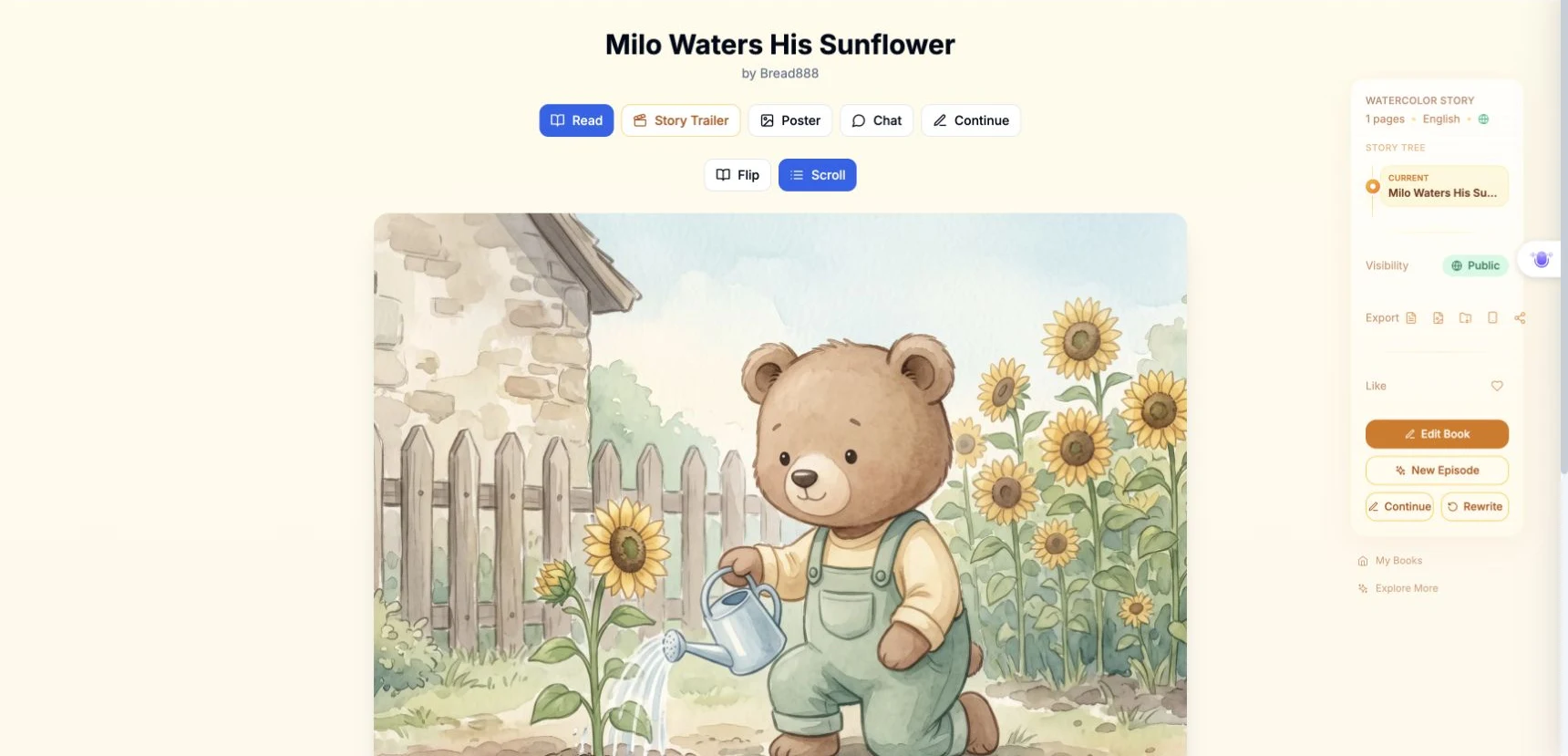
In My Books, we opened Milo Waters His Sunflower. On its desktop reading page, we clicked Edit Book in the right sidebar. This reopened the existing creation session. It did not start a new book.
The book was already Public before this run. We left that setting in place. Your own book must belong to your signed-in account for the owner editing control to appear.
Step 2 — Open Scenes and inspect the original words
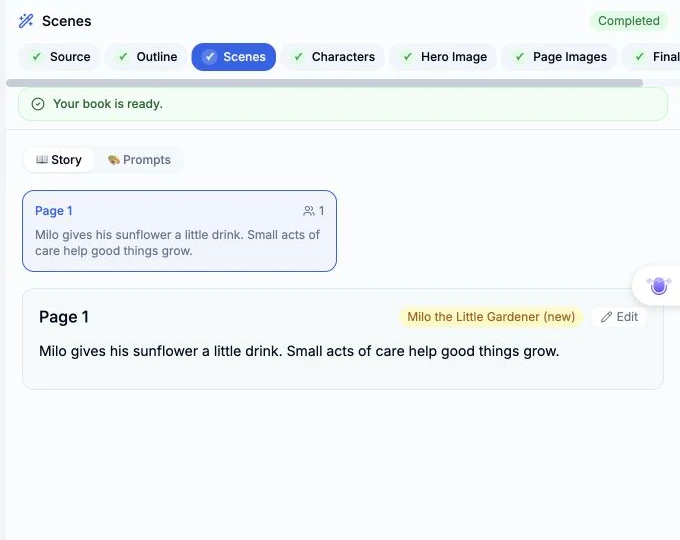
We clicked Scenes in the creation step bar. The Story view showed the single page, its original text, and an Edit button beside the page details. We checked the page number and wording before changing anything.
This is the page-text editor. Our existing illustration was already complete. Earlier generation and error messages in the session history belong to the previous creation run; they are not new generation attempts for this text edit.
Step 3 — Enter the exact replacement and save
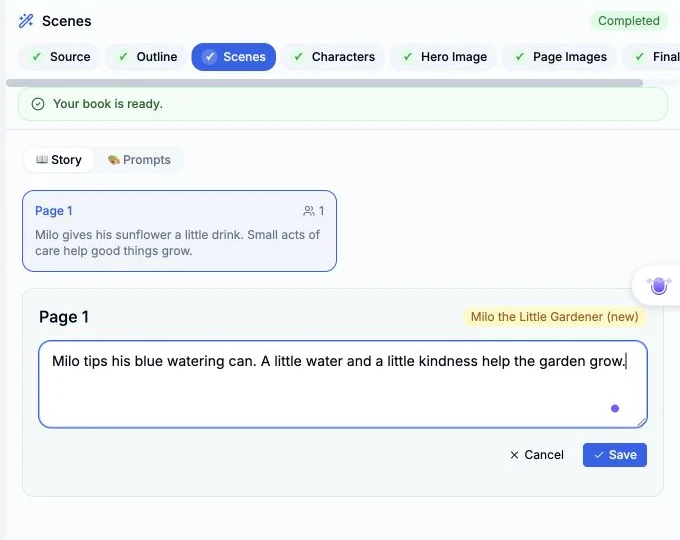
We clicked Edit and entered this exact replacement:
Milo tips his blue watering can. A little water and a little kindness help the garden grow.
Then we clicked Save once. The button briefly became disabled while saving. We waited until the text field closed and the normal Edit button returned.
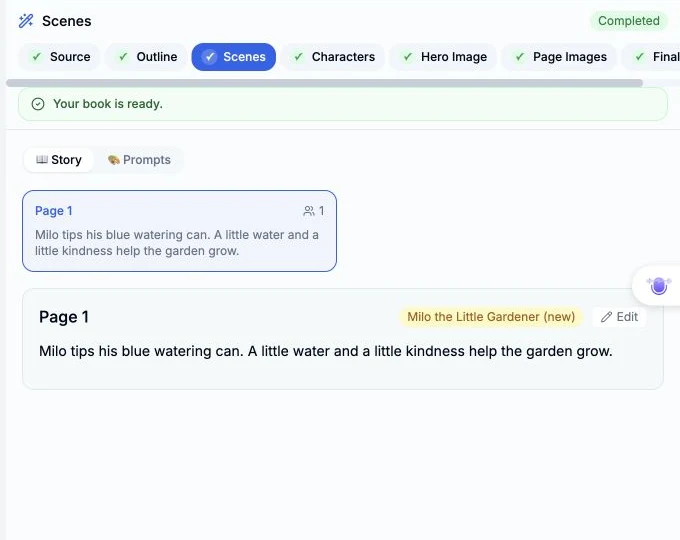
The new words appeared in both the Page 1 card and the main page details. We did not use the chat box, Redo, Regenerate, or any image-generation action.
Step 4 — Reopen and verify persistence
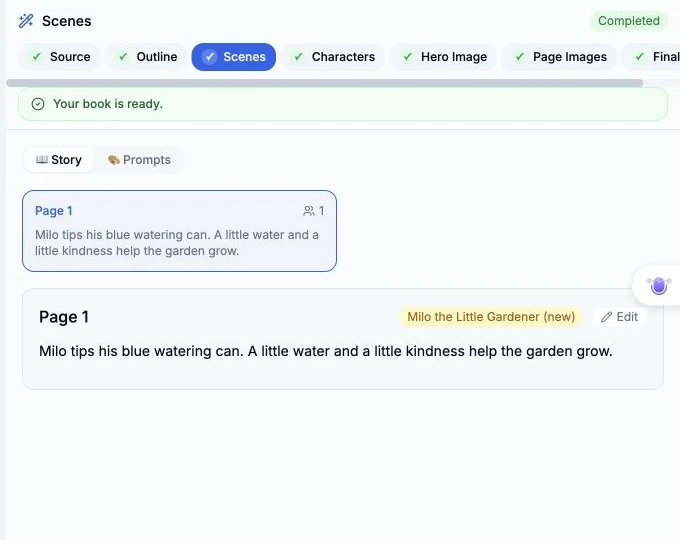
We reloaded the same editing URL, allowed the existing session to load, and opened Scenes again. The new sentences were still present.
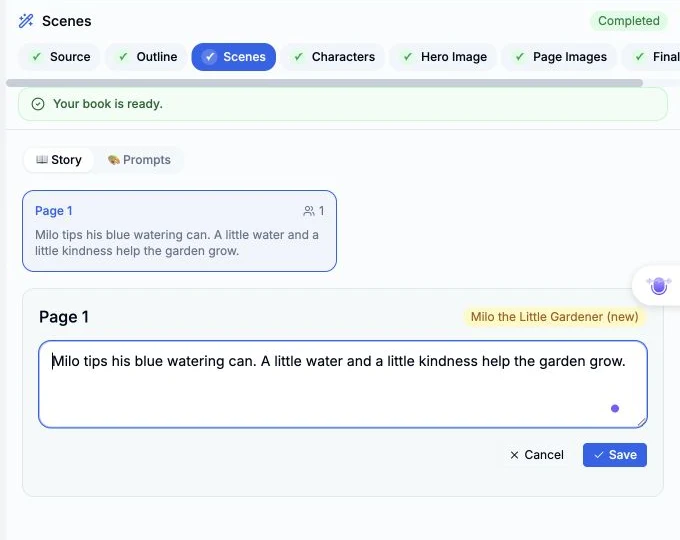
For a second check, we opened Edit again. Its field contained the saved replacement exactly. We clicked Cancel without changing anything. This verified the saved value rather than relying only on the immediate post-save display.
Step 5 — Check the public reading result
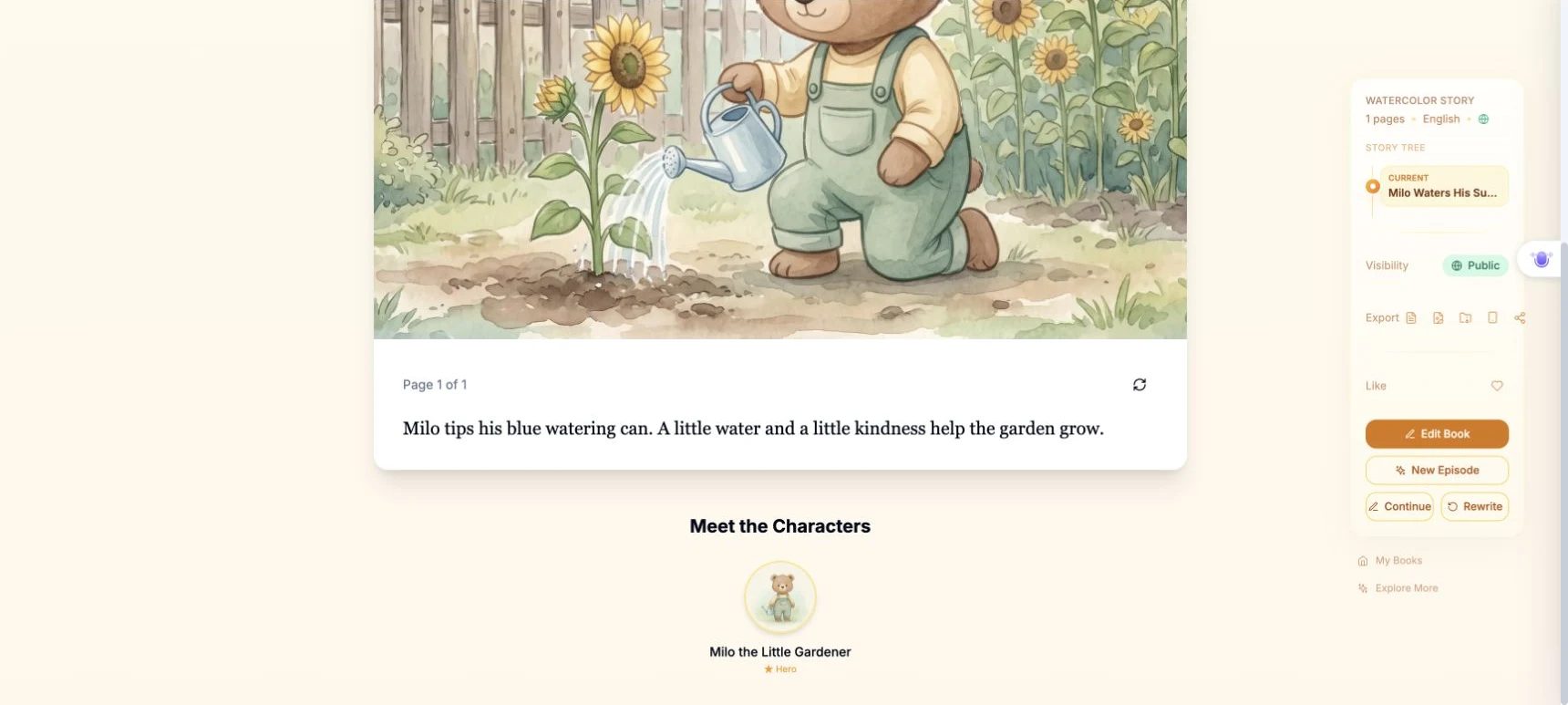
We reopened the public Milo story. It showed Page 1 of 1 and the replacement text. We also opened that URL in a fresh Chrome Incognito window: the page showed Sign In, and the new words were readable without signing in.
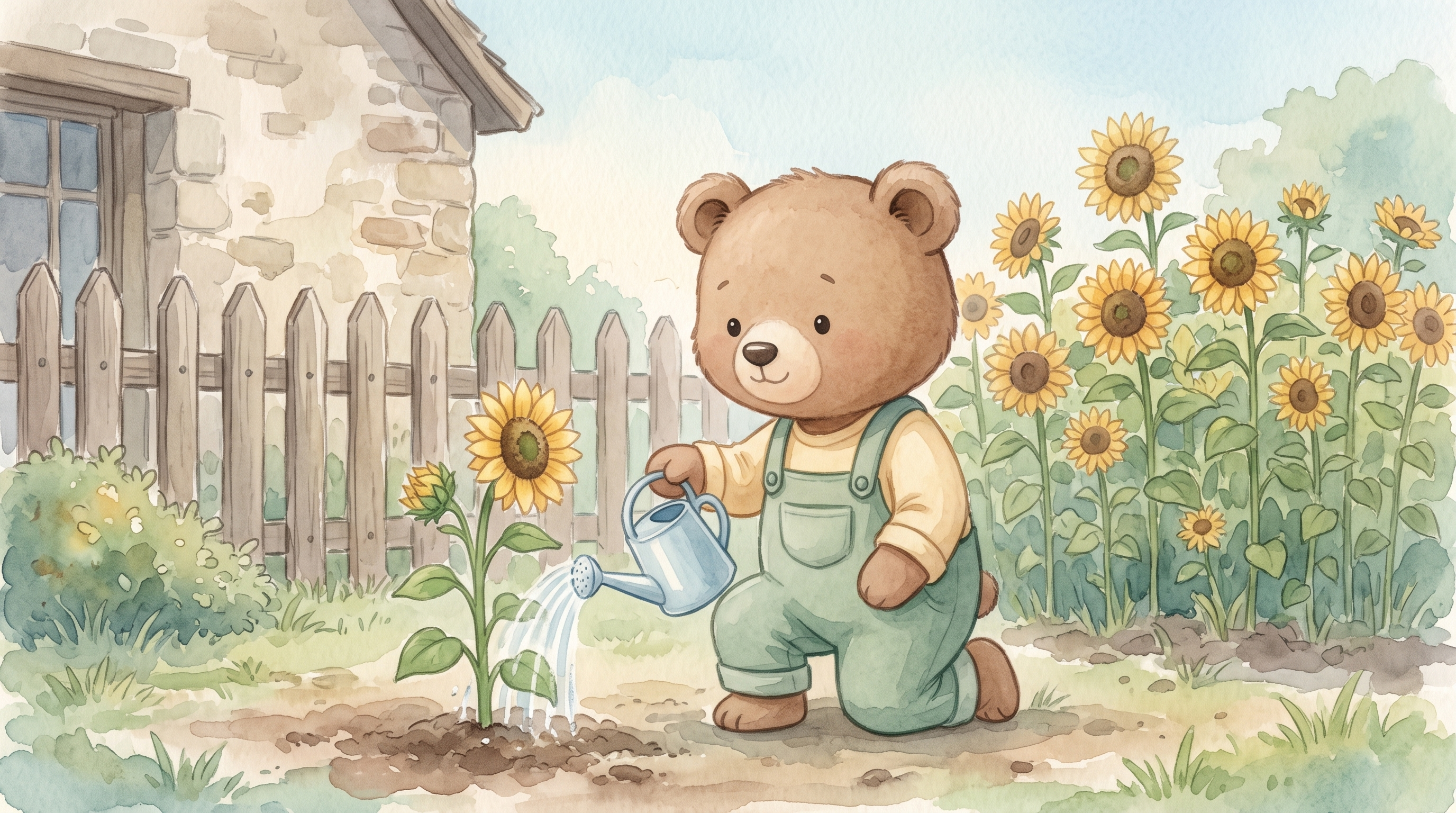
The original illustration remained in place. Its image address still points to the existing September 17 watercolor image. The result of this run is updated story text, not a newly generated picture, book, or video. The linked live book now reflects this edit, so its wording differs from the historical screenshots in the September 17 guide.
Phone check and a current editing limitation
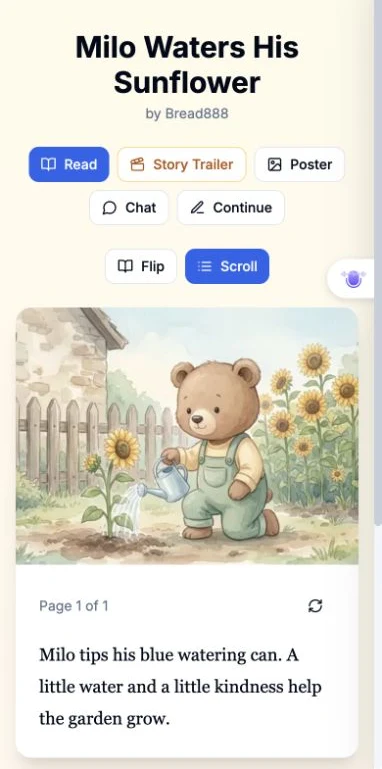
At a 390 × 844 browser viewport, the reading page displayed the illustration and both new sentences. This phone-size reader check used the signed-in browser; the separate signed-out check was on desktop. A physical phone and signed-out phone rendering were not tested.
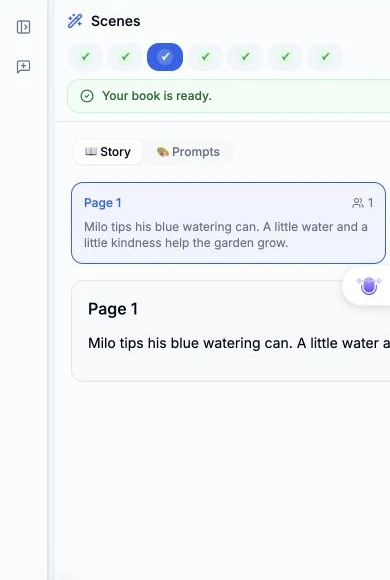
The Scenes editor did not pass the phone-size usability check. Its page-details panel extended beyond the right edge, clipping the text and leaving the Edit control outside the visible area. We did not perform or claim a successful mobile save. Complete this editing workflow on desktop until that layout issue is resolved.
What this run verified
- Desktop: opened the owned book, edited one page, saved, reopened the session, and confirmed the exact saved text.
- Reader: the public book displayed the new words; the desktop Incognito view worked without sign-in.
- Phone-size reader: illustration and updated text displayed at 390 × 844. Phone-size editing failed because of clipping.
- Generation: none requested in this run. The existing one-page illustration was retained.
- Visible cost: the account balance showed 2340 credits before and after the edit, an observed net change of 0 credits. No per-action billing detail was displayed; this observation is not a general pricing promise.
Screenshots show the actual interface from this run, cropped to focus on the relevant controls and remove account-header details. No interface states were reconstructed.
A first like from an active subscriber gives a community author 1 credit. Likes are permanent; self-likes and repeat rewards are excluded.